
What Is Progressive Web App (PWA) Testing? Checklist, Tools, and Real-World Examples
 |
Progressive Web Apps, or PWAs, sit in an interesting middle ground. They blur the line between site and software. Not fully like installed programs, yet way beyond regular pages online. Speedy when opening, they keep running without internet. Messages pop up even when closed. Some get pinned right beside games and tools on your phone’s front page.
Here is what matters.
Testing these kinds of PWAs gets tricky because they act like websites one moment, then behave like installed software the next. Standard approaches for validating regular sites fall short here, while traditional mobile app checks miss key details too. This gap is exactly why special PWA testing exists.
| Key Takeaways: |
|---|
|
What Is PWA Testing?
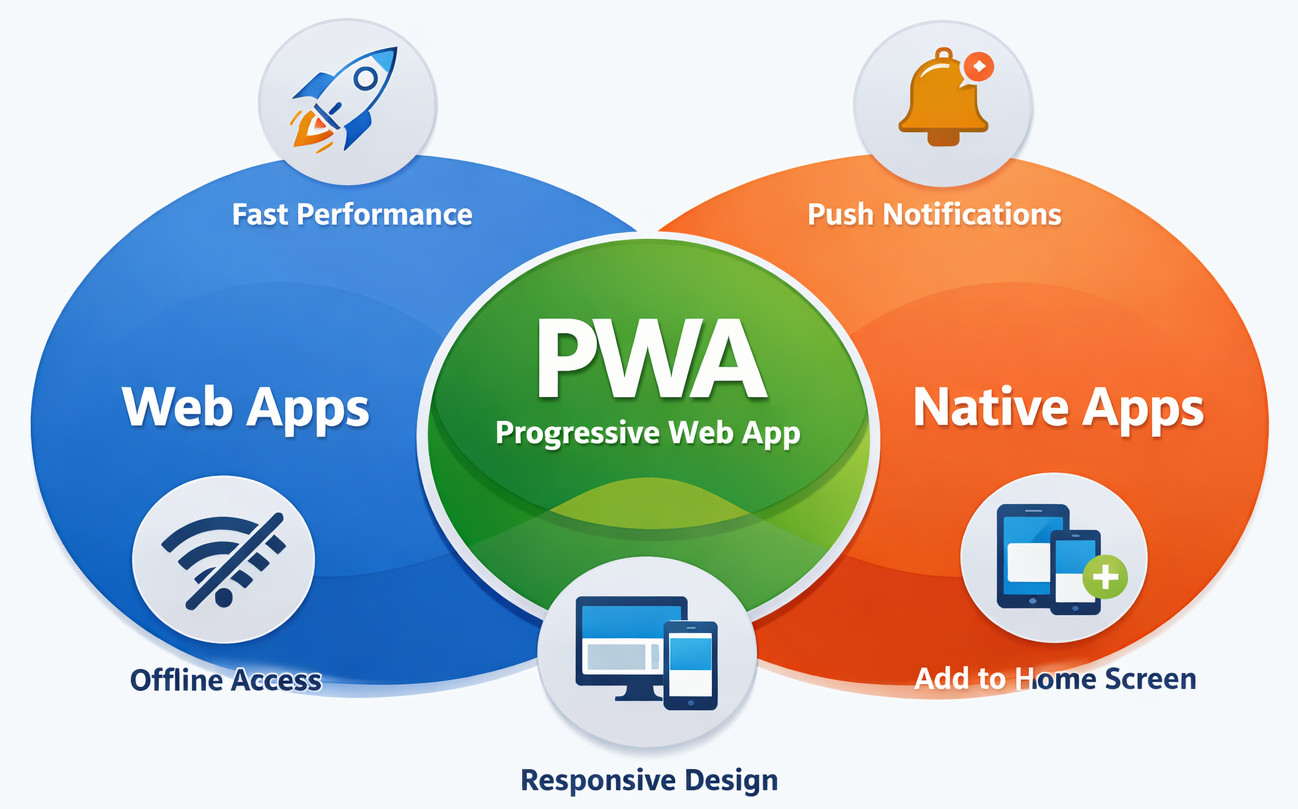
Built right, a progressive web app should run without hiccups, no matter the browser or device it is installed on. Sometimes, slow internet tries to interfere. Still, the app should respond just like any native app would. Testing makes sure of that. Every click, load, and feature gets validated under real-world stress. That way, users stay in control even when signals fade.
- Offline behavior
- Service workers
- Caching logic
- Installability (Add to Home Screen)
- Performance under slow networks
- Using secure connections such as HTTPS
Unlike standard websites, PWAs rely heavily on background processes and browser APIs. Break one piece, and frustration shows up fast.
Why PWA Testing Is Different from Traditional Web Testing
Most older websites expect a steady internet plus an open browser. Not so with progressive web apps. They work either way.
- Load content when the internet is gone
- Sync data later using background sync
- Continue after you shut the browser
So tests should verify more than just taps or screens appearing.
Far from merely validating pages.
You’re testing behavior.
Core Areas of Progressive Web App Testing
PWA Functional Testing
Testing how a PWA works starts by verifying each feature someone can interact with. What matters is whether things respond the right way when used. Every piece that users interact with gets examined for consistent reactions. Function comes first – how it acts under real conditions shapes the review. Behavior must match expectations every time it’s triggered.
- User login and authentication
- Navigation flows
- Data creation and updates
- Form submissions in online and offline modes
Here’s a puzzle: state management. Imagine someone sends a form without internet. Maybe the system holds onto it. Perhaps attempt to resend once back online. Silence could be another outcome. Tough call.
Out in the open, things work differently – testing has to match that. Real conditions demand real checks, nothing less.
Focusing only on the basics won’t catch what real users face. Testing these apps means thinking beyond checklists. A wider view helps spot issues before they grow. Seeing the whole picture makes the results more reliable. Narrow methods miss too much ground.
Read: What is State Transition Testing?
Service Worker Testing
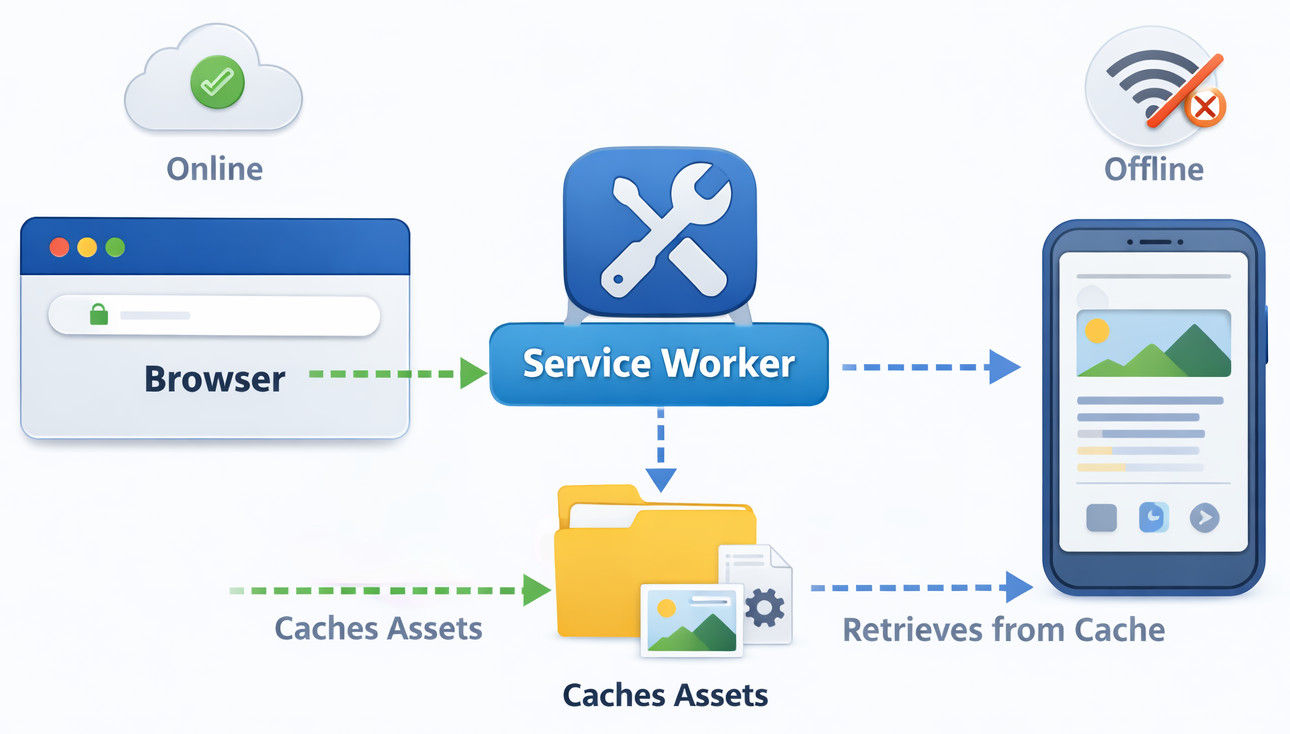
Testing service workers sit right in the middle of checking PWAs. What matters most emerges when these background scripts run through their paces. Every test ties back to how well they handle tasks out of sight.
- Caching behavior
- Offline access
- Background sync
- Push notifications
- Whether the service worker registers correctly
- What happens during updates
- How cached content is refreshed
Small bugs in one spot might show people old information or cause display errors.
Offline Testing PWA
A standout feature of PWAs often trips people up right away: working offline. It draws users in, yet mistakes happen fast.
- Starting up the app while offline
- Navigating cached pages
- Handling actions that require the network
- Clear user messaging when offline
What you do away from screens ought to seem deliberate, never by chance.
Cache Testing (Cache API)
Cache testing using the Cache API ensures that the right files are cached and outdated ones are removed.
- First load vs repeat visits
- Cache updates after deployments
- Cache behavior across browsers
Too much caching hurts just like too little does.
Push Notification Testing PWA
Finding out if a PWA sends alerts is just the beginning of checking notifications.
- Permission prompts
- Delivery timing
- Message accuracy
- Behavior when the app is closed
Push notifications from apps grab attention. If those miss their mark, people spot it right away.
Installability Testing (Add to Home Screen)
A fresh look at installability tests shows how easily someone gets a PWA onto their phone’s main display. Whether it adds on without hassle becomes clear through this check.
- Valid manifest.json
- Correct icons and names
- Proper display mode
- Smooth launch experience
A broken installation process takes away a key strength of the PWA.
Manifest.json Validation Testing
A fresh validation happens on manifest.json to confirm app details fit right. This stage quietly verifies that everything lines up without errors.
- name and short_name
- icons
- start_url
- display mode
Installation might stop without warning if a required field is absent or misconfigured.
PWA Performance Testing and Metrics
- Initial load time
- Repeat visit performance
- Responsiveness under slow networks
Speed matters for PWAs. They should respond quickly despite weak network signals.
Lighthouse PWA Audit
When teams begin assessing speed and standards, they usually start with a Lighthouse PWA review. Sometimes that first look reveals what needs fixing right away. Not every validation begins the same way, yet many circle back to those initial results. What matters most shows up early, though it might take time to notice.
- PWA best practices
- Accessibility
- Performance
- SEO
Though Lighthouse isn’t actual testing, it spots weaknesses sooner. What matters is catching issues before they grow.
PWA Performance Metrics (Core Web Vitals)
- Largest Contentful Paint (LCP)
- Interaction to Next Paint (INP)
- Cumulative Layout Shift (CLS)
Users feel the impact of these numbers when browsing online, while search engines adjust what shows up based on them.
Read: What are the Metrics Needed for Effective Mobile App Testing?
Network Throttling Tests PWA
When testing PWAs, network throttling acts like an unstable or sluggish internet link.
- 3G and low-speed networks
- Intermittent connectivity
- Recovery after reconnection
Users online rarely get flawless connections.
Cross-Platform and UI Validation
Cross-Browser PWA Testing
- Browsers like Chrome stay steady. Safari keeps up without hiccups. Firefox moves at its own pace but holds the line. Edge follows similar patterns across runs
- Browser-specific bugs won’t mess up service workers. Caching keeps working, regardless of which browser runs it
When it comes to browsers, Safari brings its own set of hurdles – ones that demand a closer look.
Read: Cross-browser Testing: Strategies, Tools, and Common Issues
Responsive Testing for PWA
A screen shifts, PWA adjusts without delay. Size changes, interface follows along. Phones, tablets, desktops – each handled quietly. Layout bends but never breaks.
- Mobile phones
- Tablets
- Desktops
- Orientation changes
A well-built PWA fits naturally on any screen. It won’t look distorted or split apart. Smooth edges, clean layout – no awkward gaps. The experience stays intact, no matter the device size.
Read: Responsive Design Testing
Security and Accessibility
Security Testing for PWA (HTTPS, SW Scope)
Running on HTTPS is a requirement for PWAs. There are no exceptions.
- HTTPS enforcement
- Service worker scope restrictions
- Secure storage usage
- API access controls
When service workers stand between an app and the network, weak spots can lead to real trouble.
PWA Accessibility Testing
What tends to slip through the cracks? Accessibility usually does.
- Screen reader compatibility
- Keyboard navigation
- Proper contrast and labels
Everyone ought to access the feel of an app without barriers.
PWA Regression Testing
Fresh updates roll through PWAs all the time. In the shadows, service workers swap out old bits. Meanwhile, browsers tweak how they act.
Because of this, checking PWAs after changes matters a lot.
- Broken offline flows
- Cache issues after updates
- Installability regressions
On its own, manual testing can’t keep up at this level.
Testing PWA Updates and Version Management
Updates in PWAs often go unnoticed but create problems behind the scenes.
A fresh install isn’t needed every time with a PWA. Updates happen behind the scenes through the service worker. Since timing depends on how the system manages background processes, odd bugs might slip in when tests are skipped.
This moment shows why checking things matters so much.
- How the service worker detects updates
- Whether old cached assets are cleared correctly
- What the user sees during the transition
Beyond updates, core functions keep running. When changes roll out, some parts stay reliable. Even if new tweaks arrive, key tools remain active. Following adjustments, essential actions do not fail. After upgrades, vital operations continue working.
It happens more than you’d think – someone sticks with an old version, unaware. At different times, the update kicks in mid-step. Each case chips away at confidence.
- Loading the app while an update is available
- Midway through, a quick reset breathes new life into the moment
- Switching things up – what was once offline now lives online, another update waiting in the wings
Built right into how PWA checks hold up after changes, this test works well when new versions pop up often.
It just works better when automation handles it. Every update gets checked the same way, catching sneaky problems – like glitches in cached data, failed offline features, or layout shifts nobody noticed. The more frequently a team pushes PWA updates, the harder it is to skip this part without regret.
PWA Test Cases and Testing Checklist
Common PWA Test Scenarios
- Load app offline
- Reconnect and sync data
- Update service worker
- Install and launch from the home screen
- Receive push notification
One situation might show one result here, another there. How it runs can shift depending on the browser used. Sometimes things line up, sometimes they do not. What works today could fail tomorrow without warning.
PWA Testing Checklist
- Manifest validated
- Service worker registered
- Offline mode tested
- Performance audited
- Security verified
- Regression tests automated
Mistakes slip through less when a list is there to catch them.
PWA vs Native App Testing
Testing a PWA instead of a native app changes what tools you reach for, along with how deep you go. What matters shifts – not just the checklist.
Native apps:
- Are OS-specific
- Use app store distribution
PWAs:
- Depend on browsers
- Rely heavily on web standards
One way around scattered platforms is PWAs – though that shifts the challenge toward juggling more browser tests. Still, fewer systems mean tighter control up front, just harder checks later on when screens differ too much.
Read: Web, Hybrid, Native Apps: Know the Key Differences for Your Next Project
PWA Testing Tools: Where Automation Fits In
Testing manually can only go so far because apps get updated all the time. Since browsers also roll out changes nonstop, you need tools to help you quickly run tests when any kind of changes hit the system.
Read: Manual Testing vs Automation Testing: What’s the Difference?
- Dynamic UI changes
- Complex test scripts
- Maintenance overhead
That’s when testing tools driven by artificial intelligence begin to shine.
AI-Powered Testing for Modern PWAs
Faster every day, PWAs are reshaping how people interact online. Moving quickly, they adapt to what users actually do. Built around real needs, these sites feel alive.
- Reducing test maintenance
- Supporting faster releases
- Helping teams test behavior, not implementation
When teams create robust PWAs, skipping automation just won’t work these days.
What sets testRigor apart? It uses artificial intelligence to handle automated tests, cutting down complexity. For progressive web apps, that kind of reliability isn’t just helpful – it’s essential. The system builds reliable tests without needing expert coding skills. Simplicity like this changes how teams manage quality.
How testRigor Helps with PWA Testing
- Write tests in plain English
- Automate PWA functional testing without brittle scripts that can include a variety of scenarios, even those involving AI features like chatbots and LLMs
- Run cross-browser and cross-platform PWA testing at scale
- Easily maintain PWA regression testing as the app evolves due to near-zero test maintenance
- Integrate with CI/CD for continuous testing
As updates roll in, tests stay steady without extra effort. With each new version, confidence holds because verification moves at the same pace. Progress doesn’t slow down since test scenarios adapt quietly behind the scenes.
When PWAs evolve now and then, scripts built with rigid code tend to fail. What matters here is how people use the app rather than the changing code-level UI element locators. testRigor’s AI engine uses English descriptions of these UI elements that you see, rather than asking you to give their technicalities. For example, you can simply write ‘click on “login”’ and testRigor will find said login button on the page.
- UI changes slightly, like element position, names, labels, and look and feel
- Content gets refreshed by service workers
- Layouts adapt across devices
With testRigor, speed stays up while tests cover more ground. Teams move fast yet stay thorough.
Conclusion
- Testing a progressive web app involves more than just checking individual pages
- Service workers and offline flows need special attention
- What counts is how well it runs and how easily you get it set up
- Automation is essential for scale
Using smart tools such as testRigor makes checking PWAs easier. Teams stay clear of confusion while getting better results.
Should PWAs shape tomorrow’s web, their reliability hinges on thoughtful testing practices. Stability emerges quietly when attention shifts to how these apps behave under real conditions.
| Achieve More Than 90% Test Automation | |
| Step by Step Walkthroughs and Help | |
| 14 Day Free Trial, Cancel Anytime |