
Live Webinar: How to Select an Automation Tool in the AI Era: Hype vs Reality Register Now.
Turn your manual testers into automation experts!Request a Demo

Release Notes: CI/CD App testing, Browser Certificates

Weekly Newsletter
Receive weekly testRigor newsletters packed with insights on test automation, codeless testing, and the latest advancements in AI.

Run Android, iOS, and Desktop App Tests via TestRigor Command-Line

TestRigor now supports testing Android, iOS, and Desktop applications directly from the command line. Easily upload an app to your Test Suite and trigger a Test Suite Run by adding the –file-path <path to file> parameter to the command.

You can follow the next example to know how to use it:

testrigor test-suite run test_suitee_ID --token XXXXXX-XXXX-XXX-XXX-XXXXXXXX --file-path <local-path-to-file-from-customer>

This functionality simplifies app testing across platforms, making it easy to automate and integrate with your CI/CD processes.

Key points

Enable Parallel Processing in TestRigor CLI

By default, TestRigor CLI runs with parallel processing disabled. To activate parallel execution, specific settings must be provided during the command execution:

  • First, create a json file like this:

    {
        "useParallelCombinator": true
    }
  • Save it as you prefer (I.e.,: settings.json).

  • Then you need to add it as a parameter when calling the testrigor-cli:

    testrigor test-suite run $TESTRIGOR_SUITE_ID \
              --token $TESTRIGOR_TOKEN \
              --file-path $IPA_FILE \
              --settings-path <path to settings.json>

And that’s it, the execution will consume the number of servers configured.

Asynchronous Testing in TestRigor for GitHub Builds

Concerned about GitHub builds failing if a single test case from a run fails? With TestRigor, you can enable asynchronous testing to avoid such delays. Simply use one of these flags: -w, –async, -w, --async or --nowait at the end of your command to make your tests run asynchronously:

testrigor test-suite run $TESTRIGOR_SUITE_ID \
          --token $TESTRIGOR_TOKEN \
          --file-path $IPA_FILE \
          --settings-path <path to settings.json> \
          --nowait

For more information, please refer to documentation.


Start Browser with TLS Certificate

TestRigor now supports pre-selecting a client TLS certificate when launching a new browser session with the start browser command  (NOTE: This feature is currently available only on Google Chrome for Windows):

start browser "User 2" with cert from filename "cert2.pfx"
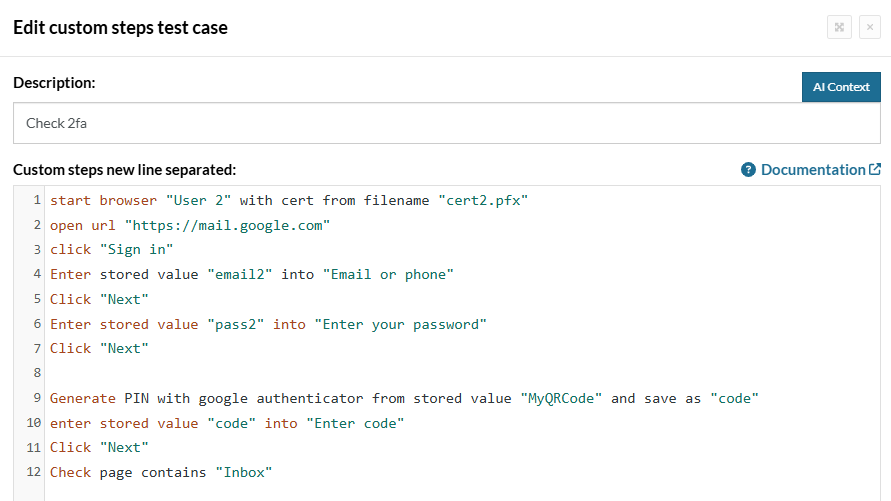
Caption: Certificate command.

You can add your certificate in Settings -> Advanced:

Caption: Certificate Settings.

For more information, please check documentation.

Related Articles

Release Notes: Native Date Handling, Override Chrome Extension

Native Support for Date and Time Operations testRigor now supports native date and time handling with new built-in variables and ...

Release Notes: Version Control, Rerun Failed, Team Folders

Version Control for Test Cases This feature introduces test case versioning, similar to the existing functionality for rules, ...

Release Notes: New Setting for Finding Tables

New Setting for Finding Tables This update introduces a condition-based table search strategy to improve table detection ...
Privacy Overview
This site utilizes cookies to enhance your browsing experience. Among these, essential cookies are stored on your browser as they are necessary for ...
Read more
Strictly Necessary CookiesAlways Enabled
Essential cookies are crucial for the proper functioning and security of the website.
Non-NecessaryEnabled
Cookies that are not essential for the website's functionality but are employed to gather additional data. You can choose to opt out by using this toggle switch. These cookies gather data for analytics and performance tracking purposes.