
Release Notes: Email Attachments, Better Label Filtering
 |
Open Email Attachments
In testRigor, it is now possible to go beyond checking if an email was successfully delivered. You can verify the actual content of its attachments directly within your tests. Previously, only delivery verification was available. This update introduces the new command open email attachment, which allows you to specify the name of an attachment and open it for inspection. Once executed, testRigor renders the attachment content as HTML so you can test whether specific text or elements are present.
This capability supports multiple file types, including TXT, CSV, PDF, and DOCX. For CSV files, data behaves like tables, allowing you to check specific rows and columns. For example, you can verify that a particular row contains a value or that a specific column matches your expected result. All text comparisons are case-insensitive, meaning testRigor will match text even if the case differs between your test and the attachment.
check that email to "[email protected]" was received and attachment "file.pdf" contains "word"
check that email to "[email protected]" was received and attachment "file.csv" at row contaiing "peter" and column "last name" contains "Johnson"
open email attachment "file.txt" // Use when already inside the email view
This new functionality greatly improves test coverage for email validations, enabling you to confirm both delivery and attachment content with accuracy and flexibility inside testRigor.
Enhanced Label Filtering
The new label filtering feature in testRigor allows you to precisely filter test cases based on multiple label conditions. For example, if you have labels such as A, B, and C, you can now use logical operators to find the exact test cases that match your desired combination.
Previously, filtering could only be done by selecting a single label, such as A or B, and manually reviewing the resulting list to find overlapping test cases. With this update, you can use the new AND, OR, and NOT operators to refine your results accurately.
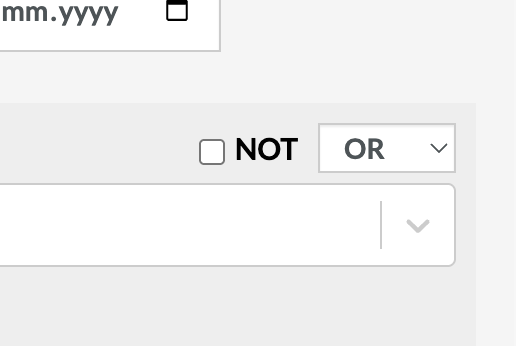
Caption: New boolean operators for better label filtering.
By applying the AND operator, you can narrow down your view to test cases that include both labels A and B. The NOT operator helps you exclude specific labels, such as retrieving every test case that does not contain label C. You can also combine these operators in flexible ways to tailor your filter logic to complex scenarios.
This enhancement streamlines test discovery, reduces manual effort, and makes it easier to manage large test suites effectively within testRigor.