
How to Utilise testRigor’s MCP Server
 |
Set up
Generating PAT
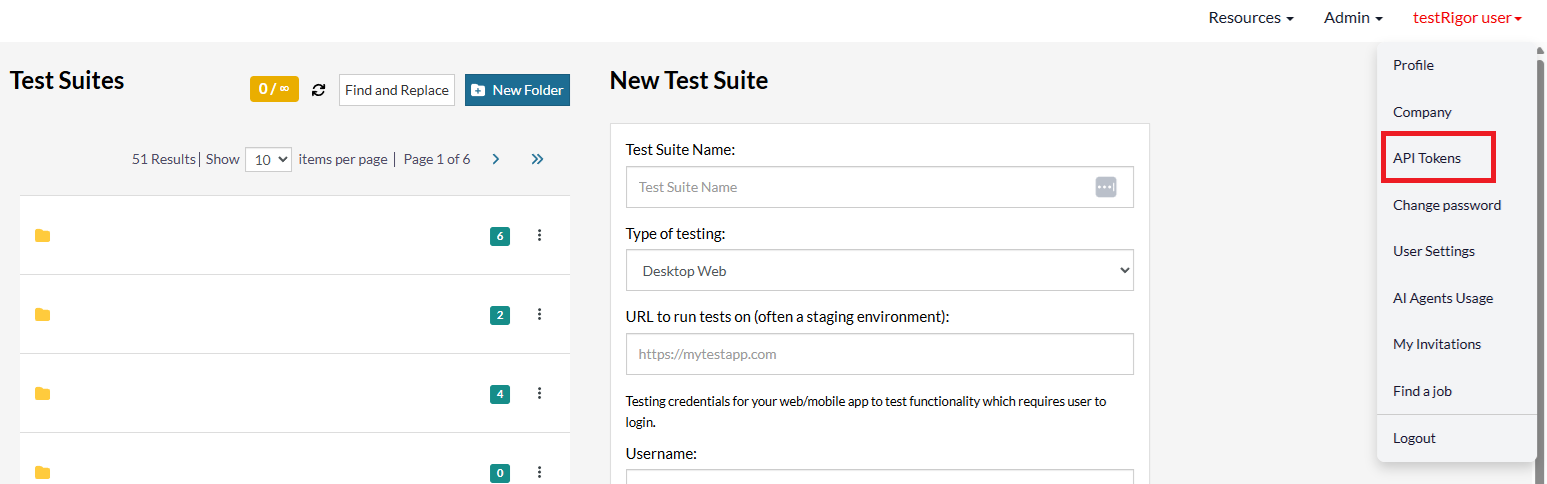
In order to access the MCP feature we must generate a PAT token, to do so first we require to access testRigor’s app homepage, click our username, then click “API Tokens”.
Once we’re PAT page we must click on on the click “Generate a new token”.
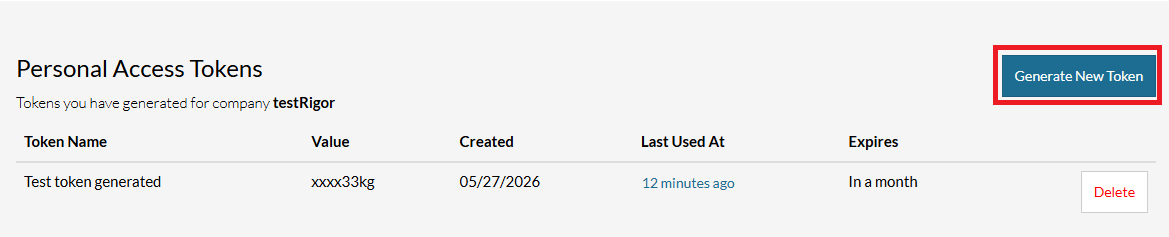
Once the PAT has been successfully generated all that is left is to do is to properly configure the MCP server on the target MCP-compatible tool, below we’ll show how to perform this configuration on Claude code and Cursor.
Configuration using Claude Code
For Claude Code we must issue the following command on the command line:
claude mcp add --transport http testrigor https://api2.testrigor.com/api/v1/mcp --header "personal-access-token: <your-token>" -s user
After that, you can run claude then start making queries, for example list all the test suites:
claude
▗ ▗   ▖ ▖  Claude Code v2.1.140
           Opus 4.7 (1M context) with xhigh effort · API Usage Billing
  ▘▘ ▝▝

❯ /mcp
  ⎿  MCP dialog dismissed

❯ list all my test suites in testrigor

  Called testrigor (ctrl+o to expand)

⏺ Here are your testRigor test suites (50 total):

  ┌─────┬───────────────────────────────────┬───────────────────────────────┐
  │  #  │              Name                 │             Type              │
  ├─────┼───────────────────────────────────┼───────────────────────────────┤
  │ 1   │ my first test suite 01            │ WEB_DESKTOP_CHROME_WINDOWS_10 │
  ├─────┼───────────────────────────────────┼───────────────────────────────┤
  │ 2   │ TestRigor Table                   │ WEB_DESKTOP_CHROME_MAC        │
  ├─────┼───────────────────────────────────┼───────────────────────────────┤
  │ 3   │ Test Case Training Tests          │ WebDesktopChrome              │
  ├─────┼───────────────────────────────────┼───────────────────────────────┤
...
Configuration using Cursor
To set up the MCP server on Cursor we must go to Cursor settings, then click on “Add Custom MCP”:
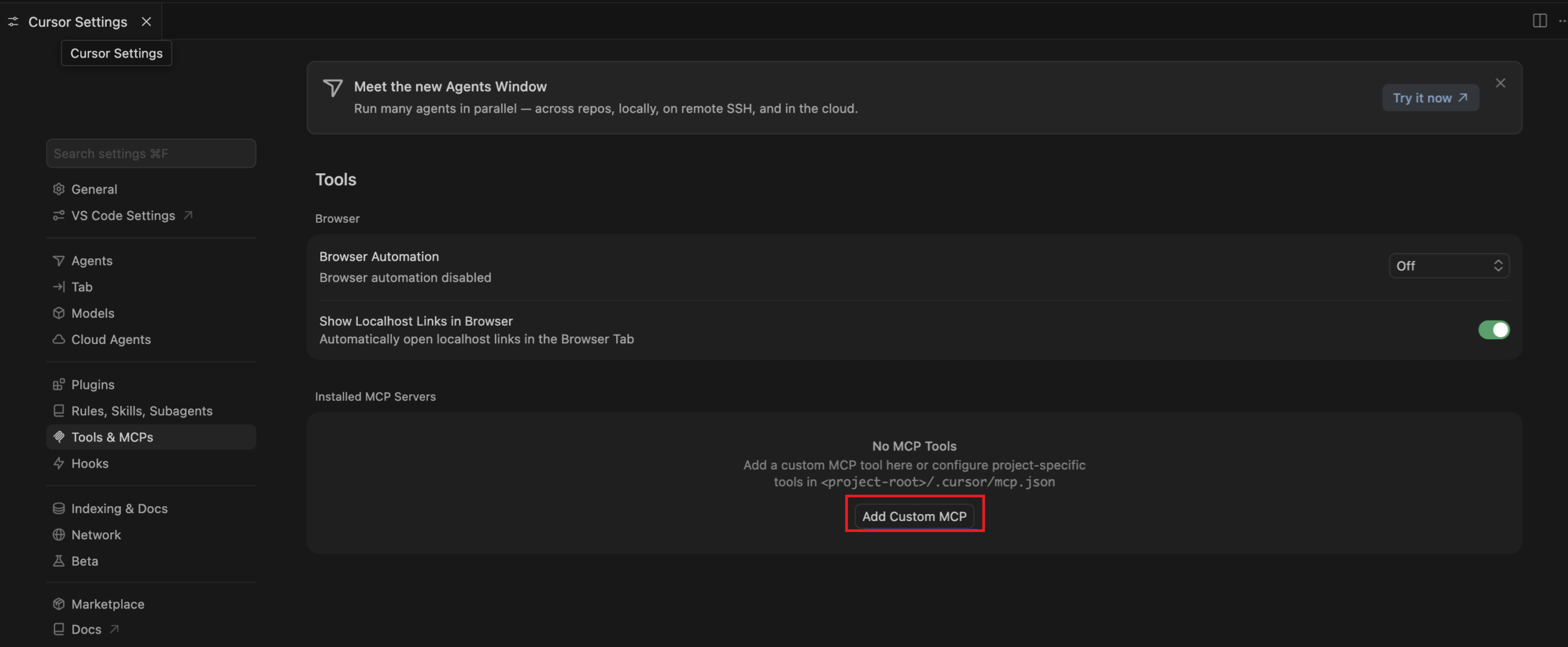
The file “mcp.json” will open, we must update it as follows:
{
  "mcpServers": {
    "testrigor": {
      "url": "https://api2.testrigor.com/api/v1/mcp",
      "headers": {
        "personal-access-token": ""
      }
    }
  }
}
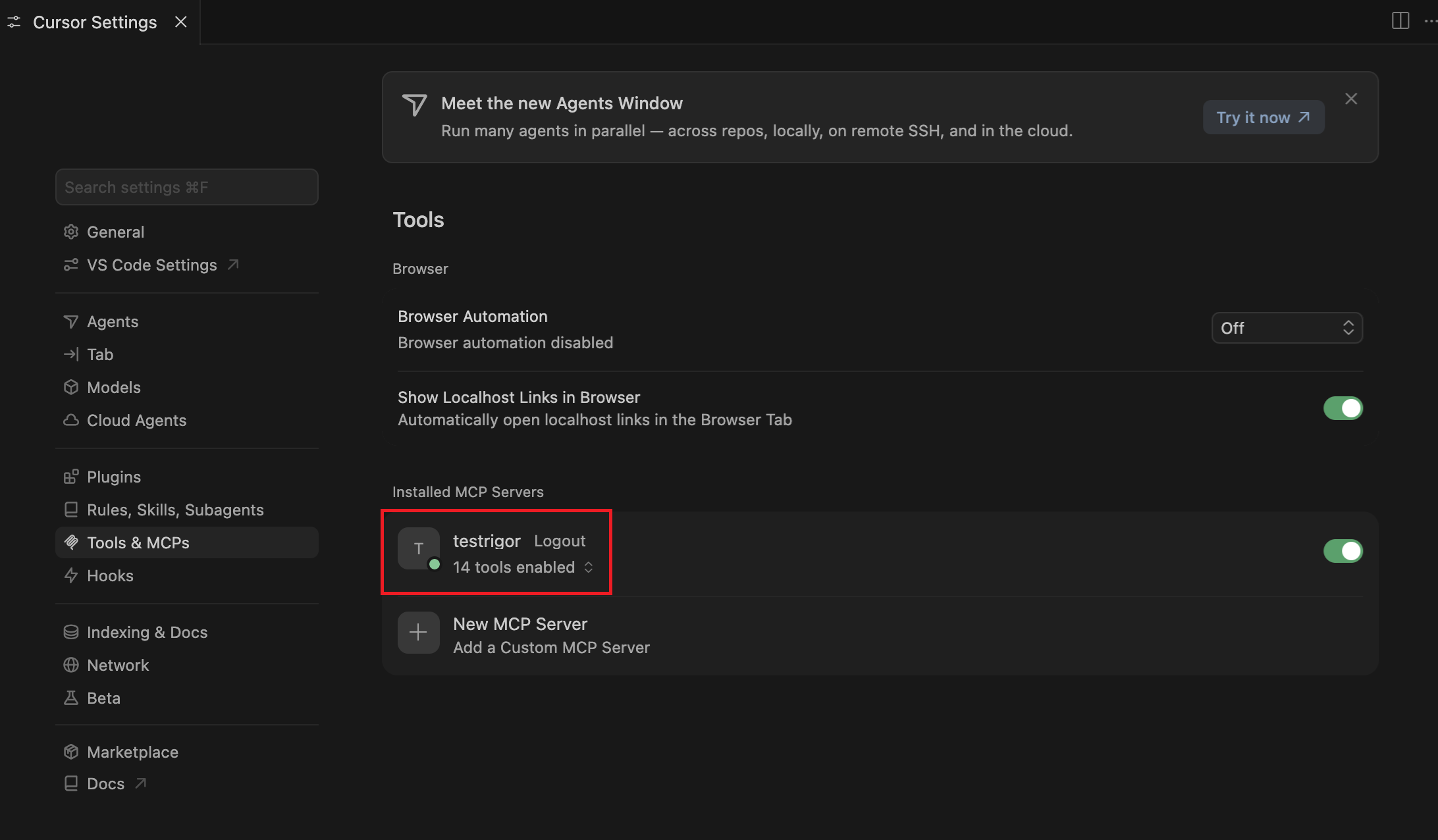
Once that has been done you should be able to see testRigor listed under “Installed MCP Servers”. You should now be able to start making queries.
Available tools
The testRigor MCP server provides these following tools:
- List test suites: this will provide a list of all the test suites that were made.
- Get test suite: this tool will provide the details for a specific test suite in particular.
- List test cases: this will list the test cases that are contained inside a test suite.
- Get test case: used to extract specific information about a particular test case (the description, UUID, steps, etc).
- Create test case: create a new test case from plain-English steps
- Update test case steps: update the steps of an existing test case
- List global variables: list global variables in a suite (also called “Test Data” in the UI).
- Get global variable: get a single global variable by key.
- Create global variable: create a new global variable in a suite.
- Update global variable value: replace the value of an existing global variable.
- Get file upload URL: get a one-time URL to upload a file to, for use as a FILE-type global variable or data set value.
- Create certificate global variable: create a CLIENT_CERTIFICATE-type global variable from a .pfx certificate’s content.
- Update certificate global variable: replace an existing CLIENT_CERTIFICATE-type global variable’s certificate.
- Rename global variable: rename a global variable by key; rejected by default if still referenced by a test case or rule, unless told to update every reference automatically or to rename anyway.
- Delete global variable: delete a global variable by key; rejected by default if still referenced by a test case or rule, unless told to delete anyway.
- List data sets: list data sets in a suite (schema and row count summaries).
- Get data set: get a data set’s full schema and row values.
- Create data set: create a new data set, optionally with variables and rows.
- Add data set rows: add new rows to an existing data set.
- Update data set rows: update existing rows in a data set by row id.
- Add data set variable: add a new variable (column) to an existing data set.
- Update data set: rename a data set and/or update its description.
- Delete data set rows: delete one or more rows from a data set.
- Rename data set variable: rename a variable (column) on a data set.
- Delete data set variable: delete a variable (column) from a data set.
- Delete data set: delete a data set.
- Unlink data set from test case: remove a data set’s link from a test case without deleting the data set.
- List rules: list reusable rules in a suite, or all rules used by a specific test case.
- Get rule: get a single reusable rule by name.
- Create rule: create a new reusable rule, optionally inside a folder.
- Update rule steps: replace the steps of an existing reusable rule.
- Rename rule: rename a reusable rule.
- Delete rule: delete a reusable rule by name.
- List rule folders: list rule folders in a suite.
- Get rule folder: get a single rule folder’s details.
- Create rule folder: create a new rule folder, optionally inside a parent folder.
- Rename rule folder: rename an existing rule folder.
- Move rule folder: move a rule folder to a new parent folder (or to the root).
- Delete rule folder: delete an empty rule folder.
- Move rule: move a reusable rule to a different folder (or to the root).
- List test case runs: this will list all the test suite runs that were performed on a particular test suite.
- Run test cases & Get run: you can use this to list the test cases that you wish to run in a particular test suite then get their status after the run is finished.
- Run green regressions: used to run only those test cases that were previously marked as passed.
- Execute supplied test steps: this will execute test steps on a given test suite.
- List run test cases: it will provide a list of all the test cases that were ran on a particular test suite run.
- List run failures: will only provide the failures that occurred on a given test suite run.
- Get execution details: this will show the the execution details for a particular test case, detailing what action was performed on each step.
- List runs: this will provide a list of all the test suite runs that were performed on a particular test suite.
- Get run: This will provide specific information about a test suite run (Status, Branch, App URL, time created, etc).
- Cancel task: this will abort any tasks (test suite runs, test case executions) that are currently in progress.
Usage example on Claude code
Having already configured our MCP server we could issue queries as follows:
check the execution status for the last test case in this suite
Then we’ll get the detailed output of each action that was performed on that test case:
Execution details for live-session-1779808877753 — the only test case in the latest Support learning run
  (evMtjzQP5qjxw9g9C, 2026-05-26, 16m 49s total, Failed).

  This was clearly a live-session / interactive exploration, not a normal scripted test — 37 steps, many retries of
  the same action against a PDF in the browser (api.printnode.com/.../multipage.pdf).

  ┌──────┬──────────────────────────────────────────────────────────┬────────────────────────────────────────────┐
  │ Step │                       Description                        │                   Status                   │
  ├──────┼──────────────────────────────────────────────────────────┼────────────────────────────────────────────┤
  │ 1    │ (init)                                                   │ ✓                                          │
  ├──────┼──────────────────────────────────────────────────────────┼────────────────────────────────────────────┤
  │ 2    │ open url ".../multipage.pdf"                             │ ✓                                          │
  ├──────┼──────────────────────────────────────────────────────────┼────────────────────────────────────────────┤
  │ 3    │ (load)                                                   │ ✓                                          │
  ├──────┼──────────────────────────────────────────────────────────┼────────────────────────────────────────────┤
  │ 4    │ click exactly "1" using OCR only                         │ ❌ Can't find button '1'                   │
  ├──────┼──────────────────────────────────────────────────────────┼────────────────────────────────────────────┤
  │ 5    │ click exactly "1" using OCR only using the mouse         │ ❌ Can't find button '1'                   │
  ├──────┼──────────────────────────────────────────────────────────┼────────────────────────────────────────────┤
  │ 6    │ click "1" using OCR only using the mouse                 │ ✓                                          │
  ├──────┼──────────────────────────────────────────────────────────┼────────────────────────────────────────────┤
  │ 7    │ (post-click)                                             │ ✓                                          │
  ├──────┼──────────────────────────────────────────────────────────┼────────────────────────────────────────────┤
  │ 8    │ click exactly "1" using OCR only using the mouse         │ ❌ Can't find button '1'                   │
  ├──────┼──────────────────────────────────────────────────────────┼────────────────────────────────────────────┤
  │ 9    │ scroll down using the mouse until page contains "7"      │ ✓                                          │
  │      │ using OCR only                                           │                                            │
  ├──────┼──────────────────────────────────────────────────────────┼────────────────────────────────────────────┤
  │ 10   │ enter "7" into "pageSelector"                            │ ❌ Can't find input 'pageSelector'         │
  │      │                                                          │ (CRITICAL)                                 │
  ├──────┼──────────────────────────────────────────────────────────┼────────────────────────────────────────────┤
You're 15 Minutes Away From Automated Test Maintenance and Fewer Bugs in Production
Simply fill out your information and create your first test suite in seconds, with AI to help you do it easily and quickly.
| Achieve More Than 90% Test Automation | |
| Step by Step Walkthroughs and Help | |
| 14 Day Free Trial, Cancel Anytime |

“We spent so much time on maintenance when using Selenium, and we spend nearly zero time with maintenance using testRigor.”
Keith Powe VP Of Engineering - IDT