
Mattermost Testing: How to Test Your Team Communication with testRigor
 |
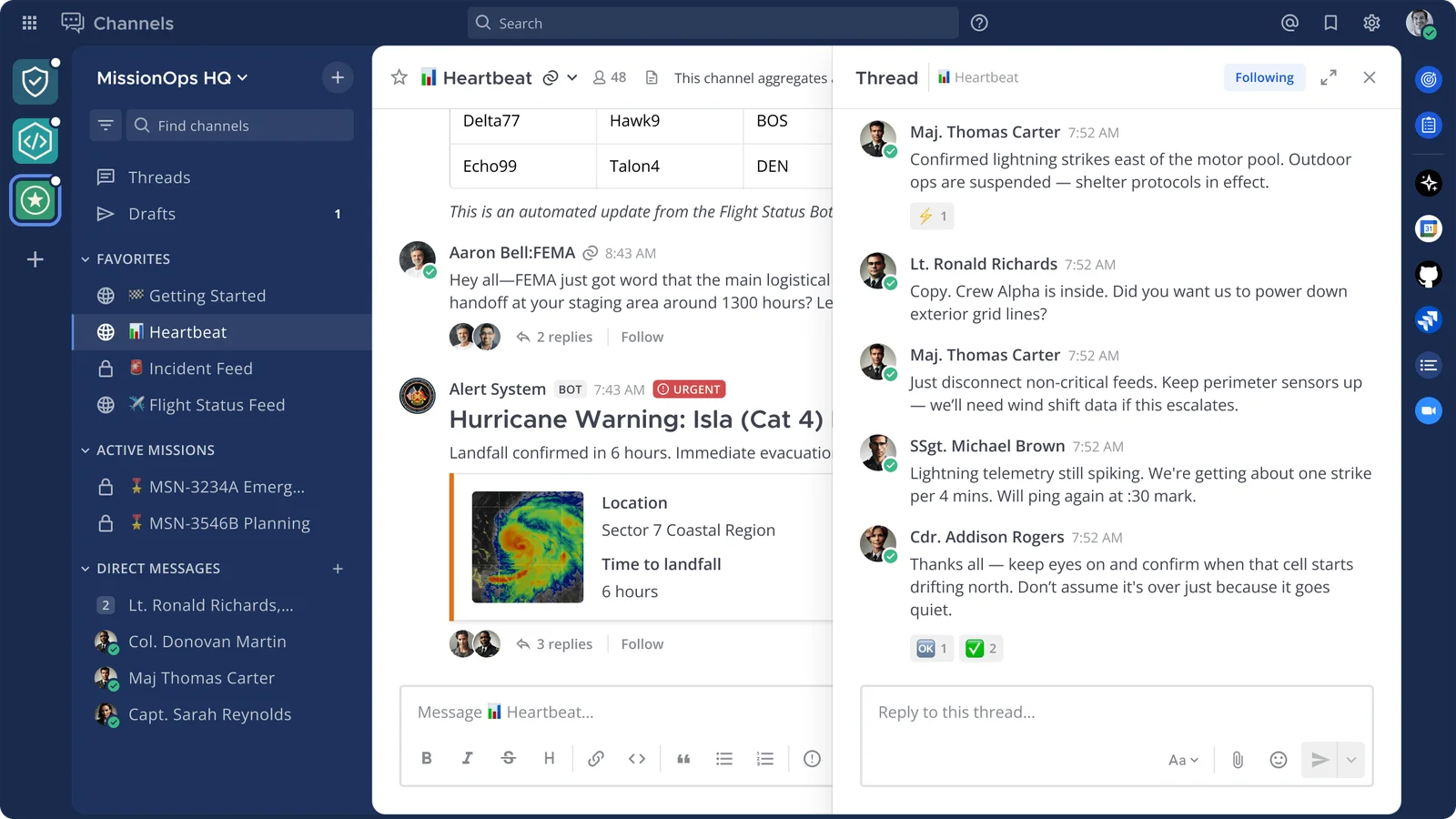
Mattermost is an open-source collaboration platform that helps teams communicate through channels, direct messages, mentions, and notifications. Mattermost testing helps verify that these everyday workflows remain dependable. A working login page is not enough: a message must reach the right person, a new channel must be discoverable, and access restrictions must behave as administrators expect. Imagine that a team member sends an urgent direct message. The sender sees it in the conversation, but the recipient never sees the message. Or an administrator deactivates an account, yet that person can still sign in. Both problems directly affect how the organization communicates and manages access. Mattermost testing should protect these complete user journeys, not just isolated buttons. This guide explains the relevant testing layers and walks through real-world scenarios using testRigor’s plain-English test automation. The examples draw on a Mattermost community pull request proposing testRigor end-to-end tests. The proposal was closed without being merged, so these are contributed examples rather than part of Mattermost’s official test suite.
What Should Mattermost Testing Cover?
The most useful tests follow the actions people perform in a real workspace:
- Channel creation and membership: Can one person create a channel and another person find and join it?
- Messages and direct conversations: Do messages remain available when participants change sessions?
- Mentions and notifications: Can someone find a message addressed to them, and do notification preferences have the intended effect?
- Reactions and custom status: Do collaborative signals appear to other users?
- User access and deactivation: Does a deactivated account lose access, and can an administrator restore it?
- Profile and channel settings: Are important settings visible and are shared channel headers updated correctly?
The priorities depend on how your organization uses Mattermost. A workspace coordinating incident response may place messaging and mentions first. A heavily managed deployment may place account deactivation and permissions at the top of the list.
What Mattermost Already Tests, and What It Does Not
Mattermost has an established automated testing approach. Its web app unit-testing documentation describes Jest and React Testing Library for components and utilities. Its web app E2E documentation describes Cypress and Playwright, including tests for features and bug fixes. Those checks are important, and testRigor does not replace them. However, source-code tests and repository pipelines cannot, by themselves, guarantee that every workflow works in your configured workspace. An organization may use different authentication settings, extensions, roles, or notification preferences. Even when individual components are correct, an actual two-person conversation may reveal a problem at the point where one user expects to see another user’s action. The goal is to complement existing quality checks with a small, dependable regression suite that interacts with the interface in the same way as your users.
Unit Testing in Mattermost
Unit tests examine a component or function in isolation. For instance, a developer can test how a message-related component renders a particular state or how a utility transforms input. Mattermost documents Jest and React Testing Library as part of this work. Unit tests provide quick feedback during development. What they do not prove is that a message posted by one account can be found by a different account after a sign-out and sign-in cycle. That requires testing a broader flow.
Integration Testing in Mattermost
Integration testing checks the boundaries between parts of the application. In a collaboration platform, important boundaries include authentication and account state, server-side message storage, the web client, and any enabled external identity or notification integrations. For example, an integration test could verify that an account-state change is enforced by the relevant services. A user-facing E2E test takes this further: an administrator deactivates the account, the affected user attempts to sign in, and the interface displays the expected denial. Both layers are useful, but they answer different questions.
End-to-End Mattermost Testing
End-to-end (E2E) testing checks a complete workflow through the application interface. A simple Mattermost journey looks like this: User A signs in → starts a direct message → sends a message → User B signs in → opens the conversation → sees the message. This sequence checks far more than whether a Send action is clickable. It crosses user sessions and validates a result the recipient can actually observe. Other useful journeys include creating a channel and joining it from a second account, or changing a custom status and confirming another member sees it.
Choosing an E2E Testing Tool
testRigor
testRigor lets teams express browser tests using plain-English actions and assertions. Business users, QA engineers, and developers can read a flow without interpreting a framework-specific script. Repeated actions can be grouped into Reusable Rules. UI labels still need verification, and every test needs suitable data and a repeatable environment.
Cypress
Mattermost’s own E2E contributor guide documents Cypress-based tests. It is a natural choice for teams extending the project’s existing automated test infrastructure and comfortable writing TypeScript tests.
Playwright
Mattermost also documents Playwright as part of its web-app testing approach. It provides code-driven browser automation and suits development teams maintaining automated checks alongside their application code.
Selenium
Selenium remains another general browser-automation option for teams with an existing WebDriver stack. It offers programming-level control, but teams must maintain the corresponding scripts and element interactions. The right choice depends on the skill set of the people responsible for keeping the tests reliable.
Mattermost Testing with testRigor: How to Perform End-to-End Tests
The example below focuses on a direct message shared between two users. It is based on the test case in the proposed testRigor contribution, with the actions presented as written in that proposal. It is a useful starting point, but you must adapt account names, labels, and helper rules to your own instance.
Setting Up a Safe Mattermost Test Environment
Use a staging server or another non-production Mattermost instance. The tests create conversations, change settings, and—in one of the additional scenarios—temporarily deactivate an account. Running them against real employee accounts would create avoidable disruption. Prepare an environment that matches the behaviors you want to protect: relevant permission settings, authentication method, channels, notification configuration, and any integrations involved in the chosen journeys. Keep messages and user data synthetic. Where possible, give each test its own data and restore the environment after it runs.
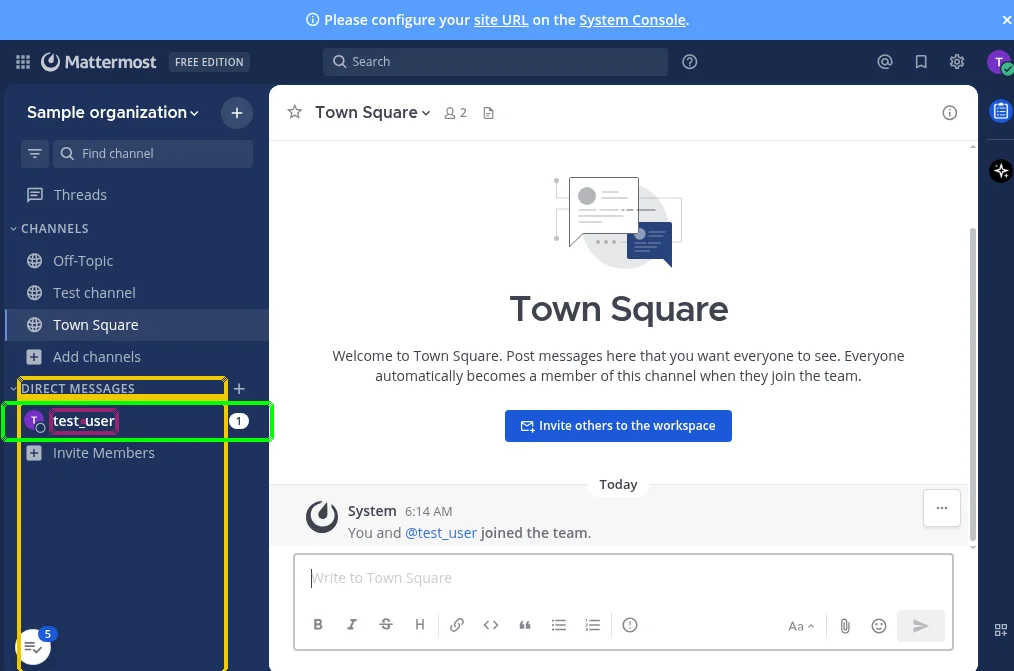
Test Accounts and Data
The contributed scenarios refer to two accounts, test_admin and test_user. These names come from the pull request; they are not credentials for your deployment. Configure equivalent accounts in your staging environment and give them the permissions required by each scenario.
| Test data | Purpose | Setup |
|---|---|---|
test_user |
Creates messages and channels | Standard test member with access to the test team |
test_admin |
Checks another user’s results and tests administrative actions | Dedicated administrator account in staging |
hello! |
Sample direct-message text | Replace with unique content if tests may overlap |
| Test team and channel | Shared starting point | Ensure both users can access the intended workspace |
| Authentication details | Allows switching accounts | Store securely in testRigor settings or approved test data; never publish passwords |
Some contributed steps use phrases such as log in user "test_user", send message "hello!", and delete message "hello!". These are business-level helpers in the example, but their definitions are not included in the pull-request diff. Before copying the test, confirm that your testRigor suite defines equivalent Reusable Rules or replace them with verified steps for your login and message interfaces.
Step 1: Create a testRigor Test Suite
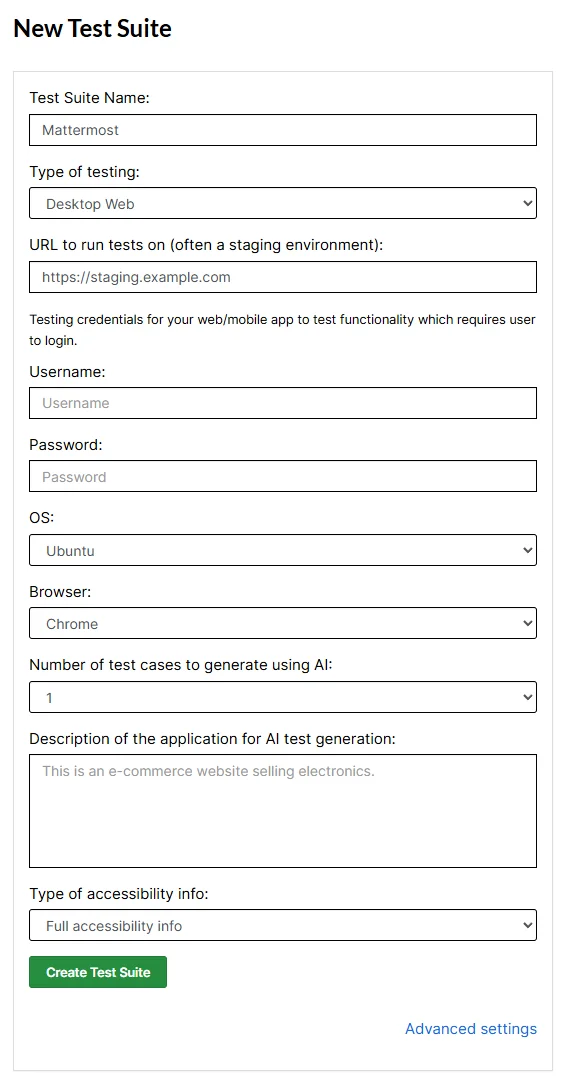
- Sign in to testRigor and create a new test suite.
- Choose Desktop Web Testing for the browser-based Mattermost interface.
- Enter your staging Mattermost URL. For a private or locally hosted server, make sure testRigor can reach it using the connectivity option appropriate to your environment.
- Select the desired browser and operating system. Add test authentication settings where appropriate.
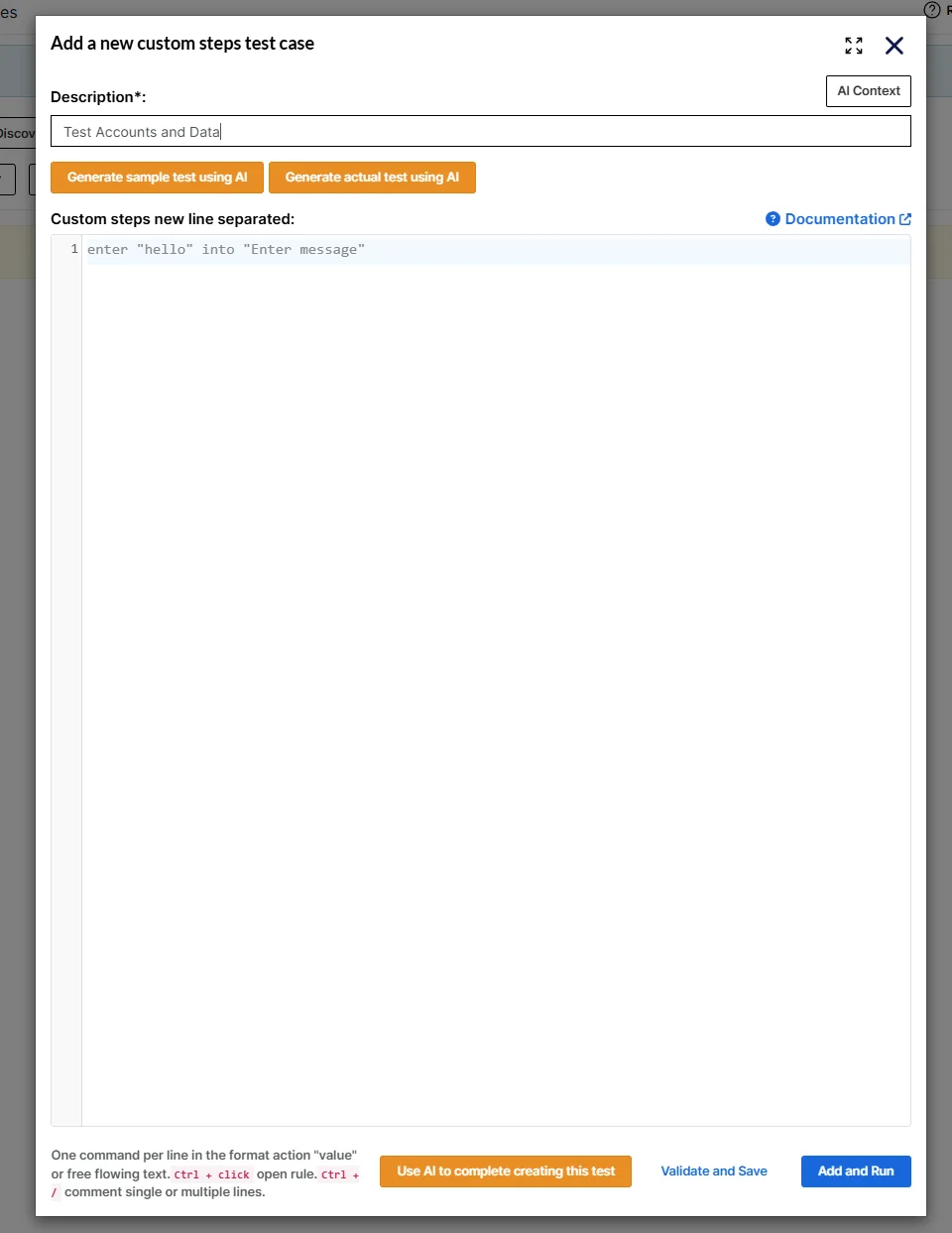
- Create the suite, then add a custom test case instead of depending on automatically generated steps for this walkthrough.
Step 2: Open a Direct Message and Send a Message
The first user begins a direct conversation with the second user. In the contributed test, the user searches for @test_admin, opens the conversation, and sends hello!.
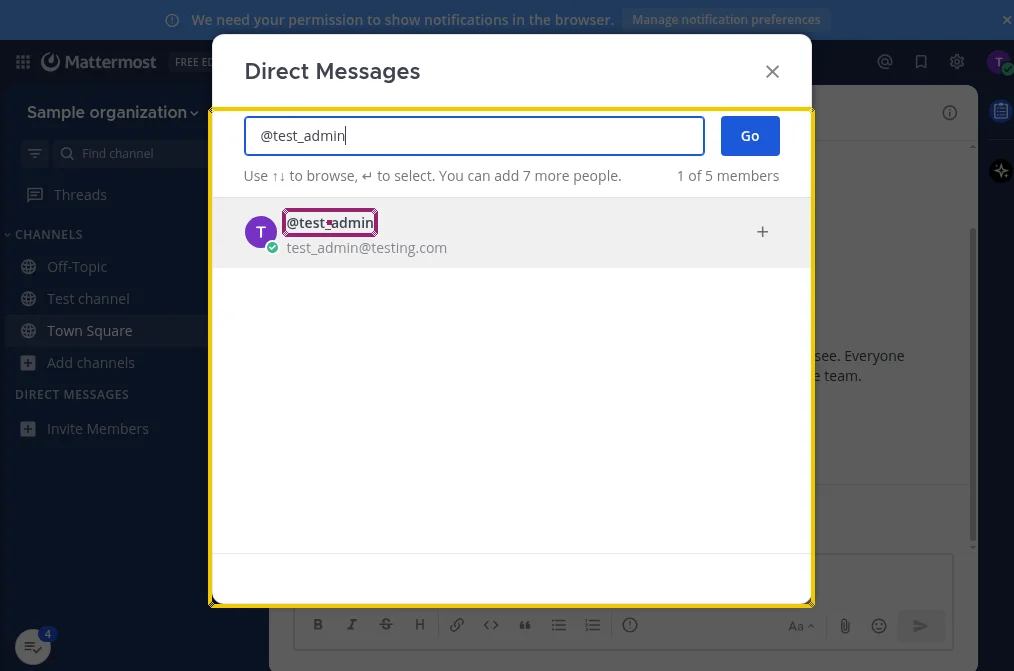
log in user "test_user"
click "Write a direct message"
click "Search for people"
type "@test_admin"
check that "GenericModal__body" contains "@test_admin"
click "test_admin"
click "Go"
send message "hello!"
The GenericModal__body reference appears in the contribution, but it is implementation-oriented rather than a stable user-visible label. If the same dialog is identifiable through visible text in your version of Mattermost, prefer a verified user-facing reference.
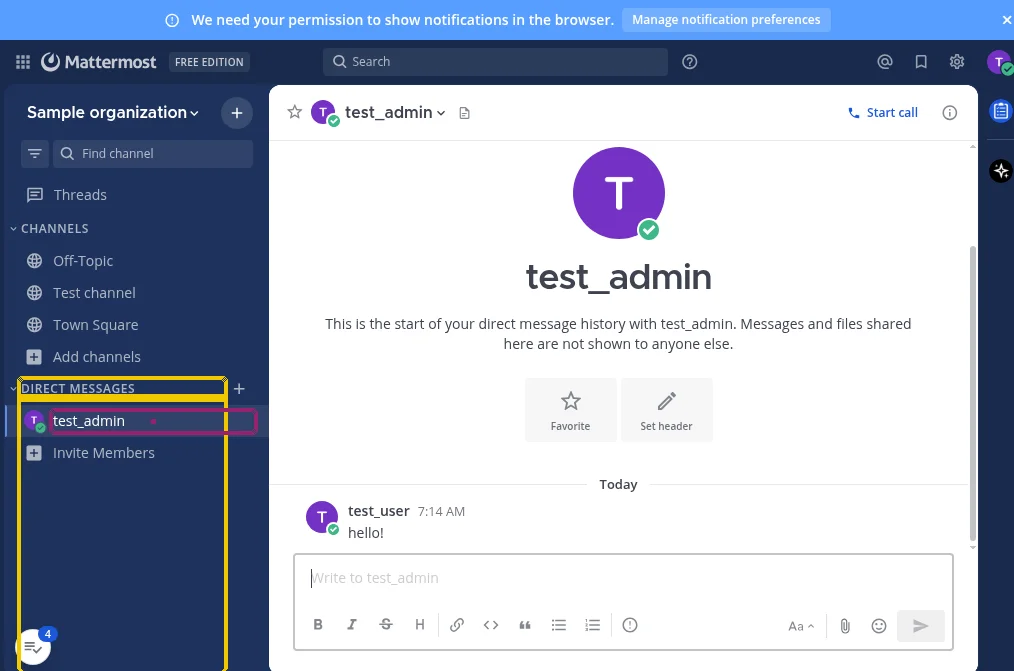
Step 3: Switch Users and Verify the Message
hover over "test_admin" below "DIRECT MESSAGES"
click "Channel options"
click "Close Conversation"
log out
log in user "test_admin"
check that page contains "test_user" below "DIRECT MESSAGES"
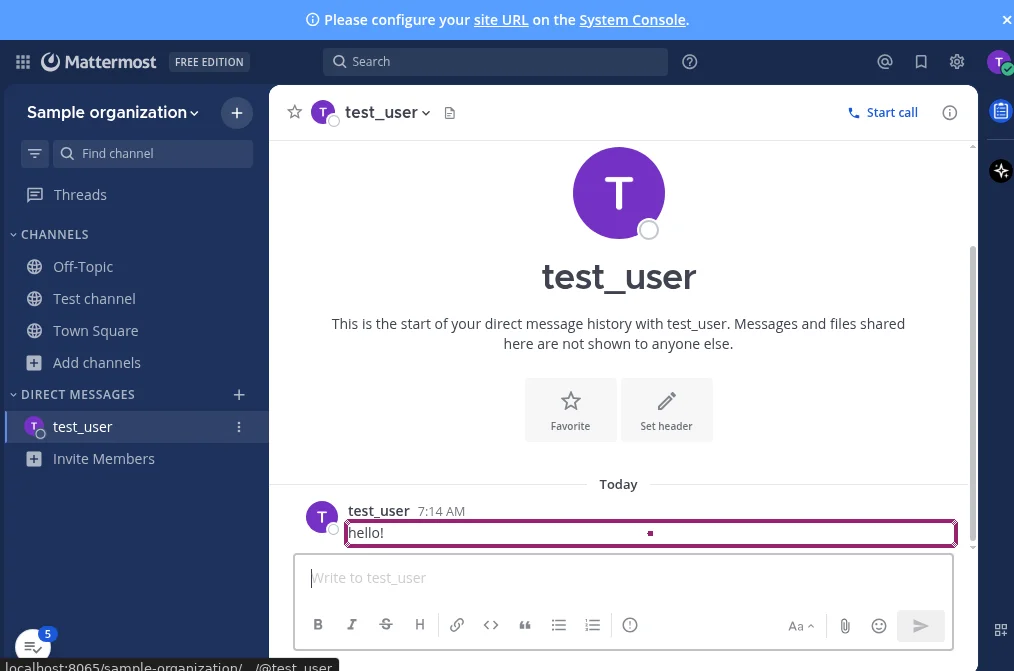
click "test_user" below "DIRECT MESSAGES"
check that page contains message "hello!"
This is the critical assertion: it verifies the experience from the recipient’s account, rather than relying only on a success state shown to the sender.
Step 4: Clean Up Test Data
delete message "hello!"
check that page contains "test_user" below "DIRECT MESSAGES"
hover over "test_user" below "DIRECT MESSAGES"
click "Channel options"
click "Close Conversation"
Complete Test Case
log in user "test_user"
click "Write a direct message"
click "Search for people"
type "@test_admin"
check that "GenericModal__body" contains "@test_admin"
click "test_admin"
click "Go"
send message "hello!"
hover over "test_admin" below "DIRECT MESSAGES"
click "Channel options"
click "Close Conversation"
log out
log in user "test_admin"
check that page contains "test_user" below "DIRECT MESSAGES"
click "test_user" below "DIRECT MESSAGES"
check that page contains message "hello!"
delete message "hello!"
check that page contains "test_user" below "DIRECT MESSAGES"
hover over "test_user" below "DIRECT MESSAGES"
click "Channel options"
click "Close Conversation"
For a long-lived suite, consider generating unique message content, testing the conversation in an isolated workspace, and implementing cleanup that also runs after an unsuccessful test. The short literal hello! is appropriate for illustrating the contributed case, not necessarily for running tests concurrently.
Execution Results
After running the test in testRigor, inspect its status, the step-by-step execution record, screenshots, error messages, and logs. These details help identify whether a failure happened during login, recipient selection, message delivery, or verification. The testRigor documentation explains how to work with the platform and its language. A public example suite and a separate suite referenced in the pull request are available as references. The pull request also links to an example execution.
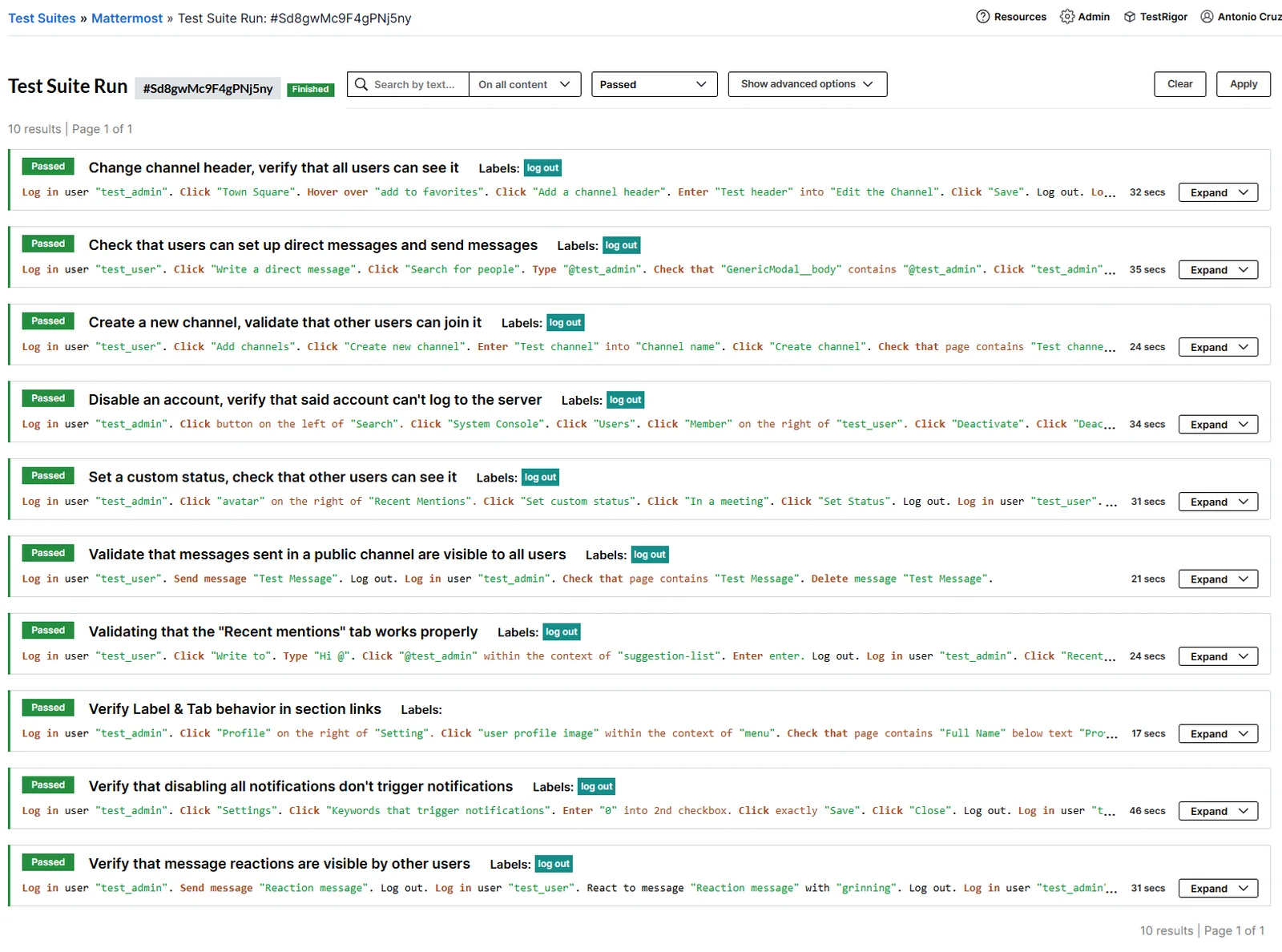
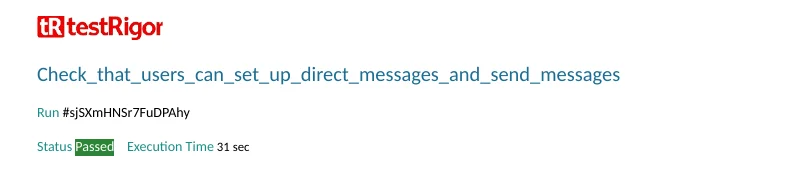
The exported direct-message execution report records a Passed result and an execution time of 31 seconds. A passing result in one environment does not guarantee the same result in another Mattermost environment.
High-Value Mattermost Testing Scenarios
A direct-message test is a useful start, but it does not protect the entire workspace. The contributed pull request includes ten sample cases across communication and administration. The following are especially useful for building a prioritized regression suite.
Verify Channel Creation and Membership
log in user "test_user"
click "Add channels"
click "Create new channel"
enter "Test channel" into "Channel name"
click "Create channel"
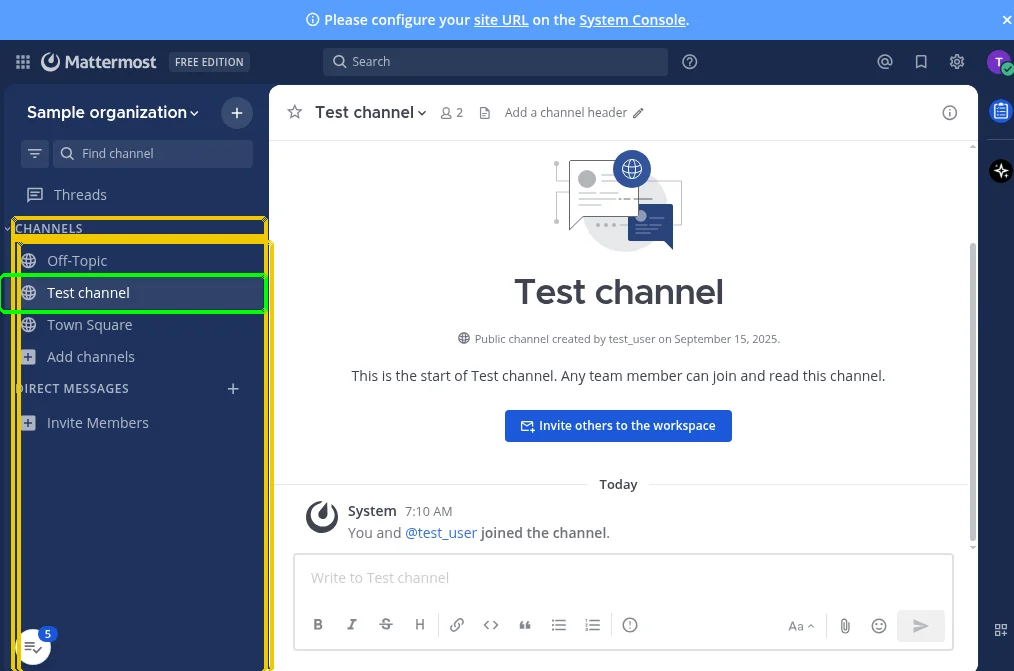
check that page contains "Test channel" below "Channels"
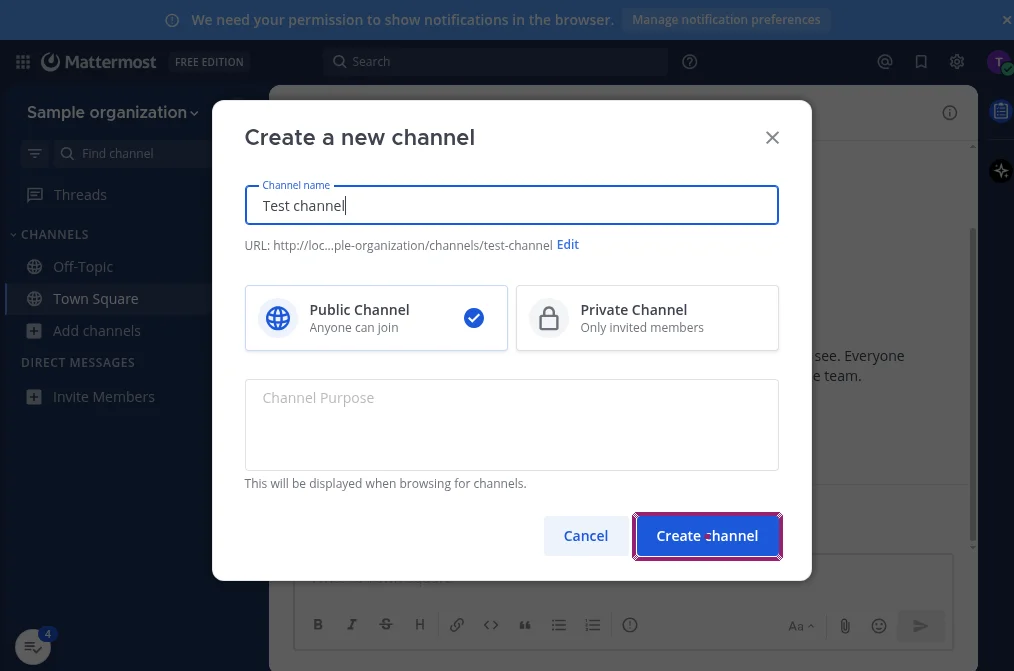
The next part switches to test_admin, browses channels, selects Join, and checks that the new channel appears under CHANNELS. Use a unique channel name for repeat runs and remove temporary channels when appropriate. Mattermost’s channel documentation also notes that channel creation can be restricted by permissions, so the test accounts must match the intended policy.
Verify Mentions and Notifications
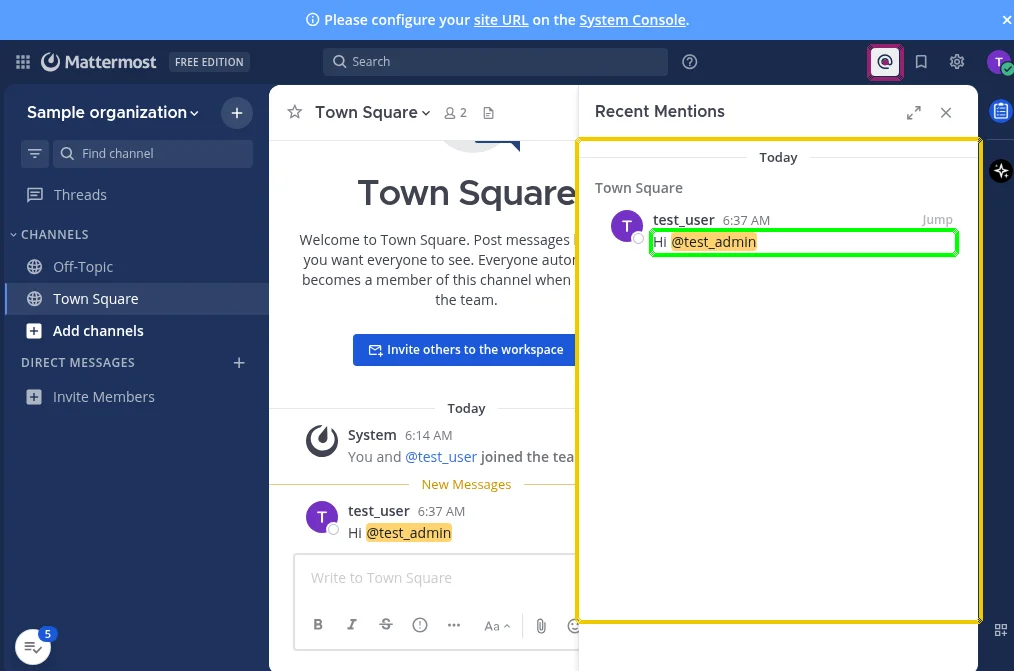
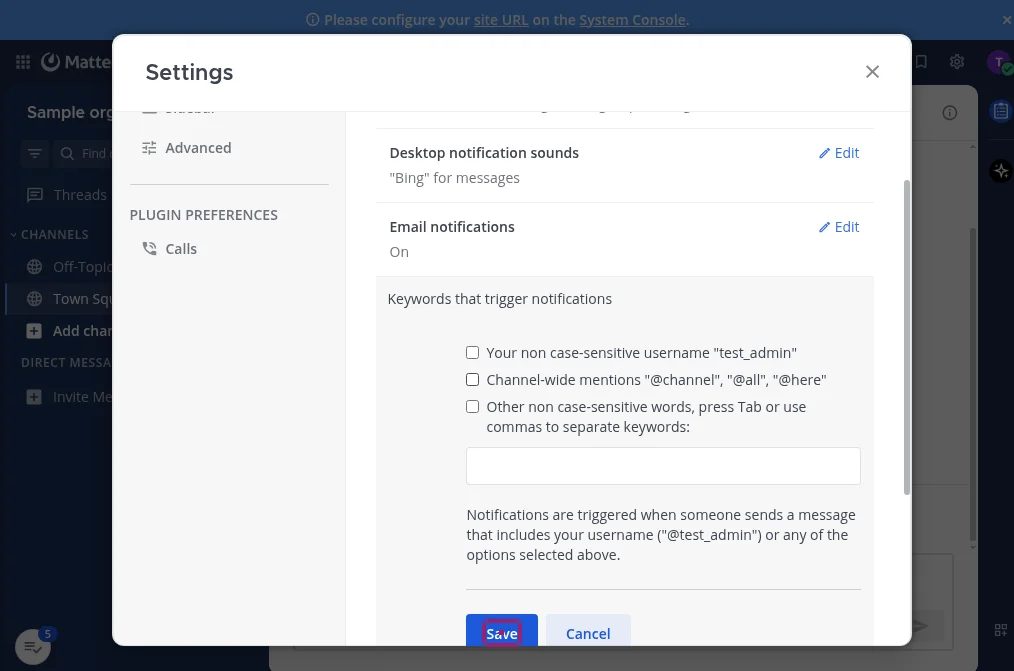
Mentions should direct a user toward a relevant conversation. The proposed case has test_user compose a message with @test_admin, then signs in as test_admin and checks the Recent mentions area for Hi @test_admin.
Another case changes a notification-related setting, sends @all in Off-topic, and checks that an unread mention indicator is not displayed. This is a narrower assertion than proving that no desktop, email, or push notification was delivered. Match each assertion to the notification channel actually being tested, and restore the original preference afterward. See Mattermost’s mention and keyword notification guide.
Verify Reactions and Custom Status
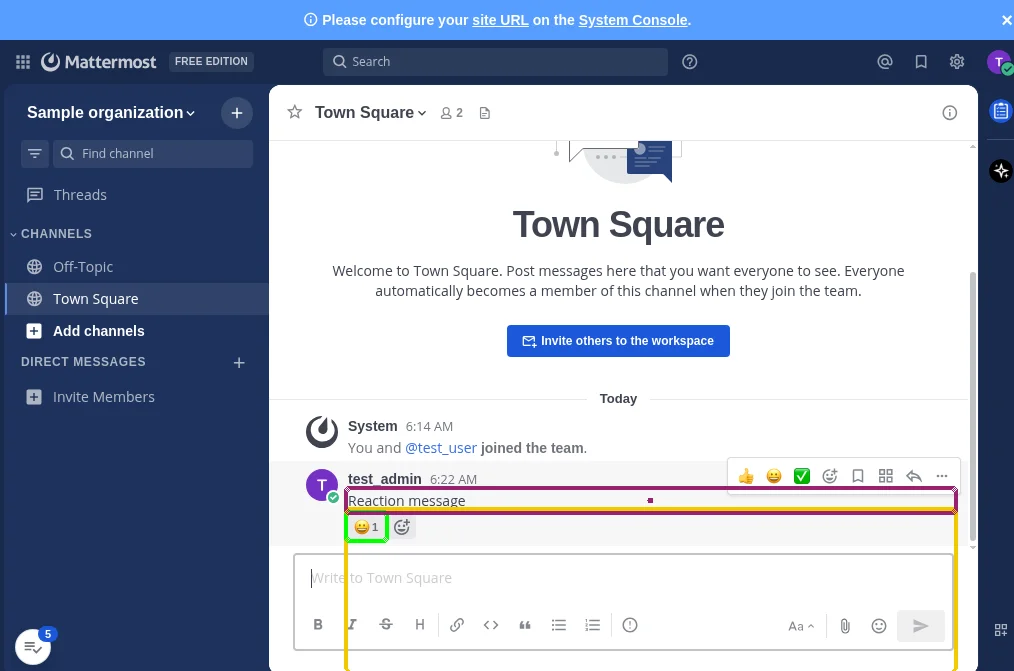
Small collaboration signals still need to be visible across accounts. One contributed test sends Reaction message as test_admin, switches to test_user, adds a grinning reaction, and checks that the original sender can see it.
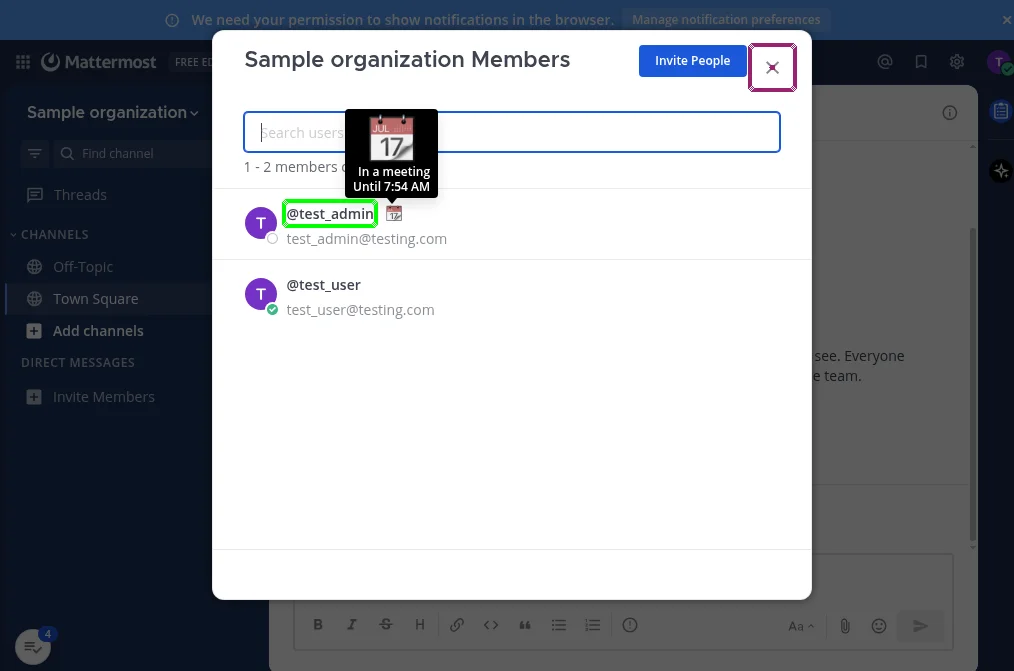
Another sets the custom status to In a meeting and confirms that a different user can see the status in the member view. Run these as cross-user tests, not merely as checks that a button responded to a click.
Verify User Access and Deactivation
Account deactivation deserves particular attention because it controls access to organizational information. The contributed scenario deactivates test_user through the System Console, attempts to sign in with that account, checks the denial message, and then reactivates the account.
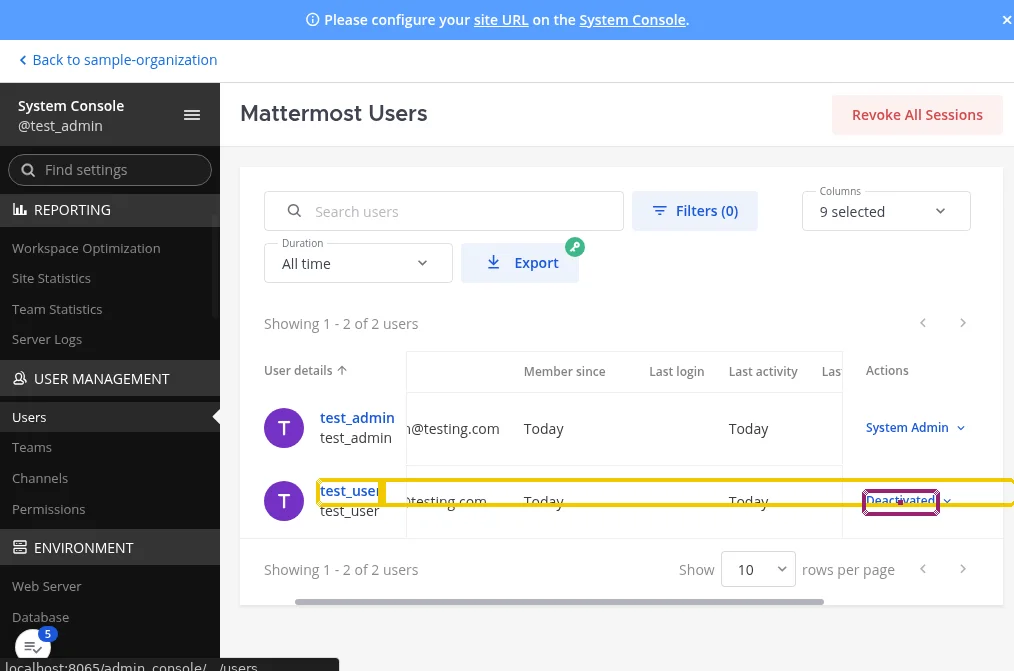
check that page contains "Login failed because your account has been deactivated. Please contact an administrator."
Use only a dedicated, recoverable test account. If activation is not restored after an interrupted run, later tests may fail for reasons unrelated to their own workflows. The Mattermost user-management documentation confirms that deactivated users can no longer log in and describes how administrators reactivate them.
Verify Profile and Channel Settings
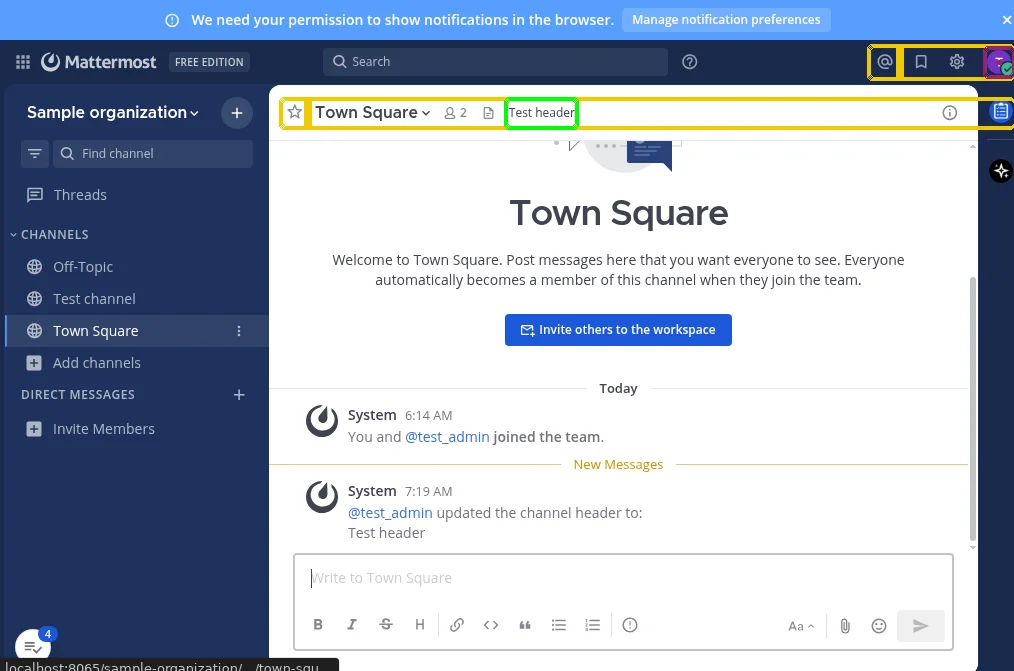
The remaining contributed scenarios exercise profile and security-settings navigation, and the visibility of a channel header edited by another user. These are useful smoke tests after interface updates because a control can still appear on screen while leading to the wrong settings panel, or a shared channel change may not be visible across sessions. For settings-related tests, check the actual destination or saved state, not only the presence of a menu label. For channel headers, verify the updated content from another account and restore the original header afterward.
Reusable Rules for Mattermost Testing
Most Mattermost E2E scenarios switch users, send messages, and clean up content. Repeating those actions in every case makes the suite harder to maintain. testRigor Reusable Rules let teams give a meaningful name to a sequence of steps and invoke it across tests.
log in user "test_user"
send message "hello!"
log out
These show the value of business-level language. However, because the pull request does not contain their rule definitions, do not assume that pasting them into a new suite will work automatically. Define the corresponding rule with the verified steps for your environment, store credentials securely, and document any required starting state.
Mattermost Testing Tips for Reliable Automation
- Verify behavior across accounts. Message delivery, shared headers, status visibility, and membership should be checked by a second user whenever that is the purpose of the workflow.
- Keep test cases independent. A channel or account created by one test should not be an undocumented prerequisite for another. Create fixtures intentionally and clean them up.
- Use unique content when necessary. Reusing
Test channelorhello!can make tests ambiguous after repeated runs. Generate distinguishable names and messages for concurrent executions. - Handle administrative changes carefully. Account deactivation and notification changes must be reversed even if a test ends early. Keep a separate recovery-capable administrator account.
- Assert what the interface actually proves. The absence of an unread badge does not establish that all notification delivery mechanisms were disabled. A sent message does not establish that it reached the recipient.
- Recheck labels after upgrades. The pull-request commands were written for a particular Mattermost interface. Menus, sidebar labels, and settings screens may differ in another release or configuration.
- Prefer user-visible controls. An internal element name such as
GenericModal__bodymay be less stable than a verified accessible label. Replace technical references only after confirming the target in your own UI.
When to Run Your Mattermost Testing Suite
A short smoke suite covering login, a direct message, and channel access can run frequently. Run a broader regression suite after Mattermost upgrades, changes to permissions or authentication, notification configuration updates, plugin changes that affect communication, and major interface changes. Teams with release pipelines can also run selected tests before deploying changes to a shared environment. For day-to-day workspace administrators, a scheduled test against staging may be more practical than a repository-based workflow. The objective is to catch interruptions before users rely on a broken communication path.
Mattermost Testing for Development Teams: Git and CI/CD (Optional)
You do not need Git, Docker, or GitHub Actions to create and run the browser-based tests described above. These tools are useful when a development team wants its Mattermost regression suite to accompany code changes. The proposed PR #33898 contains ten plain-text test cases plus a GitHub Actions workflow. Its workflow starts a preview instance, installs the testRigor CLI, and invokes tests against http://localhost:8065 with a test-suite ID and an authentication token. The PR was closed without merging, so this workflow is not part of Mattermost’s official CI. The current testRigor CLI documentation uses the package name @testrigor/testrigor-cli, which differs from the package name in that historical PR. For a new integration, follow the current CLI documentation and confirm that the application is fully ready before triggering the tests.
npm install -g @testrigor/testrigor-cli
testrigor test-suite run "$SUITE_ID" --token "$CI_TOKEN" --localhost --url http://localhost:8065
The --localhost mode is for an application reachable from the machine running the CLI. Do not copy the local URL blindly if your Mattermost server uses another address. Keep CI_TOKEN in GitHub Secrets or an equivalent secret store, and do not expose it in a public repository. If you import the example .txt cases from the PR, configure their missing login/message helper rules and validate them before scheduling CI runs. For most workspace owners, the staging-based workflow in testRigor remains the simpler starting point.
Conclusion
Reliable team communication depends on more than successfully opening Mattermost. Users must find the right channel, receive the right message, see mentions and status updates, and lose access when an administrator deactivates their account. Unit and integration tests help protect the application’s building blocks, while E2E testing checks the experience across complete user journeys. Start with a direct-message test between two dedicated accounts, add channel creation and access-control checks, and expand the suite around the workflows your team cannot afford to lose. testRigor provides a plain-English way to make those journeys readable, repeatable, and easier to review together.
| Achieve More Than 90% Test Automation | |
| Step by Step Walkthroughs and Help | |
| 14 Day Free Trial, Cancel Anytime |