
Qt Testing: How to Test Qt Quick Controls Apps on Windows with testRigor
 |
Qt is a popular framework for building desktop applications. With Qt Quick Controls, the app draws its own buttons, checkboxes and dropdowns instead of using the ones Windows provides. That is great for a consistent look, but it has often made these apps hard for test tools to read: a button looks like a label, and a dropdown looks like a plain text box.
- What should Qt testing cover?
- Qt testing with testRigor: how to perform end-to-end tests
- Setting up a safe environment for Qt testing
- Test case: exercise the controls of a Qt app
- Making your Qt app easier to test
- Current limits
What Should Qt Testing Cover?
- Buttons and tab buttons
- Checkboxes, radio buttons and switches, including their checked state
- Dropdowns (combo boxes)
- Text fields
- Lists
- Menus and toolbars
- Dialogs and busy indicators
The demo app we use has one tab for each group. You can write one test per tab or run all of them in a single test, whichever suits your suite.
Qt Testing with testRigor: How to Perform End-to-End Tests
Run tests against a copy of the app that is safe to click through. Tests that save or delete data should use a test account or a test database.
Step 1: Log in to your testRigor account.
Step 2: Create a new test suite and configure it:
- Enter a Test Suite Name, for example “Qt app”.
- Set Type of testing to Native Desktop.
- Under Where to run the tests, choose Use testRigor infrastructure to run tests on provided application, and set OS to Windows.
- Set Number of test cases to generate using AI to 0 if you want to write the first test yourself.
- Under Upload file, choose your app. testRigor supports
.exeand.msifiles (built for x86 or x86_64) and.zipfiles. The app is placed on the test machine’s desktop. What happens after the upload depends on the file type, which Step 4 explains.
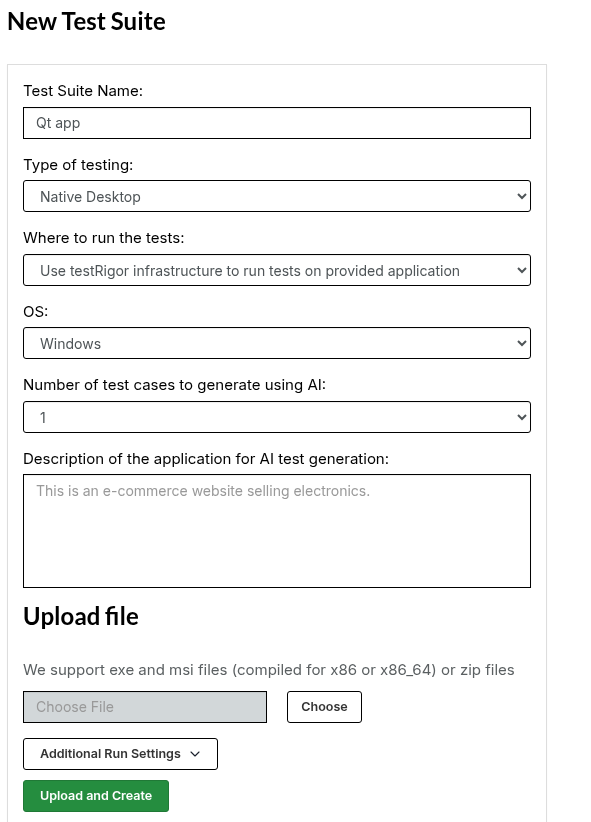
Step 3: Click Upload and Create to create the suite. Qt controls are recognized by default, so there is nothing to switch on.
Step 4: Create a reusable rule that opens the app. testRigor does not launch a Windows app for you in every case, and every test has to start with the app on screen, so put those steps in a rule once and call it from each test. You create rules under Reusable Rules in the suite menu.
- A single
.exeis placed on the desktop and started once, when the test machine is prepared, not before each test. If a test closes the app, the next test has to start it again, so the rule still needs to launch it after closing any old window. - A
.zipis only unpacked on the desktop. The rule has to open the unpacked folder and start the app itself. The sample below assumes this case: a zip that unpacks to a folder namedqt_appcontainingqtcontrolstest.exe. - An
.msiruns an installer. The rule then has to open the installed app, and how that looks depends on your installer, so check it on your own setup.
cleanup previous test, closes anything left over from the previous test. It closes two windows: the app, and the File Explorer folder the previous run opened it from. If the folder window stays open, closing the app can return focus to it, and the next run will not find qt_app on the desktop.if page contains "Qt Controls Test" then click "Qt Controls Test" press alt+f4 wait 3 seconds end if page contains "Search qt_app" then click "Search qt_app" press alt+f4 wait 3 seconds end
Open qt-control app, calls the first and then opens the unpacked folder, finds the executable and starts it. Each test begins with that one line.cleanup previous test click "qt_app" press enter click "qml" press end click "qtcontrolstest" press enter
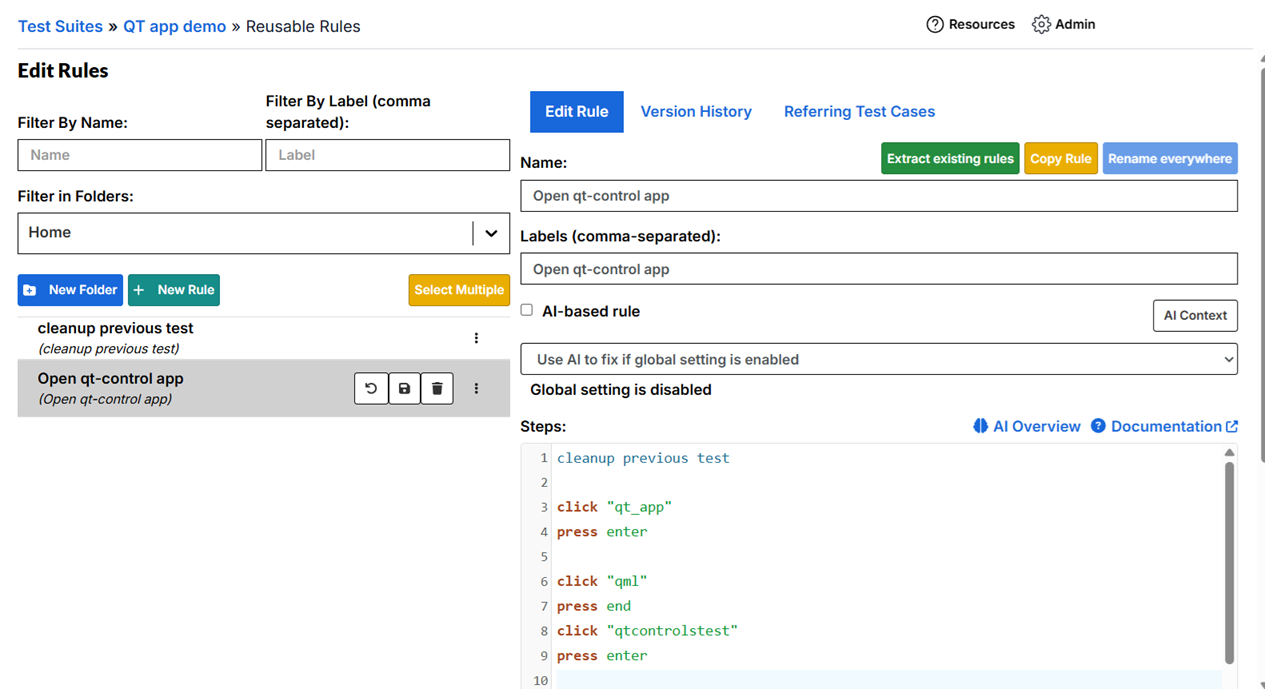
The screenshot shows this rule in testRigor. In your own rule, add a wait and a check at the end for something that only exists once the app has really started, for example wait 5 seconds up to 20 times until page contains "Current tab: Tab One", so a launch error does not look like a pass.
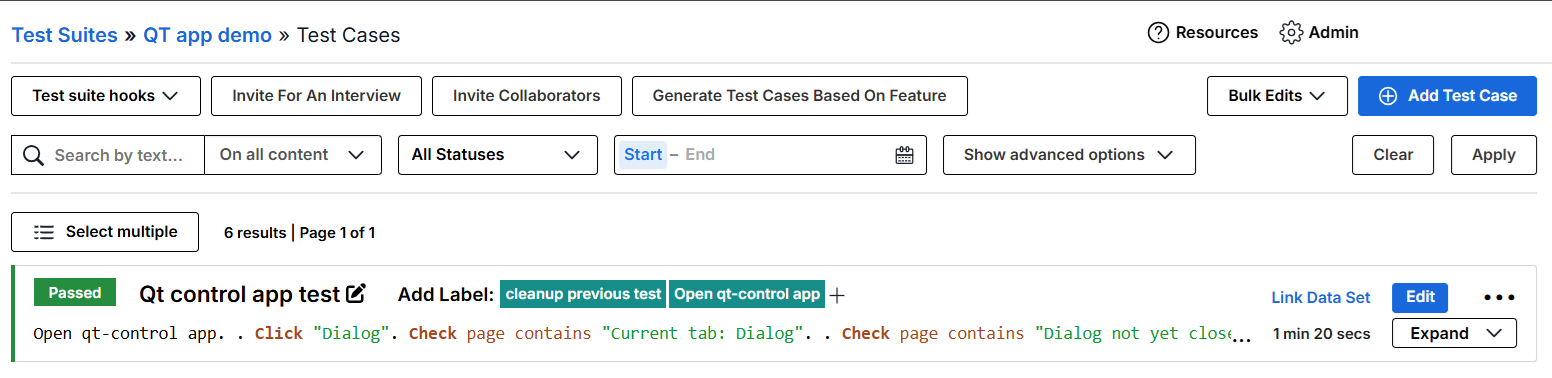
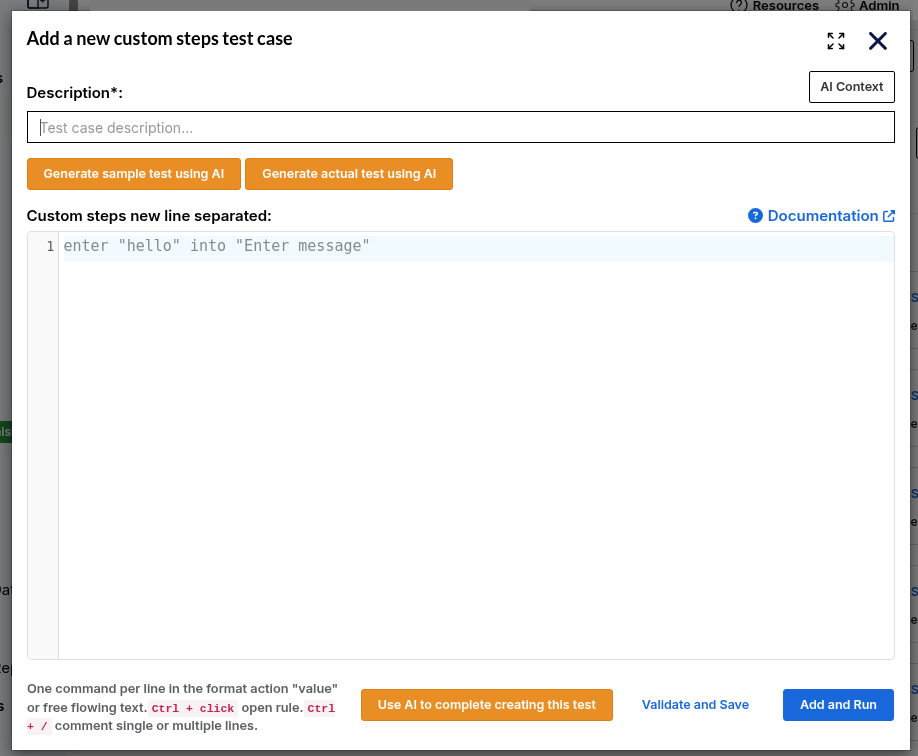
Step 5: Open the suite and, on the Test Cases page, click Add Test Case.
Open qt-control app
How testRigor Finds a Qt Control
- The visible text on screen, such as the label “Preferred choice” or “Entered text: My new value”.
- The control’s accessible name and role, which Qt exposes to the operating system. In the demo app, the text field on the Inputs tab has no visible label, but it has the accessible name “Nickname”, and its role tells testRigor it is an input.
- The control’s value, such as “My new value” typed into that field.
testRigor finds a control the way a person would, by the text on it or next to it, and it uses the accessible name and role to tell a field from a label that has the same text. That is why click input "Nickname" finds the field, and why check page contains "My new value" checks something different from the field’s value. The roles shown in this article, for example for list items and menu entries, are what the demo app exposes. Custom QML controls can expose different roles, so check what your own app reports. See Making your Qt app easier to test if a control has no name.
Setting Up a Safe Environment for Qt Testing
- Start every test from a clean desktop. A window left open by the previous test can steal the next test’s clicks. Close it at the start of each test, as the rule in Step 4 does.
- Use a build made for testing. Point the suite at a test build with test data, not at production.
- Expect name clashes with other windows. File Explorer has its own File, Copy and Paste. Use relative locators such as
to the left oforabovewhen a plainclickis ambiguous.
Test Case: Exercise the Controls of a Qt App
Open qt-control app
To move to another tab, click its name, for example click "Inputs". The steps for each tab below assume that tab is already open, so add the tab click before them. In one combined test, add it between the blocks. In separate tests, add it after the rule. The steps use the demo app’s control names, so replace them with the names in your app.
Tab One: Buttons, Checkboxes and Radio Buttons
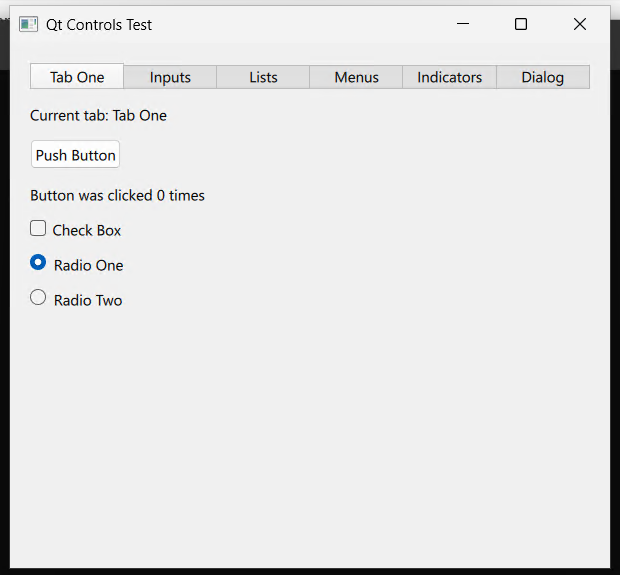
For this screen, the following tests are possible.
click finds it. If a button looks right on screen but your locator misses it, check the accessible name. When the same word appears more than once, say that you mean a button.check page contains "Button was clicked 0 times" click "Push Button" check page contains "Button was clicked 1 times"
To make clear that you mean the button, write click button "Push Button".
is checked and is not checked match what you see on screen.enter "1" into checkbox "Check Box" check that checkbox "Check Box" is checked enter "0" into checkbox "Check Box" check that checkbox "Check Box" is not checked
check that radiobutton "Radio One" is checked
check that radiobutton "Radio Two" is not checked

click "Radio Two"
check that radiobutton "Radio One" is not checked
check that radiobutton "Radio Two" is checked

click radiobutton "Radio One"
check that radiobutton "Radio One" is checked
Inputs Tab: Dropdown, Text Field and Switch
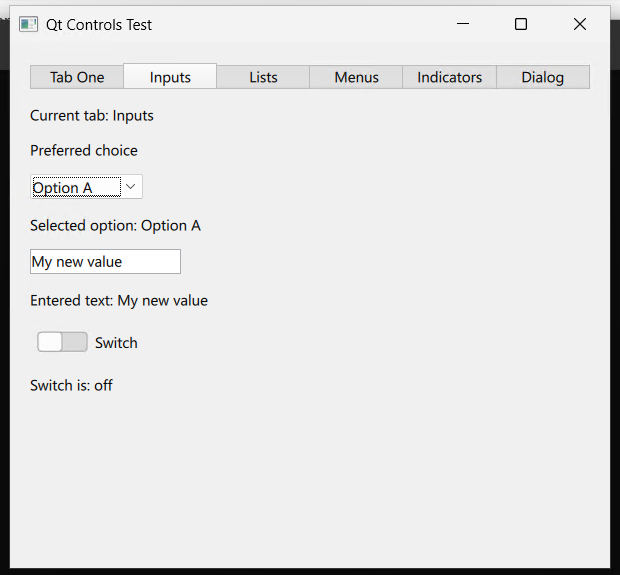
For this screen, the following tests are possible.
select opens the dropdown and clicks the option, so it works with Qt’s popup list. You can also open the box yourself and click the item.select "Option A" from "Preferred choice" check that page contains "Selected option: Option A" click "Option A" click "Option B" below "Option A" check that page contains "Selected option: Option B"
If the option cannot be found in the popup, the step fails. It does not fall back to typing the text, because typing into a drawn Qt popup can select the wrong item.
check page contains "typed 123" could match any other text on the screen.enter "My new value" into "Nickname" check that page contains "Entered text: My new value" click input "Nickname" press end type " typed 123" check that page contains "Entered text: My new value typed 123"
Use click input "Nickname" rather than click "Nickname" when the same text could also match a label.
click "Switch"
check that page contains "Switch is: on"
Lists Tab
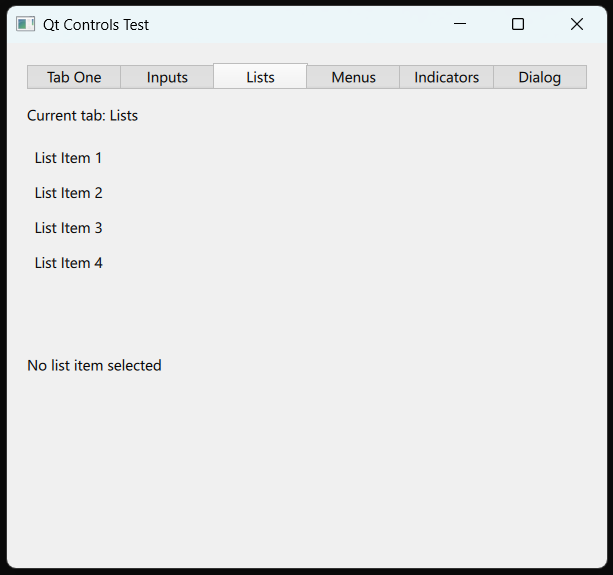
check page contains "No list item selected"

click "List Item 2"
check page contains "Selected list item: List Item 2"

click button "List Item 4"
check page contains "Selected list item: List Item 4"
Menus Tab: Menu Bar and Toolbar
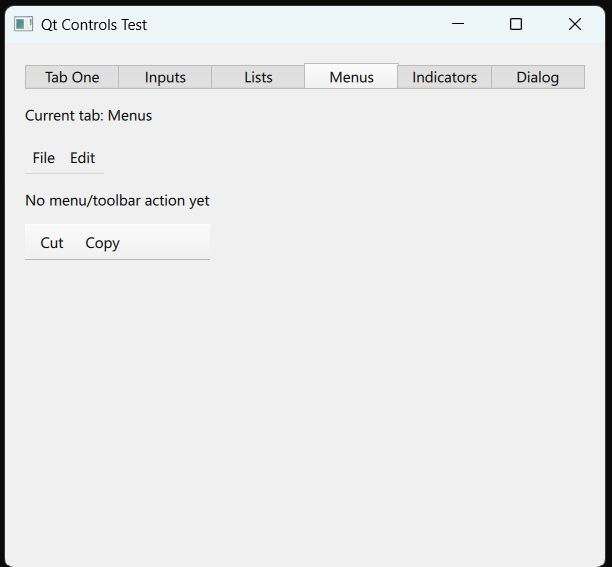
check page contains "No menu/toolbar action yet"

click "File" to the left of "Edit"
click "Open"
check page contains "Last action: Open"

click "File" to the left of "Edit"
click button "Save"
check page contains "Last action: Save"

click "Edit" to the right of "File"
click "Copy" above "Paste"
check page contains "Last action: Copy"

click button "Cut"
check page contains "Last action: Cut (toolbar)"

click "Copy" to the right of "Cut"
check page contains "Last action: Copy (toolbar)"
The last two actions use different locators because of the names. “Cut” appears only once on the screen, so click button "Cut" is enough. The Edit menu entry and the toolbar button share the name “Copy”, so each step names the control by its neighbor. above "Paste" identifies the Edit menu’s Copy, and to the right of "Cut" identifies the toolbar’s Copy.
Indicators Tab: Busy Indicator
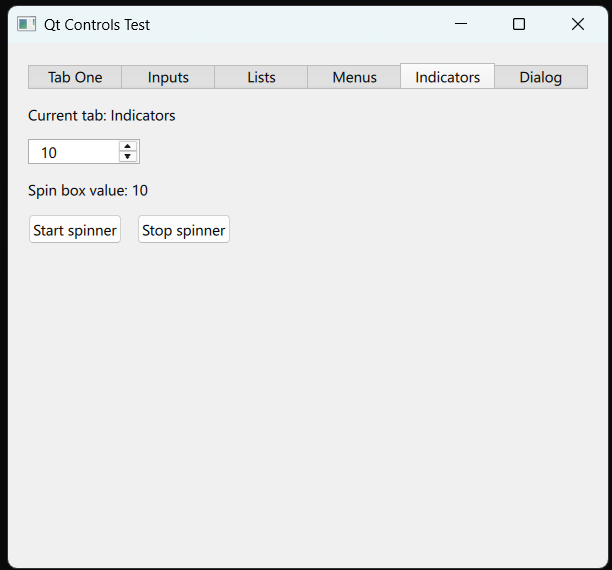
check page contains "Spin box value: 10"
check page does not contain "Loading spinner"

click "Start spinner"
check page contains "Loading spinner"

click "Stop spinner"
check page does not contain "Loading spinner"
In your own app, a spinner usually disappears when an operation finishes. Then test the result of that operation with a bounded wait, such as wait 2 seconds up to 30 times until page contains "Import complete", instead of trying to catch a short “Loading” state.
Dialog Tab
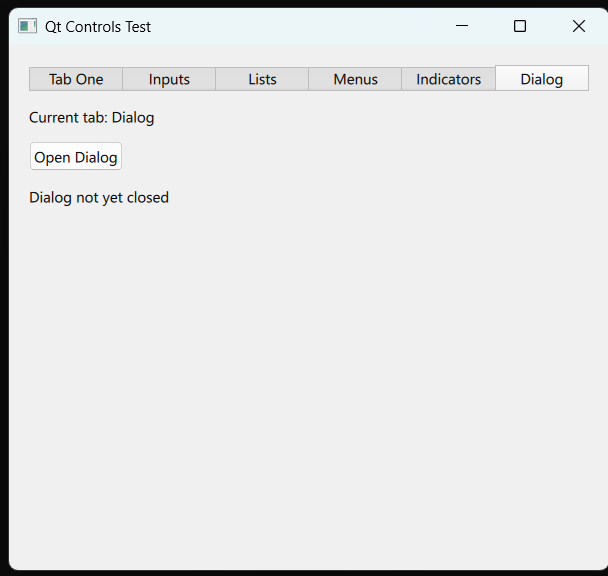
check page contains "Dialog not yet closed"

click "Open Dialog"
check page contains "This is a dialog."

click "OK"
check page contains "Dialog result: OK"

click "Open Dialog"
check page contains "This is a dialog."

click "Cancel"
check page contains "Dialog result: Cancel"
Making Your Qt App Easier to Test
- Give controls a unique accessible name (
Accessible.namein QML). Steps find controls by name, so a control with no name, or a name that repeats on screen, is hard to target. - Avoid a visible label that repeats the text of the control it sits next to. A step may click the label instead of the control.
- Mirror typed text in a label. Text typed into a text field is not exposed as the field’s name. Show it in a label and assert on that label.
Current Limits
Qt can expose a value for sliders, spin boxes and dials, and progress bars are read-only. testRigor does not currently have steps to read or set the value of these controls, so in the demo setup their value cannot be asserted or changed directly. Assert on a label that mirrors the value, or use a button that changes it.
Conclusion
Qt Quick Controls apps can be tested with the same plain-English steps as any other app: click a button, enter text, select from a dropdown, check a state. Create a Native Desktop suite, open the app with a reusable rule, name your controls well, and start with the paths your users take most, such as submitting a form, changing a setting and confirming a dialog.
| Achieve More Than 90% Test Automation | |
| Step by Step Walkthroughs and Help | |
| 14 Day Free Trial, Cancel Anytime |