
AppFlowy Testing: How to Test Your Workspace with testRigor
 |

AppFlowy is an open-source collaborative workspace for documents, knowledge bases, project planning, and structured information. Teams can write pages, organize tasks in Grid and Kanban views, invite colleagues, and publish selected content on the web. AppFlowy testing helps ensure that these everyday workflows continue to work after product updates, configuration changes, and new integrations.
Imagine a team finishing an important project plan. Everyone can see the workspace, but the newest document no longer appears in search. A Kanban card refuses to move to the next stage, or an invited teammate cannot join. The application may look healthy at first glance, yet the team is unable to complete its work.
The most useful tests therefore focus on what people actually do: create information, find it again, collaborate on it, and trust that their changes were saved. A practical strategy combines unit tests, integration tests, and end-to-end (E2E) tests, with the last layer validating complete journeys through the interface.
What Should AppFlowy Testing Cover?
A collaborative workspace has several important user journeys. Prioritize the ones your team depends on:
- Documents: create, edit, delete, restore, share, and publish pages
- Rich-text editing: headings, to-do lists, quotes, callouts, and code blocks
- Grid databases: add rows, sort information, and filter records
- Kanban boards: create and move cards, manage groups, and update fields
- Search and navigation: find recent or newly created pages, organize subpages, and manage favorites
- Collaboration: invite users, accept invitations, and confirm workspace access
- Workspace and account management: create workspaces, change settings, and protect account access
Each workflow has a different consequence when it breaks. A failed search wastes time; an incorrect filter can hide important tasks; a publishing mistake can expose or conceal content; and an invitation problem blocks collaboration entirely.
What AppFlowy Already Tests, and What It Does Not
The AppFlowy repository contains automated engineering checks. Its Flutter CI workflow includes Flutter unit tests and desktop integration tests. These checks are useful for detecting regressions in the areas they exercise.
However, passing desktop or code-level tests does not establish that your particular AppFlowy Web workspace works correctly in a browser. They do not, by themselves, prove that a user can restore a deleted page, search for newly created content, publish a document, or accept a workspace invitation using the web interface.
A proposed testRigor E2E contribution (PR #8970) addresses that user-facing gap with nine plain-English test-case files for AppFlowy Web. The supplied reports record eight passed executions on September 9, 2026; they do not prove that all nine cases ran successfully, or that the open contribution is already part of AppFlowy’s default CI.
Unit Testing in AppFlowy
Unit tests verify small pieces of application logic, such as transformations, state changes, or validation rules, without requiring a person to navigate the complete interface. They are especially useful to developers making changes to the application.
A successful unit test cannot tell a workspace administrator whether a particular button is visible, a modal can be completed, or an edited document can be reopened. Those questions need testing at another level.
Integration Testing in AppFlowy
Integration tests verify interactions between components and services. For a collaborative workspace, important boundaries can include authentication, persistence and synchronization, invitations and email delivery, and the data used by document or database views.
For example, an integration check may show that a service accepted a document update. An end-to-end check goes further: it confirms that the user can create the document, find its new title in the workspace, and see the expected content afterward.
End-to-End AppFlowy Testing
End-to-end testing exercises complete workflows in the application rather than isolated functions. For AppFlowy, a meaningful document journey looks like this:
Create a page → write and rename it → delete it → restore it → publish it → verify the published page.
This single journey covers the editor, workspace navigation, Trash, the sharing interface, and the public page. A separate collaboration journey might start with an invitation and end when the invited user successfully opens the shared workspace.
Learn more about this approach in the end-to-end testing guide. Several tools can automate the browser layer, with different trade-offs.
testRigor
testRigor lets teams describe browser actions in plain English, using visible labels and relationships instead of relying exclusively on CSS selectors or XPath. That is useful when a workspace owner, content manager, or QA professional knows the workflow but does not want to maintain a coded browser automation framework.
AppFlowy also contains context-sensitive controls, rich-text editors, and toolbars. The E2E contribution uses a mixture of visible text, positional references, and AI-assisted interactions for controls such as the document’s expand icon and the page’s options menu. Those techniques can help express what a user sees, although each test still needs review when the interface changes.
Selenium
Selenium is an open-source browser automation framework with bindings for several programming languages. It offers considerable control over browser behavior and fits teams that already develop and maintain coded automation suites. Locator design and ongoing test maintenance remain part of that work.
Playwright
Playwright is another code-based option for browser E2E testing, with browser support and tooling for robust assertions and debugging. It can be a good fit for engineering teams that prefer keeping automation in a programming language. testRigor is an alternative when readable, business-level test instructions are a priority.
AppFlowy Testing with testRigor: How to Perform End-to-End Tests
The following example is adapted from the actual document-lifecycle test in PR #8970. It targets AppFlowy Web, rather than claiming equivalent coverage for every desktop or mobile variant.
Important: Use a dedicated test workspace or staging environment. Document deletion, account deletion, email invitations, and publishing may affect real users or expose real content. Use non-sensitive test material and clean up any public pages created during testing.
Step 1: Sign in to the testRigor application.
Step 2: Create a suite for your AppFlowy Web environment. Choose the web/browser configuration that matches the experience you want to validate and enter the URL of your test environment. For the proposed CI workflow, the default target is https://appflowy.com/app; use your own staging address when appropriate.
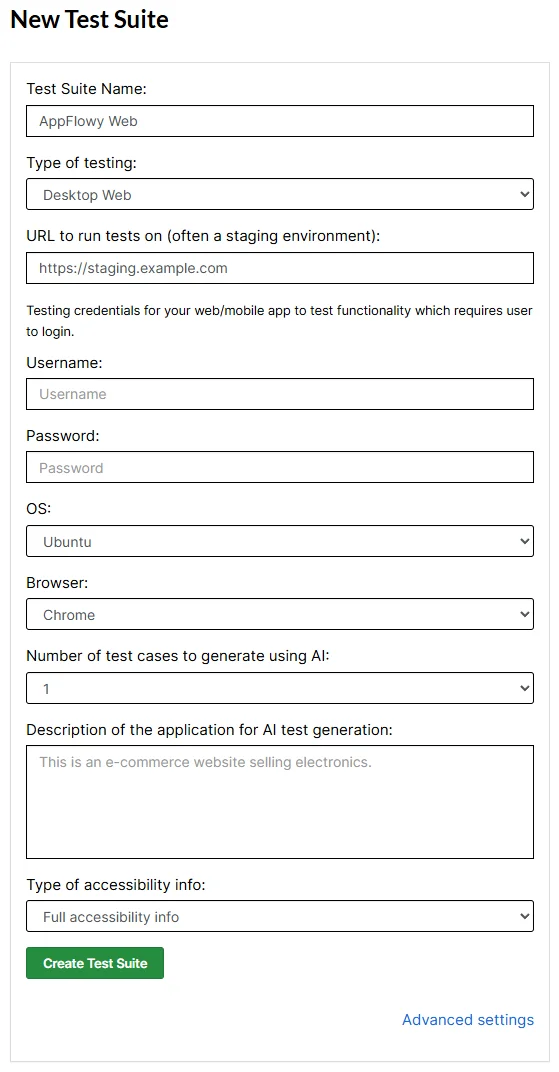
Step 3: Configure a test account and the stored values used by your cases. Keep credentials out of publicly committed test files.
Step 4: Select Add Test Case, give the scenario a clear name such as Document: Create, Edit, Delete, Restore and Publish, and add the steps described below. You can also use the contribution’s source-controlled test files if you manage your suite through its CLI workflow.
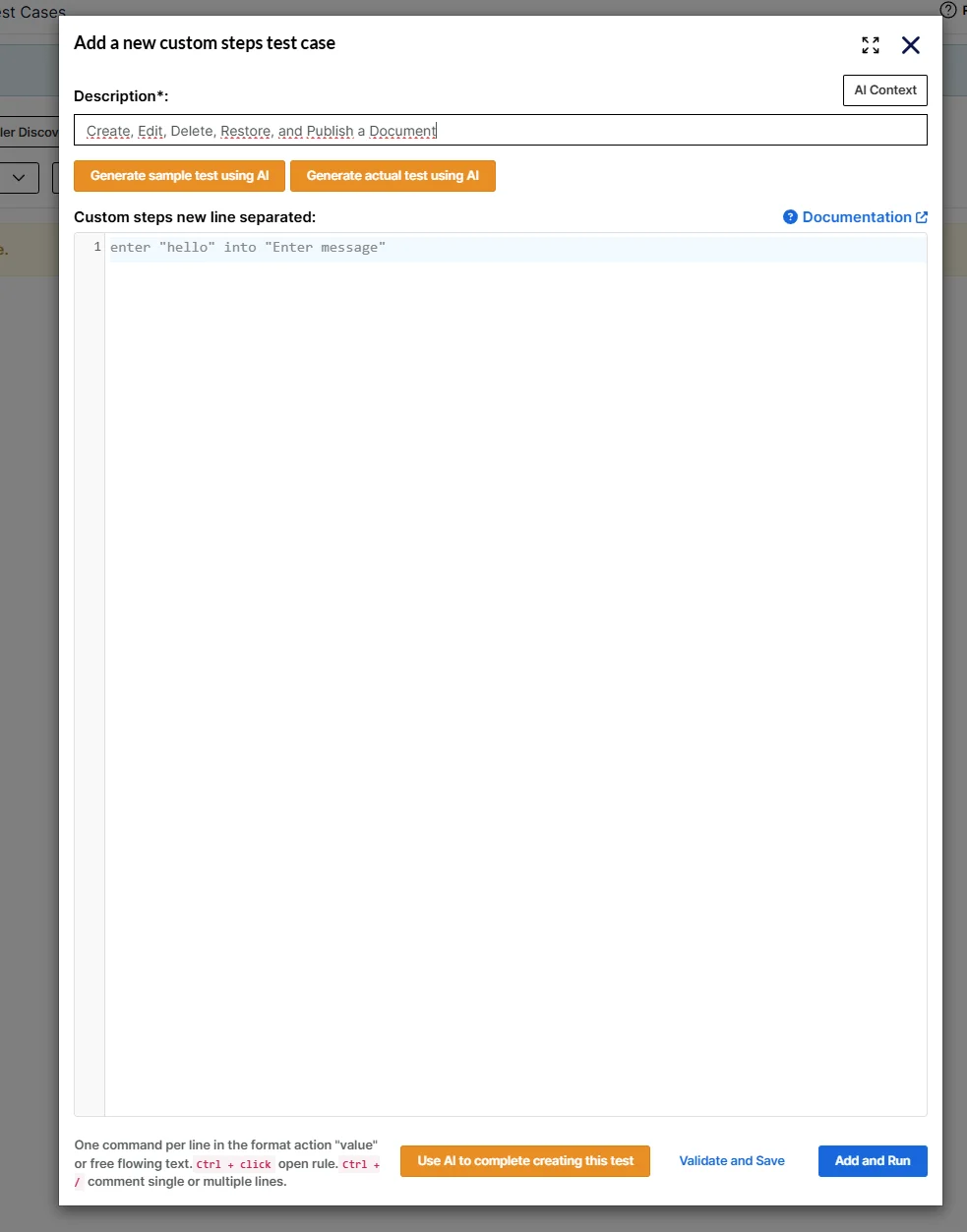
Step 5: Run the test, then inspect the result and individual step evidence. A passing result should be checked against the AppFlowy environment and application revision that were actually tested.
Setting Up a Safe Environment for AppFlowy Testing
A good test environment should reproduce the behaviors your team relies on, without risking everyday work:
- Use a dedicated workspace with test-only pages, databases, and sample cards.
- Keep realistic roles and permissions so an invited member can perform permitted actions.
- Provide an email inbox that can receive test invitations or registration messages.
- Use a browser-accessible instance of the same AppFlowy variant your team uses.
- Check that publishing and sharing are enabled only where they are meant to be tested.
- Plan how to remove generated pages, workspaces, accounts, invitations, and public links afterward.
If you test a self-hosted deployment, ensure its authentication, email delivery, and publishing configuration are suitable for the cases you choose. Not every cloud-specific scenario will apply unchanged.
Test Data for AppFlowy Testing
The proposed suite calls a Login using password Reusable Rule. That rule expects saved values named username and password. The checked-in testRigor/testdata/storedValues.yaml contains only a sample value, so do not assume real account credentials are supplied by the pull request.
| Stored value | Purpose | How to prepare it |
|---|---|---|
username |
Test account email address | Provide an existing AppFlowy test account |
password |
Test account password | Store securely in testRigor, not in a public repository |
newTitle |
Temporary document title | Generated by the document lifecycle test |
inviteEmail |
Temporary invitation recipient | Generated by the invitation test |
Generated titles and emails reduce collisions when multiple test runs use the same workspace. They do not replace cleanup: deleted documents, outstanding invitations, or publicly published pages may still require attention.
Test Case: Create, Edit, Delete, Restore, and Publish a Document
This is a high-value starting point because it validates the full lifecycle of information that people create and share in AppFlowy. The commands below use the labels recorded in the proposed AppFlowy Web test; a different product version, language, or workspace layout may require changes.
Step 1: Create a New Document
After signing in, create a new page under the General space and confirm that the rich-text editor has loaded. This prevents the test from typing into the wrong panel while the page dialog is still opening.
Login using password
check that page contains "New page"
click "New page"
check that page contains "Where would you like to add"
click "General"
click "Add"
check that page contains "Enter a / to insert a block, or start typing"
Step 2: Give the Page a Unique Title and Add Content
In the tested editor, the title is a rich-text area, not a conventional form field. The source case clicks the visible Untitled placeholder, types a generated title, and then adds body content through the keyboard. This is more appropriate than assuming there is a normal input named Title.
check that page contains "Untitled"
triple click "Untitled"
generate from regex "dq[a-z]{5}" and save as "newTitle"
type stored value "newTitle"
type enter
check that page contains stored value "newTitle"
enter enter
type "QA body text"
type enter
check that page contains "QA body text"
Step 3: Delete the Page and Restore It from Trash
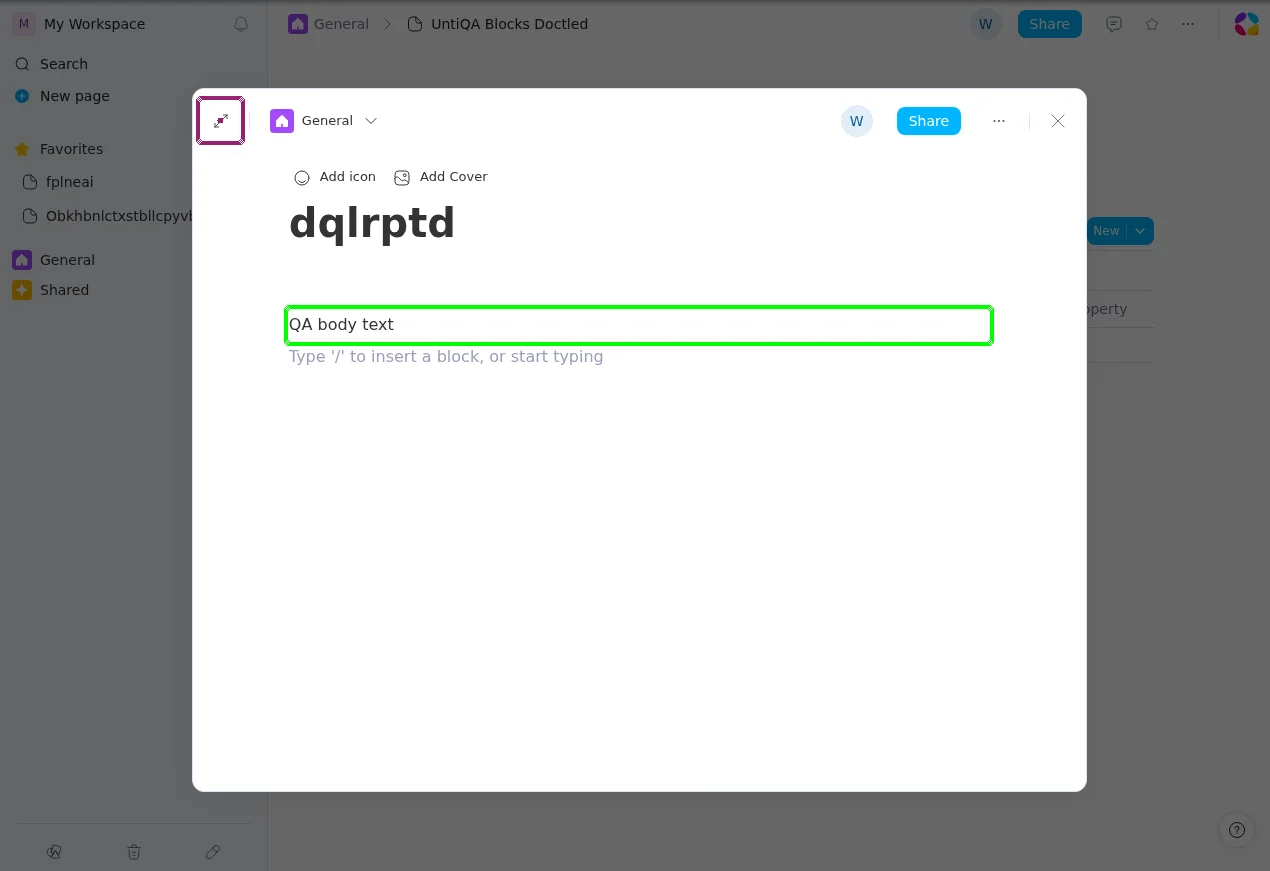
Expand the page into its full-page view before opening the options menu. The source test distinguishes the page toolbar from the smaller document dialog, where controls occupy different positions.
click on "the expand (open as page) icon at the top-left of the document dialog" using ai
check that page contains "Share"
click on "the more options (...) button at the top-right of the page, to the right of the star favorite icon" using ai
check that page contains "Delete"
click "Delete"
click "Delete" to the right of "Cancel" if exists
check that page does not contain stored value "newTitle"
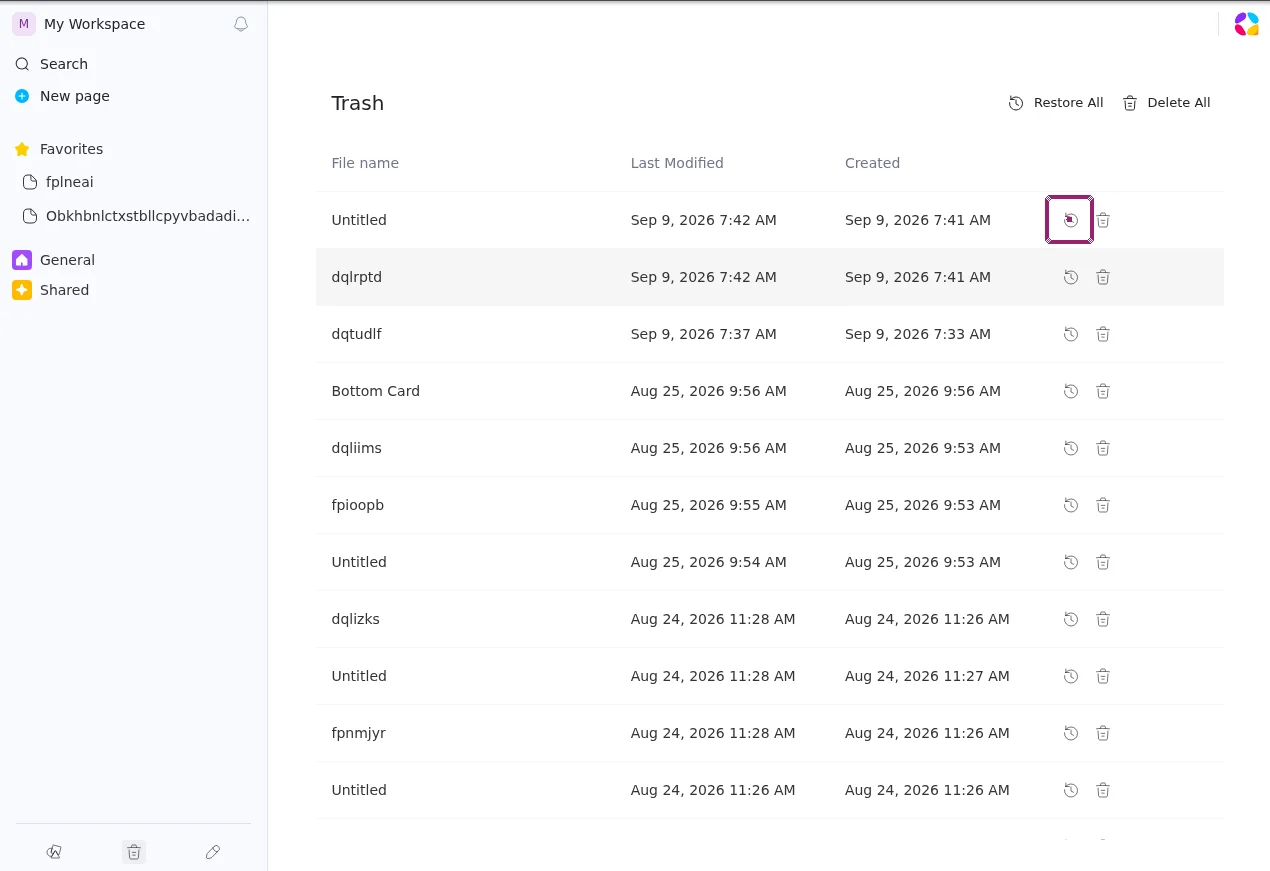
click on "the trash bin icon at the bottom-left of the sidebar" using ai
check that page contains "Restore All"
check that page contains stored value "newTitle" below "File name"
hover over stored value "newTitle" below "File name"
click on "the Restore icon (counterclockwise arrow) on the same row as the stored file name in the trash list, not Restore All and not the row delete/trash icon" using ai
Restoring a specific row matters. Clicking Restore All would modify unrelated items and would not establish that the intended document was the one recovered.
Step 4: Publish and Verify the Page
Return to the restored page, open Share, select Publish, and open the resulting site. The public view should contain the document’s generated title without showing the private workspace interface.
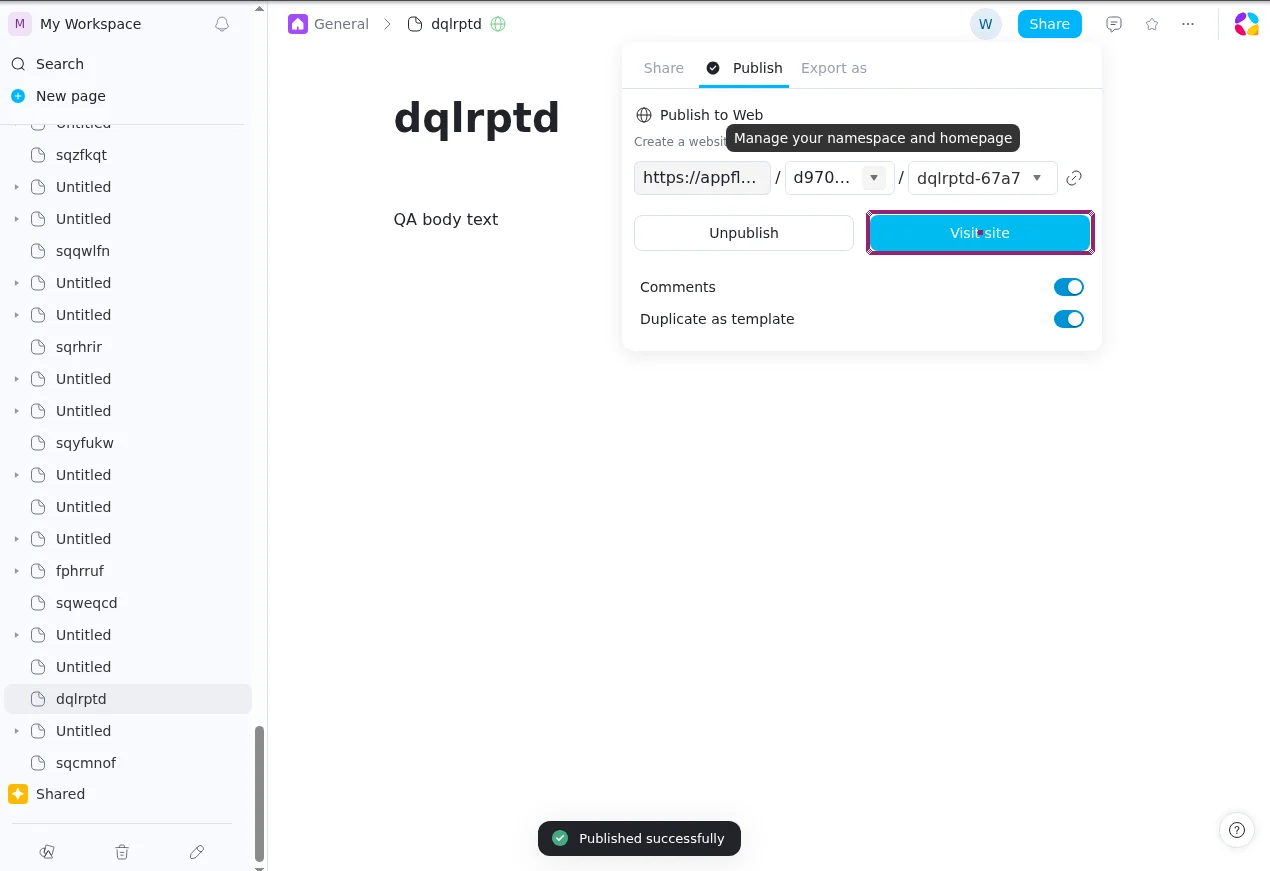
click "Shared"
check that page contains "Shared"
hover over "General"
click 2nd button to the left of "General"
check that page contains stored value "newTitle"
click stored value "newTitle"
click "Share"
click "Publish"
click "Publish" roughly below "Create a website with AppFlowy"
click "Visit site"
check that page contains stored value "newTitle"
check that page does not contain "My Workspace"
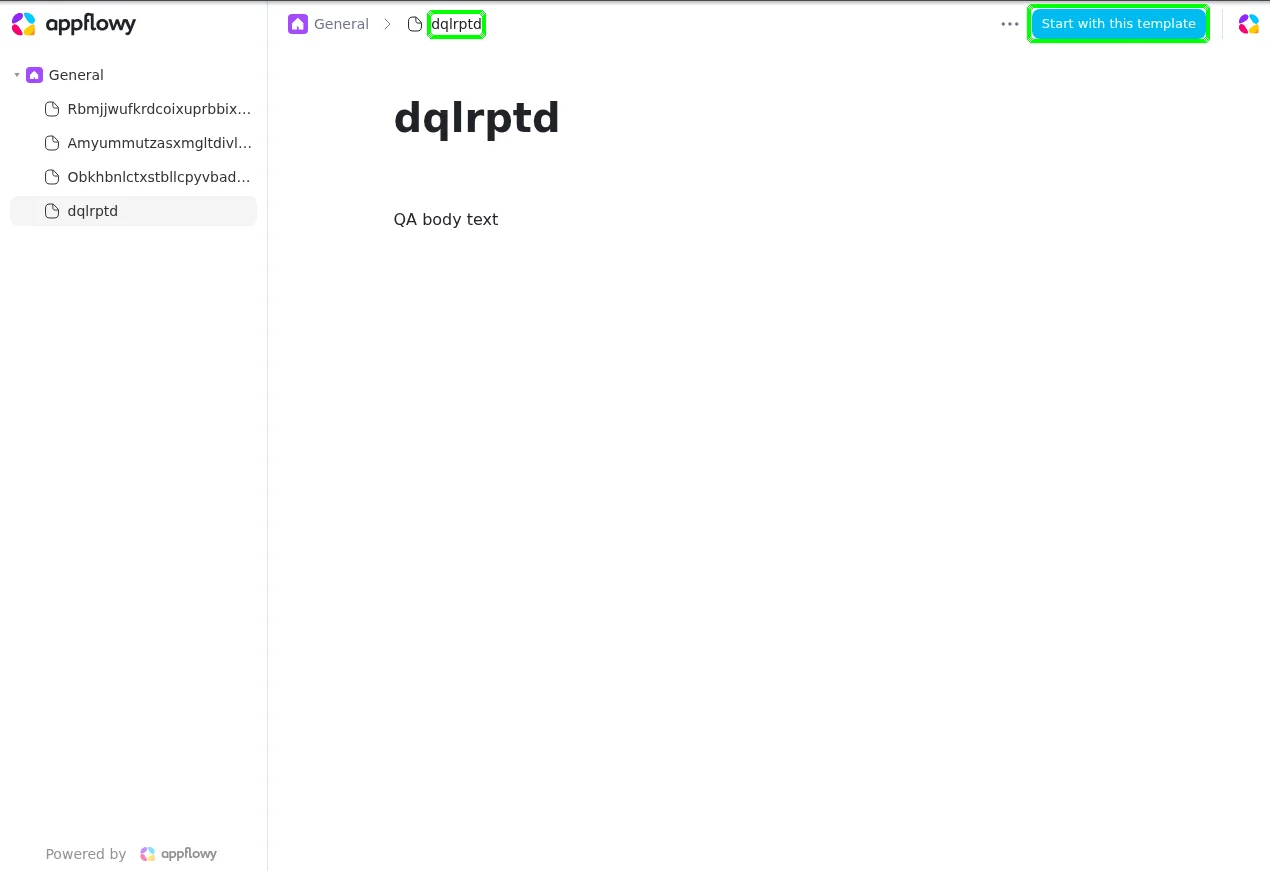
For a production-like suite, also verify the intended public-access settings and unpublish or remove any test pages when finished. AppFlowy’s sharing guide explains its publication options and the important distinction between publishing a page and sharing it privately. It also notes that publicly publishing a parent page does not make its subpages publicly accessible; test those access expectations separately.
Complete Test Case
The following is a compact, end-to-end version of the document lifecycle, built from the commands in the proposed test case. It includes the necessary navigation and cleanup, but omits that test’s additional public comments and template-toggle assertions. For those checks, consult the full source test.
Login using password
check that page contains "New page"
click "New page"
check that page contains "Where would you like to add"
click "General"
click "Add"
check that page contains "Enter a / to insert a block, or start typing"
check that page contains "Untitled"
triple click "Untitled"
generate from regex "dq[a-z]{5}" and save as "newTitle"
type stored value "newTitle"
type enter
check that page contains stored value "newTitle"
enter enter
type "QA body text"
type enter
check that page contains "QA body text"
click on "the expand (open as page) icon at the top-left of the document dialog" using ai
check that page contains "Share"
click on "the more options (...) button at the top-right of the page, to the right of the star favorite icon" using ai
check that page contains "Delete"
click "Delete"
click "Delete" to the right of "Cancel" if exists
check that page does not contain stored value "newTitle"
click on "the trash bin icon at the bottom-left of the sidebar" using ai
check that page contains "Restore All"
check that page contains stored value "newTitle" below "File name"
hover over stored value "newTitle" below "File name"
click on "the Restore icon (counterclockwise arrow) on the same row as the stored file name in the trash list, not Restore All and not the row delete/trash icon" using ai
check that page does not contain stored value "newTitle" below "File name"
click "Shared"
check that page contains "Shared"
hover over "General"
click 2nd button to the left of "General"
check that page contains stored value "newTitle"
click stored value "newTitle"
click "Share"
click "Publish"
click "Publish" roughly below "Create a website with AppFlowy"
click "Visit site"
check that page contains stored value "newTitle"
check that page does not contain "My Workspace"
switch to tab 1
type escape
check that page contains "Share"
click on "the more options (...) button at the top-right of the page, to the right of the star favorite icon" using ai
check that page contains "Delete"
click "Delete"
click "Delete" to the right of "Cancel" if exists
check that page does not contain stored value "newTitle"
The final deletion follows the source test’s cleanup path. Because publishing may create a public link, confirm your environment’s publication cleanup behavior separately; deleting a source page should not be assumed to prove every externally shared URL is inaccessible.
Execution Results
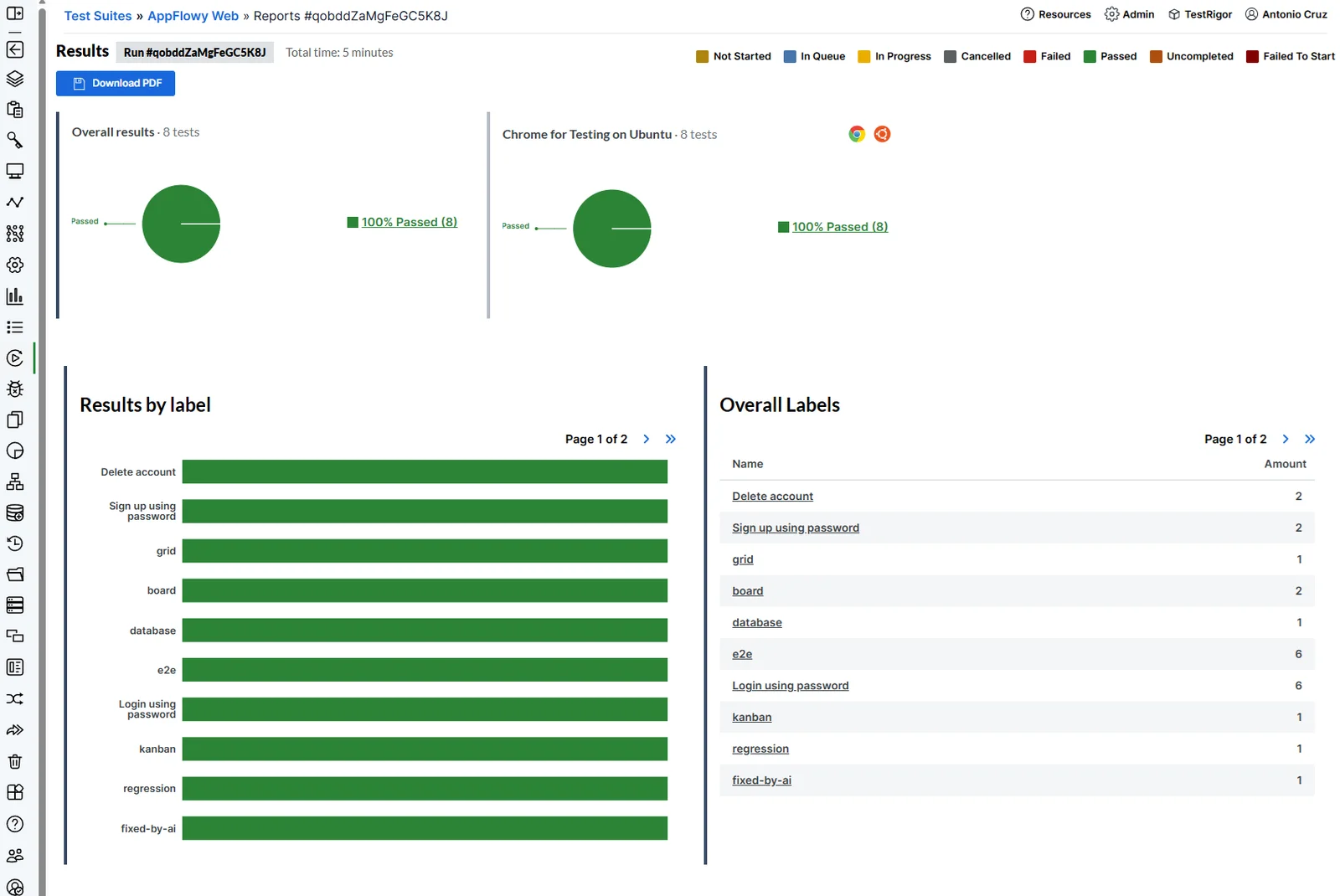
When a testRigor run finishes, review the case status, failed or successful steps, execution screenshots, and available diagnostic details. If a document test fails, start with the step that failed: was the editor ready, did the title persist, did Trash contain the generated page, or did the published view show the expected content?
The supplied testRigor Word reports record Passed for eight scenarios executed on September 9, 2026. This includes the document lifecycle execution (3 minutes 53 seconds). These report statuses refer to that execution date, not the current AppFlowy release, and the execution pages may require testRigor authorization.
The source contribution contains nine case files, but the supplied bundle contains eight execution reports. In particular, do not treat a suite-level pass as proof that every individual assertion is reliable: one search screenshot indicates a possible false-positive match, and the Kanban Hide-group checks were skipped in the case source.
testRigor Capabilities Useful for AppFlowy
Several features are especially relevant to a collaborative workspace:
- Reusable Rules: share common actions such as signing in or cleaning up test accounts
- Stored values and generated test data: reuse credentials and avoid repeated document titles or invitation addresses
- Email testing: validate registration and invitation messages where those flows are configured
- Browser and tab controls: verify the page a user opens after clicking Visit site or an invitation link
- AI-assisted element interaction: address visually identifiable menus and toolbar controls when the ordinary text label is ambiguous
For a complete command reference, see the testRigor language documentation and feature overview.
High-Value AppFlowy Testing Scenarios
Document lifecycle testing is a good first regression test, but a useful suite should also protect how a team organizes and collaborates on its content. The examples below reflect scenarios included in the proposed nine-case contribution.
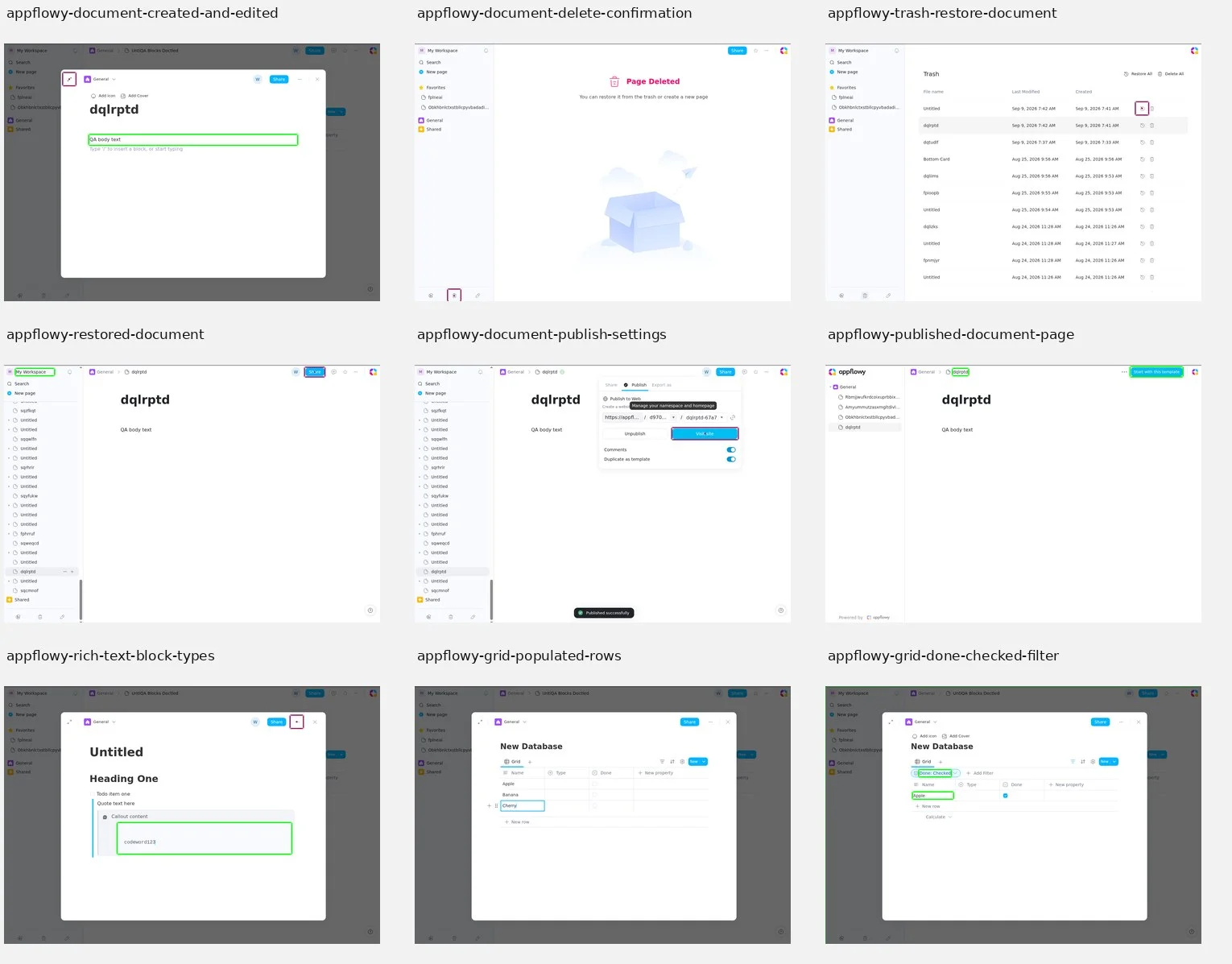
The following visual overview brings together document, editor, and Grid screenshots from the supplied execution reports. Individual examples and test steps follow below.
1. Test Rich-Text Blocks and the Slash Menu
The editor is central to AppFlowy. The contribution creates a new page, inserts block types using the slash menu, and checks that content appears. A shorter example of the actual commands is:
type "/heading"
type enter
type "Heading One"
type enter
check that page contains "Heading One"
type "/todo"
type enter
type "Todo item one"
type enter
check that page contains "Todo item one"
The source case also covers quote, callout, and code blocks. Include those if your team uses them in documents or shared procedures.
2. Test Grid Sorting and Filtering
A project tracker can appear correct while showing rows in the wrong order or hiding items unexpectedly. The Grid scenario creates sample rows named Apple, Banana, and Cherry, applies sorting, changes one value to check live reordering, and filters by a Done checkbox.
click 2nd button above "New property"
click "Name" below "Sort by"
click "New Database"
check that page contains "Apple" above "Banana"
custom enter "Zapple" into "Apple"
check that page contains "Zapple" below "Banana" below "Cherry"
This is more meaningful than merely checking that a Sort menu opens. The user needs to see records in the expected order after the underlying value changes.
3. Test Kanban Cards, Groups, and Fields
For teams organizing work on a Board view, test creation, editing, duplication, deletion, moving cards between groups, and changing a card’s properties. The proposed scenario starts from a new Kanban board and verifies actions such as adding a card under the To Do column.
click "New" below "Card 3"
type "Bottom Card"
type enter
check that page contains "Bottom Card" below "Card 3"
One limitation deserves attention: the source file explicitly skips a Hide group check because the Hide action did not take effect during the contributor’s attempts. That is a reported observation in the test source, not a confirmed current issue across all AppFlowy versions. Revisit it before treating hidden-group behavior as covered.
4. Test Search, Favorites, and Subpages
Search should find newly created content as well as handle a query that has no results. The proposed search case first checks the empty state, then generates a unique page title and searches for that title.
click "Search"
check that page contains "Recent pages"
enter "zzqqxxnomatchquery" into input
check that page contains "No search results"
type escape
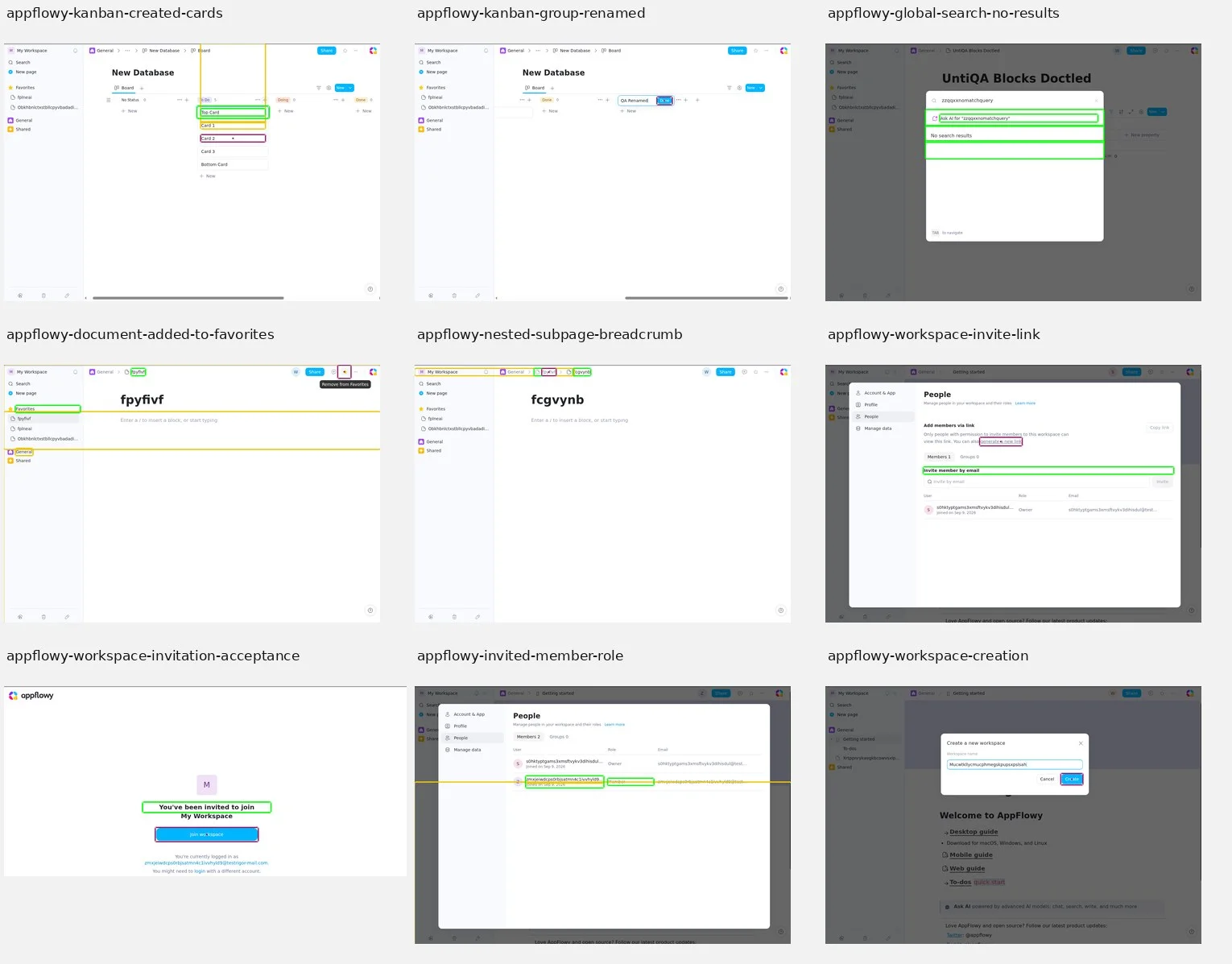
The negative-search screenshot below demonstrates the empty state. The supplied search report is marked Passed, but its final screenshot for a newly created title still shows “No search results”; the generated query also appears in an Ask AI suggestion. For that reason, do not present the passing status as conclusive proof that a new page was returned by search. A stronger test should click the actual matching result and verify its destination.
Favorites and subpages deserve their own checks too. The related case favorites a page, removes it from Favorites, creates a nested Document, and verifies the parent-child relationship through the breadcrumb. That verifies navigation rather than simply counting visible sidebar entries.
A second visual overview collects examples of Kanban changes, search, favorites, nested pages, and workspace invitations from the execution reports.
5. Test Invitations and Member Access
A workspace invitation is only useful when the intended recipient can accept it and gain the correct access. The proposed tests cover generating an invitation link, opening it in a separate Guest browser, signing up, joining the workspace, and confirming the invited member appears under People. Another case uses an email invitation.
check that page contains "You've been invited to join"
click "Join workspace"
check that page contains "New page"
check that page contains "Getting started"
check that page contains "Search"
Use a controlled inbox and dedicated test accounts. The invitation test should verify access from the invitee’s browser, not only a success message shown to the owner.
6. Test Workspace Creation and Management
The contribution also includes a workspace lifecycle scenario. It creates a workspace with a generated name, checks that the workspace becomes available, renames it, and then deletes it. This helps catch regressions in workspace switching and administrative actions without affecting a team’s real content.
Run workspace deletion in a disposable test account. Confirm that the workspace is no longer available afterward rather than relying only on the confirmation dialog.
Reusable Rules for AppFlowy Testing
Repeating an entire login sequence in every case increases maintenance effort. The contribution contains a rule named Login using password, as well as rules for sign-up, account deletion, document deletion, and a custom value-entry action.
enter saved value "username" into "Please enter your email address"
click "Continue with password"
enter stored value "password" into "Password"
click "Continue"
check that page contains "New Page"
A case can then begin with the single line Login using password instead of duplicating those steps. Keep the rule synchronized with your login interface, and make sure any required saved values exist in the suite.
Another shared rule, custom enter "value" into "input", focuses a text element, selects its contents, deletes the old value, and types the replacement. It is used in the Grid scenario, where an inline cell behaves differently from a conventional input.
AppFlowy Testing Tips for Reliable Automation
The source test cases reveal a few practical details worth incorporating into your own suite:
- Handle the editor as an editor. The document title may be contenteditable rather than a normal Title input. Wait for Untitled and use the interaction supported by your current UI.
- Distinguish dialogs from full pages. The location of the More options menu changes with the document’s presentation. Expanding first can make the target unambiguous.
- Avoid accidentally collapsing spaces. Clicking General can toggle the sidebar section. Tests should expand its chevron only when needed.
- Use meaningful assertions. A page visible in search is stronger evidence than an opened search palette; an invitee accessing a workspace is stronger than an invitation toast.
- Account for asynchronous workspace setup. The proposed account/workspace case allows time for default pages to appear after creating a workspace.
- Use distinct test records. Generated document titles and emails help avoid interference between runs.
- Review known gaps explicitly. The Kanban Hide group sequence is commented out in the proposed source test and should not be counted as passing coverage.
- Clean up public and shared content. Verify what happens to published URLs, invitations, and test accounts after each run.
When to Run Your AppFlowy Testing Suite
Choose execution frequency based on the risk each workflow carries. Useful checkpoints include:
- Before and after an AppFlowy upgrade
- After changes to the editor, database views, or workspace permissions
- After authentication or invitation configuration changes
- Before publishing important external documentation
- After changes to self-hosting or email-delivery integrations
- On a recurring schedule for essential document, search, and collaboration flows
For many teams, a short smoke suite covering login, document creation, search, and one sharing action is a useful frequent check. Longer account-management and workspace-lifecycle tests can run less often in a controlled environment.
AppFlowy Testing for Development Teams: GitHub Actions and CI
GitHub, Docker, and CI/CD are not prerequisites for workspace owners using testRigor through its interface. They become useful when a development team wants to keep browser test definitions with the source code.
PR #8970 proposes a testRigor/ directory containing nine test cases, shared rules, settings, test data, and a GitHub Actions workflow at .github/workflows/testrigor.yml. The workflow can be started manually and also runs on pushes to non-main branches when the testRigor files or the workflow itself change. It is not configured as a general pull-request trigger.
The proposed workflow expects the following repository configuration:
| Setting | Kind | Purpose |
|---|---|---|
TESTRIGOR_API_KEY |
Secret | Personal authentication token; an optional TESTRIGOR_AUTH_TOKEN fallback is present |
TESTRIGOR_TEST_SUITE_ID |
Repository variable | Identifies the suite to run |
APPFLOWY_WEB_URL |
Optional repository variable | Overrides the default AppFlowy Web URL |
The workflow uses --test-cases-path, --rules-path, and --explicit-mutations to synchronize source-controlled steps before running them. Be careful with that last option: remote-only cases may be removed when local files are treated as authoritative. Use a dedicated suite and control which branches can modify it. The job also attempts to save a JUnit report as an artifact; the existence of this configuration does not establish that a successful CI execution has occurred.
For installation and CLI options, consult the current testRigor command-line documentation. Check the current package name and supported flags before copying commands from an older contribution.
Conclusion
AppFlowy testing should protect the work people expect a collaborative workspace to do: create pages, organize tasks, find information, share it with the right colleagues, and publish the intended content. A page loading successfully is only the beginning; users also need the complete journey to work.
Unit and integration tests help catch problems within the application. End-to-end testing adds evidence that the important workflows remain usable through AppFlowy Web. Start with document creation and recovery, expand to Grid and Kanban interactions, and then cover search and invitations. Keep the tests independent, use safe data, and review execution evidence for the actual version you use.
| Achieve More Than 90% Test Automation | |
| Step by Step Walkthroughs and Help | |
| 14 Day Free Trial, Cancel Anytime |