
Release Notes: Zephyr cycles, template and regex validations, swiping on specific elements, browser location pop-up, mobile device orientation
 |
Over the last couple of weeks, we’ve made several significant updates.
Zephyr
Our integration with both Zephyr Scale and Zephyr Enterprise were upgraded to allow users to set a specific cycle, which can be specified when a full retest is triggered.
- Zephyr Scale only allows us to set a specific cycle; so in this case, we have just one new field to specify the cycle.
- Zephyr Enterprise allows us to set both cycle and phase, so in this case, we have 2 new fields, one to specify the cycle and one to specify the phase.
We will send the test case execution to the specific cycle/phase if informed, otherwise we will create a new instance as before.
Validations
We introduced a way to validate pages or elements containing a simple template or regex. Examples:
check that page contains template "%$$$$$"
check that page contains regex "[A-Z][a-z]+"
check that element "a" contains regex "[0-9]+"
For full documentation on validation, see https://testrigor.com/docs/language/#validations
Swipe
Users can now swipe directionally on specific elements when testing on mobile devices.The directions are up, down, left and right. Here are some examples:
Swipe right on "element" below "another"
Swipe up on "element" in the context of "container"
Swipe down on 2nd "element"
Swipe left on "element" on the right of "another"
Browser Pop-ups
We added a new dropdown where the user can choose whether the browser will have permission to get geolocation without asking for it. To find this dropdown, go to Settings->Advanced and scroll down to the Desktop Web Fine Tuning section.
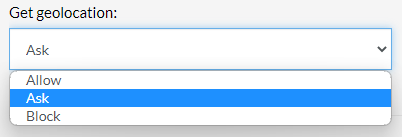
When Ask is selected, the screenshot approach in settings must be Use OS (more features) in order to interact with the popup.
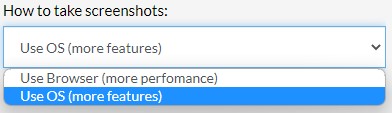
The same is true for interacting with any browser prompted pop-ups. For pop-up requesting access to the browser location, users can accept or deny permission in the test case by using OCR to locate the button and using the mouse to click on it. See example below:
click “Allow” using OCR only using the mouse
This feature is available for Chrome, Edge and Firefox, on both testRigor infrastructure and any external provider integrated with a test suite.
Mobile Device Orientation
We added a setting to select whether mobile devices will be in landscape or portrait mode. This option can be found in Settings->Advanced->Other Preferences.
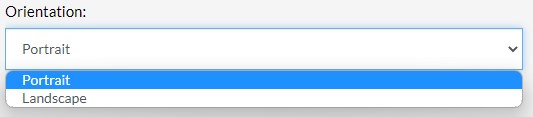
Device orientation can also be changed during a test case with the following commands:
change device orientation to landscape
switch device orientation to portrait