How to Test Passkey Logins with testRigor
 |
How to test login to Salesforce
testRigor can now log in with a passkey, so tests are no longer blocked when a site asks for one. This article shows how to save a passkey in your suite and use it in your tests, with a real Salesforce login as the example.
What is a passkey and why did it block tests?
A passkey is a login key for one website and one user. It lives on a device and is confirmed with Touch ID, Face ID, Windows Hello or a phone. More and more sites ask for one during login, and teams often cannot switch that step off for testing.
An automated test has no finger, face or phone to offer. Before this feature, it stopped at the passkey step, and every test behind that login was blocked.
What testRigor does now
testRigor answers the passkey prompt for you, like a built-in authenticator on a laptop. It reports the Touch ID or Face ID check as passed, or as failed when your test asks for that. No real sensor is used, and no dialog appears on the machine.
- A passkey in Test Data. Your test creates it on the real site, and testRigor saves it in the suite.
- A default passkey. Set it once in Authentication settings. Every run is then ready to answer passkey prompts.
- Commands.
create passkey and save as, enable passkey, disable passkey, use passkey and pass, use passkey and fail and start browser ... with passkey.
The secret part of a passkey is never shown after saving, and it never appears in logs or run results.
Step 1: Save a passkey in your suite
The website has to create the passkey, so you run one short test that adds a passkey to a test user. testRigor answers the website’s request with a new test passkey and saves it in the suite’s Test Data. Later runs use it.
You must call create passkey and save as "name" before the click that makes the website create the passkey. The command tells testRigor to answer the next passkey request. If you call it after the click, the website has already asked and nobody answered, so no passkey is created and the test fails.
In this example the click is click "Create Passkey", so the command goes on the line right above it.
open url "https://your-org.develop.lightning.force.com"
enter "[email protected]" into "Username"
click "Log In"
wait 5s
enter "your password" into "Password"
click "Log In"
if page contains "Verification Code" then
  generate totp code using stored value "sfTotpSecretU1" and save it as "sfCode"
  enter stored value "sfCode" into "Verification Code"
  click "Verify"
end

open url "https://your-org.develop.lightning.force.com/lightning/settings/personal/AdvancedUserDetails/home"
wait 3s
click "Passkeys"
wait 3s
click "Add Passkey"
if page contains "Verification Code" then
  generate totp code using stored value "sfTotpSecretU1" and save it as "sfCode"
  enter stored value "sfCode" into "Verification Code"
  click "Verify"
end

create passkey and save as "sfU1Passkey"
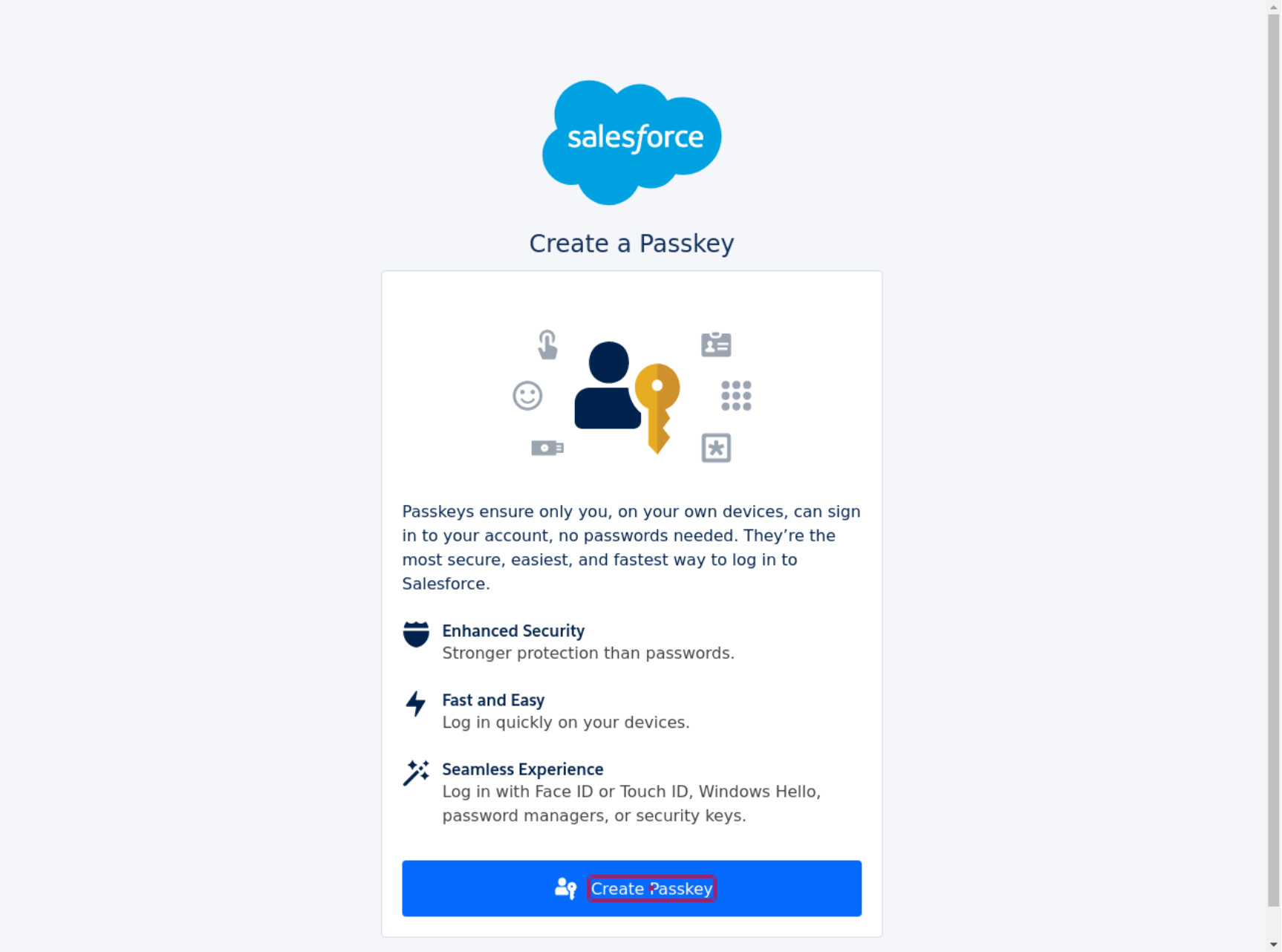
click "Create Passkey"
sfTotpSecretU1 is a Protected value in Test Data. It holds the TOTP secret of the Salesforce user. Salesforce asks for a verification code after the password and again before it lets the user add a passkey, so the test enters a code in both places.
- The test logs in with the current method (password and a verification code).
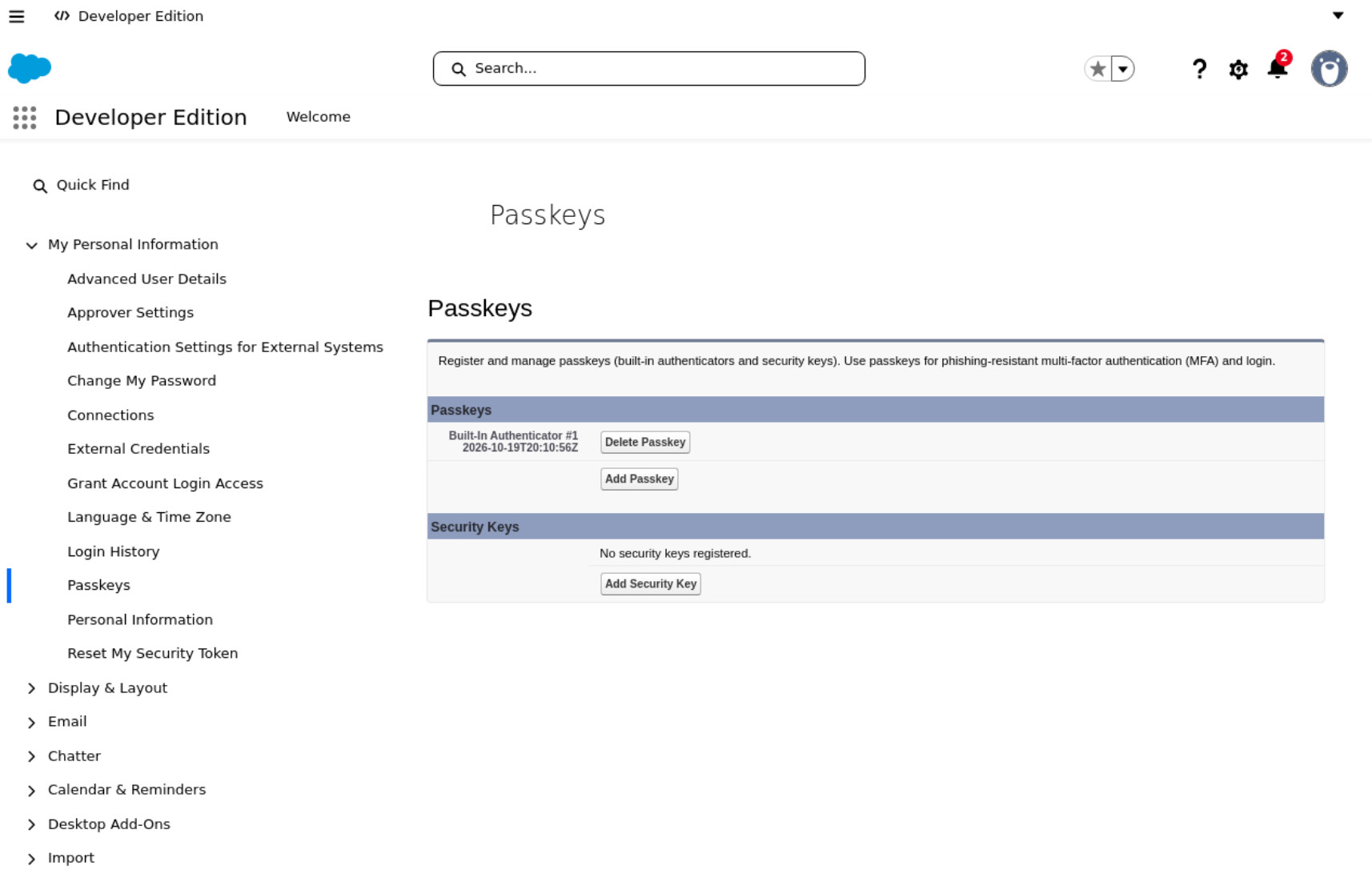
- It opens the Salesforce page where a user adds a passkey.
create passkey and save as "sfU1Passkey"tells testRigor to answer the next passkey request.click "Create Passkey"makes Salesforce ask for the passkey. testRigor creates it, and Salesforce lists it on the account.

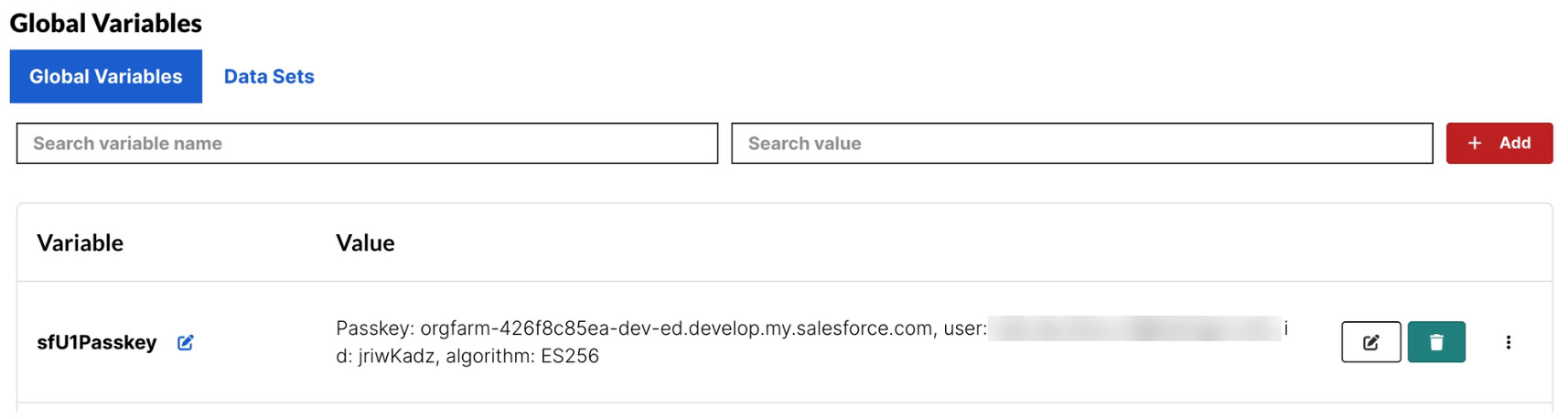
After the run, the suite’s Test Data has a new variable named sfU1Passkey of type Passkey. It shows a short description, such as the website and the key type (Passkey: your-org.develop.my.salesforce.com, user: [email protected], id: jriwKadz, algorithm: ES256). The secret part is never shown.
- The passkey also stays enabled for the rest of the same test.
- Use one name per passkey. Saving the same name again replaces the old passkey.
- A passkey belongs to one website and one user. Create one per user.
- Our example deletes the passkey on Salesforce at the end (
click the last "Delete Passkey", then accept alert). This keeps the test user clean when you run the test often.
Check that the new passkey works
start browser "new browser" with passkey "sfU1Passkey" and switch to it
open url "https://your-org.develop.lightning.force.com"
enter "[email protected]" into "Username"
click "Log In"
wait 10s
switch to browser "default"
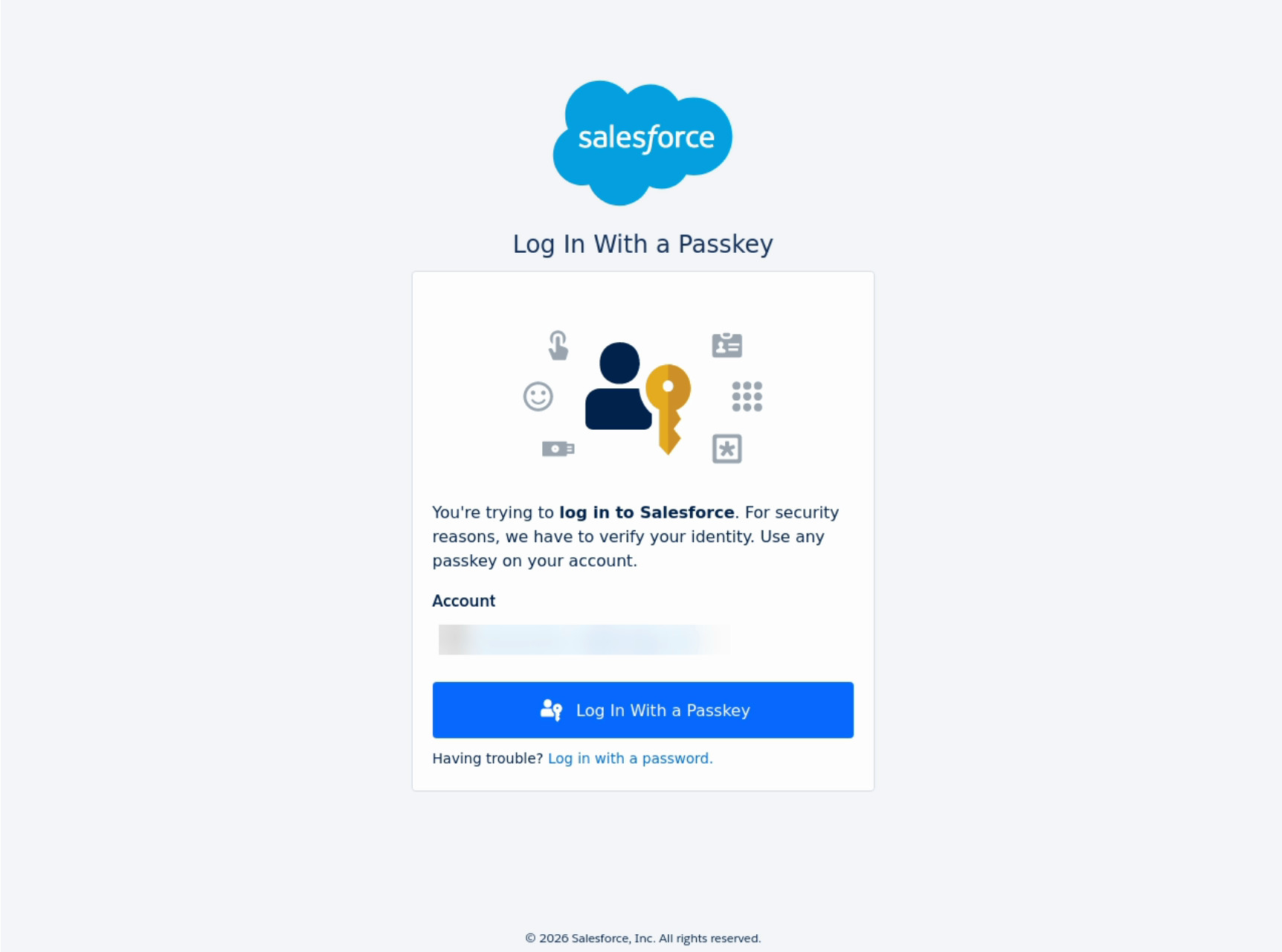
The second browser logs in with the passkey only. The test then goes back to the first browser to clean up.
Step 2: Use the passkey in your tests
There are three ways to use a saved passkey. In our Salesforce examples, A and B sign in with a username and a passkey. C also types the password.
| Way | Where | When to use it |
|---|---|---|
| Default passkey | Authentication settings | Every run of the suite or of one test user needs the same passkey |
enable passkey "name" |
In the test | One test needs a specific passkey, or switches between users |
login |
In the test | The suite already has a passkey and you want the built-in login |
A. Set a default passkey
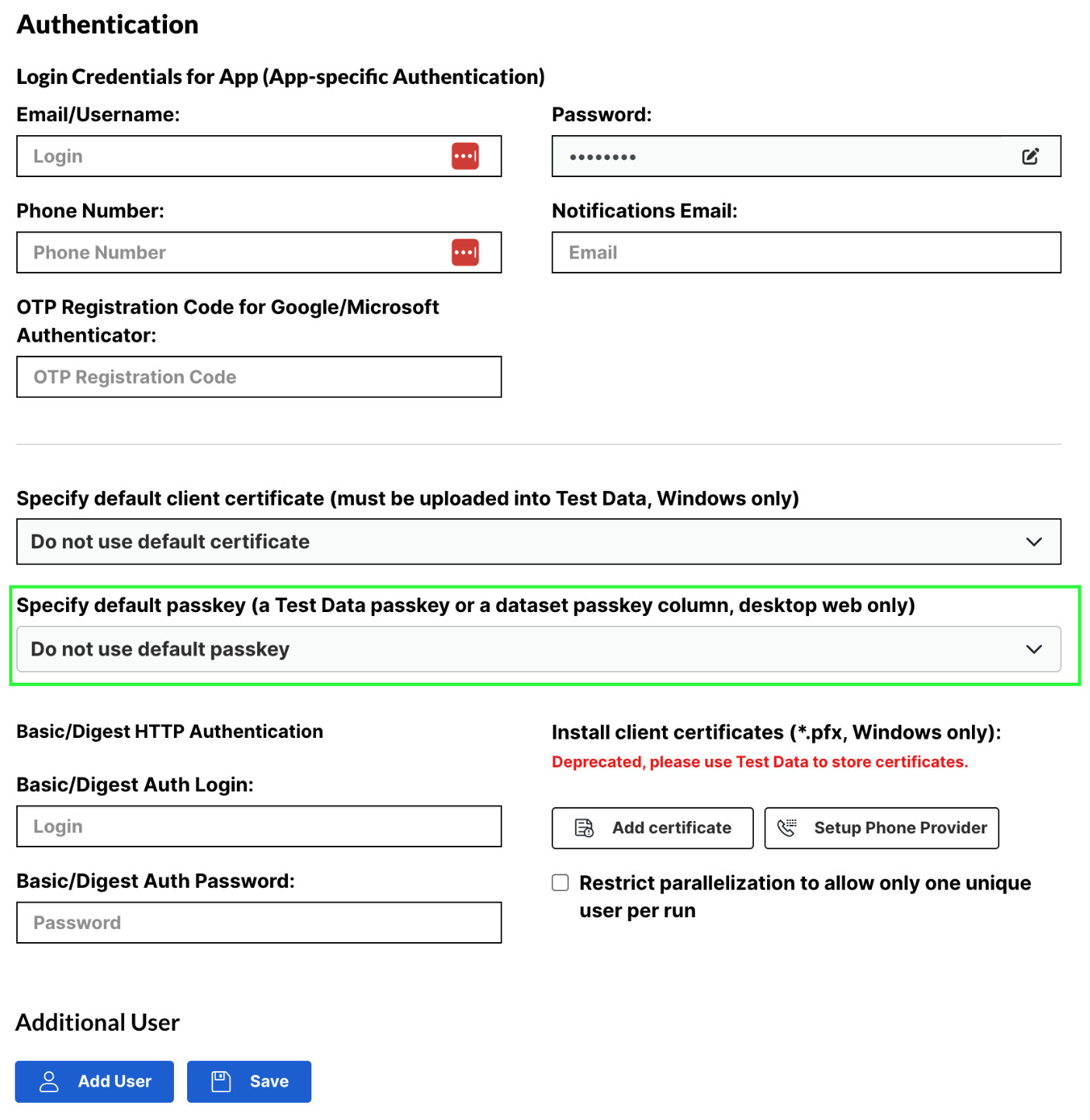
In the suite settings, open Authentication > Unique test credentials and choose the passkey in Specify default passkey. You can set one per suite and one per unique test user.
open url "https://your-org.develop.lightning.force.com"
enter "[email protected]" into "Username"
click "Log In"
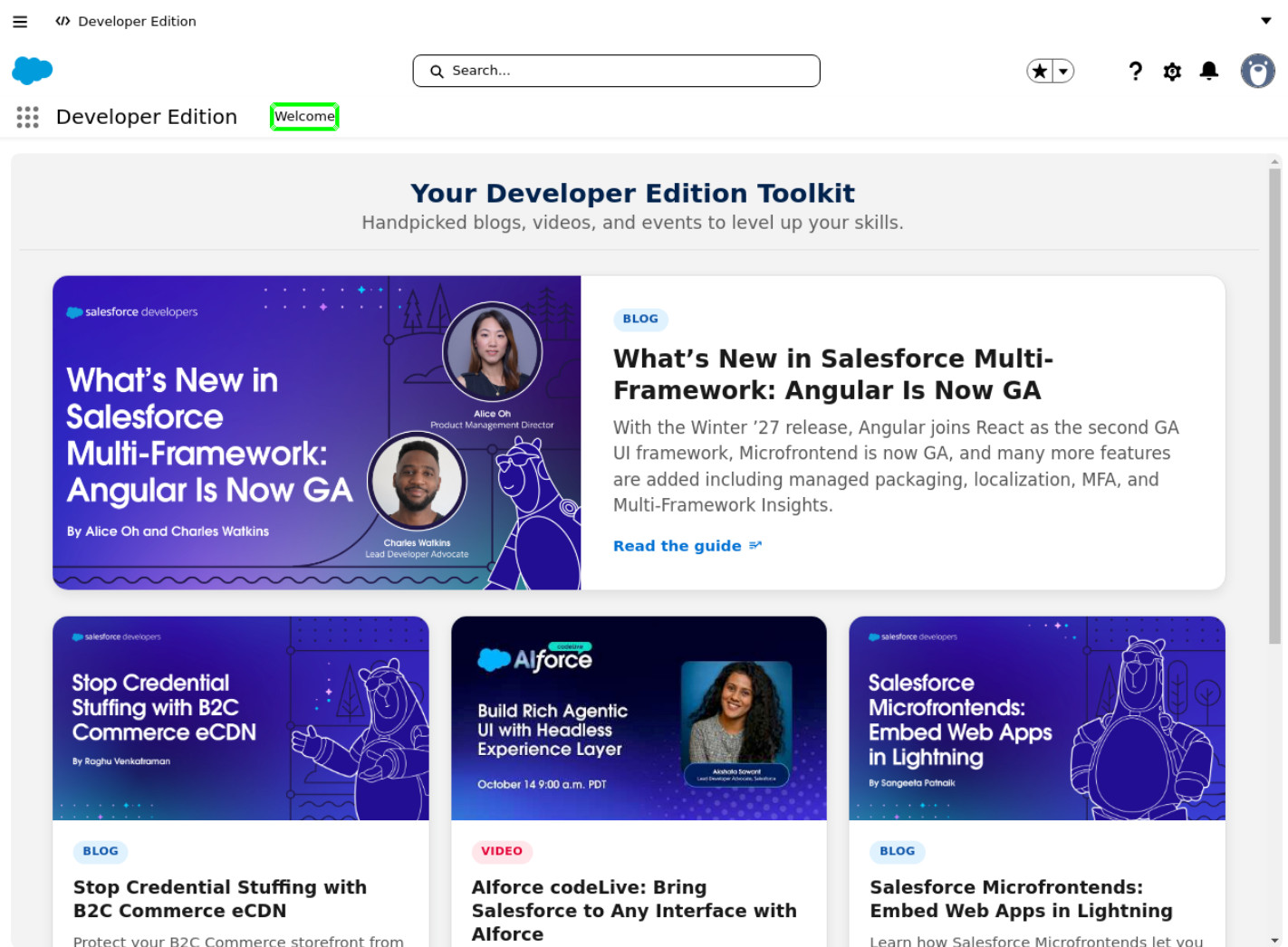
check that page contains "Welcome"
If you delete or rename a passkey that is a default, the Test Data page refuses and tells you which suite or test user still uses it.
B. Choose the passkey in the test
open url "https://your-org.develop.lightning.force.com"
enable passkey "sfU2Passkey"
enter "[email protected]" into "Username"
click "Log In"
check that page contains "Welcome"
enable passkey "name" switches the current browser to that passkey without restarting it. disable passkey stops answering passkey prompts, so the website sees no passkey. Use these two commands to test a user with a passkey and a user without one in the same test.
C. Let login do it
enable passkey, the built-in login command also completes the passkey step. If the site shows “Verify your identity” or “Sign in with a passkey” after the password, login starts it and waits until the passkey has been used. Suites without a passkey see no change.login check that page contains "Welcome"
Step 3: Test what happens when the passkey fails
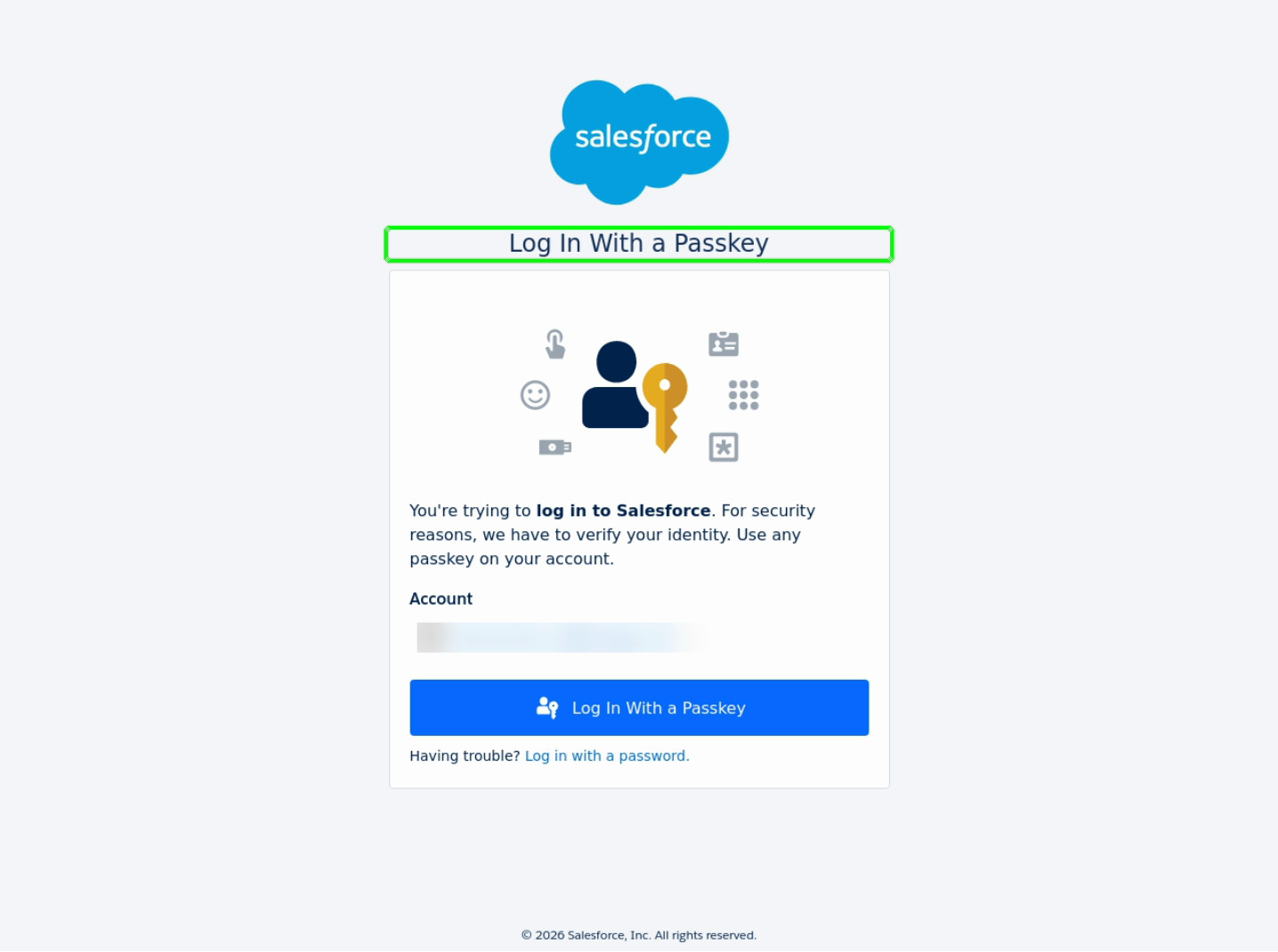
use passkey and fail before the step that asks for the passkey. testRigor then answers as if the Touch ID or Face ID check was rejected, or the user cancelled it.open url "https://your-org.develop.lightning.force.com" enable passkey "sfU2Passkey" use passkey and fail enter "[email protected]" into "Username" click "Log In" check that page contains "Log in With a Passkey"
Salesforce does not log the user in and stays on the passkey page. The test passes because it expects exactly that.
| Command | Same as on a real device |
|---|---|
use passkey and pass |
The finger or face is recognized |
use passkey and fail |
The scan is rejected or cancelled |
The setting stays until you change it. Put use passkey and pass after a failed attempt to let the retry succeed.
Use a second browser with its own passkey
start browser "other user" with passkey "sfU2Passkey" and switch to it
Use switch to browser "default" to go back. This works on Chrome, Edge and Firefox. It is not available on Safari.
Manage passkeys in Test Data
- Names are unique in the suite.
- Child suites inherit it when Test Data inheritance is on.
- It is copied when you copy the suite.
- You can override it for a retest.
Each passkey shows a short description, never the secret part. For example: Passkey: your-org.develop.my.salesforce.com, user: [email protected], id: jriwKadz, algorithm: ES256.
Real example on Salesforce
- Run the Step 1 test. It ends with create passkey and save as “sfU1Passkey”.
- Open Test Data. The variable
sfU1Passkeyis in the list with type Passkey. Its description isPasskey: your-org.develop.my.salesforce.com, user: [email protected], id: jriwKadz, algorithm: ES256. -
Use it in any test of the suite. This test signs in the second Salesforce user, who has the passkey
sfU2Passkeyopen url "https://your-org.develop.lightning.force.com" enable passkey "sfU2Passkey" enter "[email protected]" into "Username" click "Log In" check that page contains "Welcome"
- To skip the
enable passkeyline, open Authentication > Unique test credentials and choose the passkey in Specify default passkey. - Child suites inherit the passkey when Test Data inheritance is on, and a copied suite gets its own copy.
If you delete or rename a passkey that is a default, Test Data refuses and names the suite or test user that still uses it.
Use a passkey in a data set
LoginPasskey, and this test uses it:open url "https://your-org.develop.lightning.force.com" enable passkey "LoginPasskey" enter "[email protected]" into "Username" click "Log In" check that page contains "Welcome"
Each data set row can point to a different passkey. One test can then run for many users.
Supported browsers, key types and limits
| Browser | Where it runs |
|---|---|
| Chrome, Edge | testRigor Ubuntu and Windows machines (Chrome also on Mac) |
| Firefox | Firefox 152 or later |
| Safari | testRigor Mac machines only, all Safari versions |
| Key type | Chrome, Edge | Firefox | Safari |
|---|---|---|---|
| ES256 | create, save, use | create, save, use | create, save, use |
| Ed25519 | create, save, use | refused with a clear error | use |
| RS256 | create, save, use | refused with a clear error | use |
The site decides which key type is created. Chrome and Edge create the first type the site asks for. Firefox and Safari create ES256.
- Physical USB or NFC security keys.
- Personal passkeys saved in iCloud Keychain, Google Password Manager or a Windows account. They cannot be exported.
- Internet Explorer 11.
- Mobile web and Android native apps. This feature is for desktop web.
start browser ... with passkey on Safari
Quick reference
| Command | What it does |
|---|---|
create passkey and save as "name" |
Answers the next passkey creation on the site and saves the new passkey in Test Data |
enable passkey "name" |
Uses this saved passkey in the current browser |
disable passkey |
Stops answering passkey prompts |
use passkey and pass |
The next passkey check succeeds (this is the default) |
use passkey and fail |
The next passkey check fails |
start browser "name" with passkey "name" |
Starts another browser with its own passkey (not on Safari) |
login |
The built-in login. It completes the passkey step when a passkey is enabled |
| Achieve More Than 90% Test Automation | |
| Step by Step Walkthroughs and Help | |
| 14 Day Free Trial, Cancel Anytime |