nopCommerce Testing: How to Test Your Store with testRigor
 |

nopCommerce is a free, open-source ASP.NET Core e-commerce platform for building and managing online stores. It includes product and inventory management, customer accounts, discounts and coupons, multiple currencies and languages, order management, and an administration area. Store owners can also extend it with themes, payment plugins, shipping methods, and other plugins. nopCommerce testing helps verify that all of these moving parts continue to work together as the store changes.
That flexibility is one of nopCommerce’s biggest strengths, but it also means that every store is slightly different. A theme update can hide or move a checkout button. Shipping plugins may stop returning the expected options, while coupons can apply the wrong discount. Even a payment method that looks correct in the admin area can fail when a customer tries to place an order.
For a store owner or operator, that is the most important reason to test: the store needs to keep working as a customer actually experiences it.
Each layer protects a different part of the store. For day-to-day store operations, however, end-to-end testing is especially important because it validates complete customer and administrator journeys in the browser.
What Should nopCommerce Testing Cover?
- Home page and category navigation
- Product search and product pages
- Product attributes and price adjustments
- Adding, updating, and removing cart items
- Guest and registered-customer checkout
- Shipping methods and carts that need no shipping
- Payment information on the order
- Coupons and discounts
- Customer registration and login, profile updates, password changes, and password recovery
- Order history
- Admin-area access
- Product creation and updates from the admin area
The highest-priority tests should follow business risk. When search fails, customers may not find a product. A broken cart stops them from moving toward a purchase. Checkout or payment failures can prevent the store from converting visitors into orders.
What nopCommerce Already Checks, and What It Does Not
nopCommerce includes automated tests under src/Tests/Nop.Tests, using NUnit. They protect logic such as price calculation, discount evaluation, product attribute formatting, registration validation, and service behavior. These checks help developers catch regressions in the core platform.
Passing those tests does not establish that your particular store works in the browser. Your theme, installed plugins, shipping configuration, payment provider, and catalog can introduce behavior that the core tests do not exercise.
- The Add to cart button still works for a product with required attributes
- A customer can complete guest checkout
- The expected shipping method appears for a given address
- Coupons reduce the cart total by the correct amount
- The confirmed order records the intended payment method
- Product changes in the admin area appear correctly on the storefront
- The newsletter form on the home page accepts an address
That is why nopCommerce testing still needs to cover the store-specific journeys that customers and administrators actually use.
Unit Testing in nopCommerce
Unit tests validate small pieces of logic in isolation. nopCommerce’s NUnit project includes checks for calculations and validation rules. Developers can extend this coverage when they create custom plugins or other functionality.
For a store owner, the main thing to know is what these tests are good at: they can verify calculations and isolated logic, such as pricing, tax rules, or custom plugin behavior. They are valuable when your store contains custom code, but they do not open the storefront and complete a purchase like a real customer.
Integration Testing in nopCommerce
Integration tests verify that different parts of the application work together. In a nopCommerce store, this can include interactions with the database, payment plugins, email delivery, stock updates, or other external services.
Typical examples include checking whether the application saves an order correctly, whether stock changes after a purchase, or whether an integration receives the expected data. These checks need an environment prepared for the database or external service being tested.
Within a nopCommerce testing strategy, these tests are important for custom development and integrations, but they still do not confirm that a shopper can successfully navigate your theme, add a product to the cart, select shipping and payment, and finish checkout.
End-to-End nopCommerce Testing
End-to-end testing validates a complete business flow from the user’s perspective. Instead of checking one function or integration at a time, it interacts with the application the way a shopper or store administrator would.
For an online store, this is especially valuable because the business depends on complete journeys:
Find a product → add it to the cart → complete checkout → receive confirmation.
A store can have healthy code and integrations while still losing sales because a visible button disappeared, a field stopped loading, or a plugin changed the checkout flow. This is where nopCommerce testing becomes directly visible to the store owner: it checks the complete experience, not only the code behind it.
For a broader explanation of this testing layer, see the end-to-end testing guide.
testRigor
One of testRigor’s main advantages is that teams can write test cases using plain-English commands rather than traditional automation code. This makes the scenarios easier to understand for people who know the business flow but may not work with CSS selectors, XPath, or a programming language.
That is useful for e-commerce teams because the people who understand the customer journey are often store owners, e-commerce managers, manual testers, support teams, business analysts, and QA professionals.
For a themeable platform such as nopCommerce, there is another practical advantage: testRigor can refer to elements using the text and relative position visible to the user. A step can describe something like the Confirm button roughly below “Total:” instead of depending on a technical selector that may change after a theme update.
You can read more about testRigor’s approach here.
Selenium
Selenium is a widely used open-source browser automation framework that supports languages such as Java, Python, C#, and Ruby.
It gives development and QA teams a high degree of control, but teams normally write these suites in code and maintain them technically. On stores where themes and page structure change frequently, locator maintenance can become an additional task for the team.
More information about common Selenium maintenance challenges is available here.
Playwright
Playwright is a browser automation framework that Microsoft maintains. It supports Chromium, WebKit, and Firefox and can run across major operating systems.
Like Selenium, Playwright is a strong option for teams that want to maintain coded automation. Store owners who want to create and review tests without programming may prefer a plain-English approach instead. See this comparison for more context.
nopCommerce Testing with testRigor: How to Perform End-to-End Tests
Let’s assume you have a nopCommerce store that you want to protect with automated tests. Guest checkout is a useful starting point because it connects product search, the cart, shipping, and order creation. The following walkthrough shows how to create a suite and automate that journey.
Important: Tests that create customers, orders, products, or coupons should run in a staging or test store whenever possible. Do not place real orders, trigger real shipments, or charge real payment methods unless the environment has been intentionally prepared for testing.
Step 1: Log in to your testRigor app with your credentials.
Step 2: Create a test suite and provide the basic configuration:
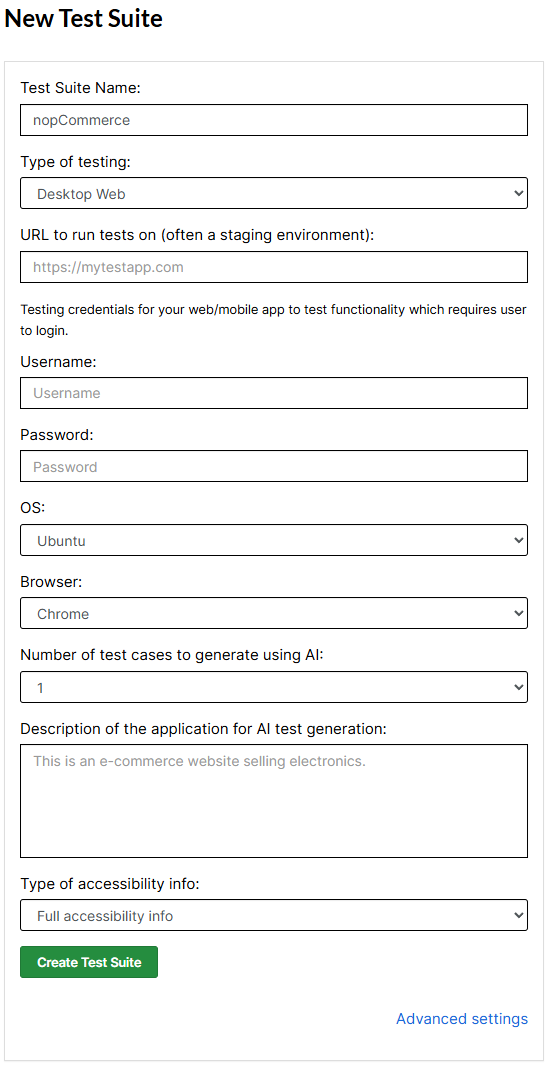
- Test Suite Name: Use a clear name, such as nopCommerce Store Regression.
- Type of testing: Select WebDesktopChrome. That is the browser the steps in this article are written for.
- URL to run test on: Enter the URL of your staging or test storefront.
- Testing credentials: Add credentials for flows that require authentication.
- OS and Browser: Choose the environment in which the tests should run.
- Number of test cases to generate using AI: Optionally use generative AI to draft cases from the App Description.
Step 3: Click Create Test Suite.
On the next screen, testRigor can generate tests from the App Description. For this walkthrough, select do not generate any test so we can build the scenario manually.
Step 4: Click Add Test Case.

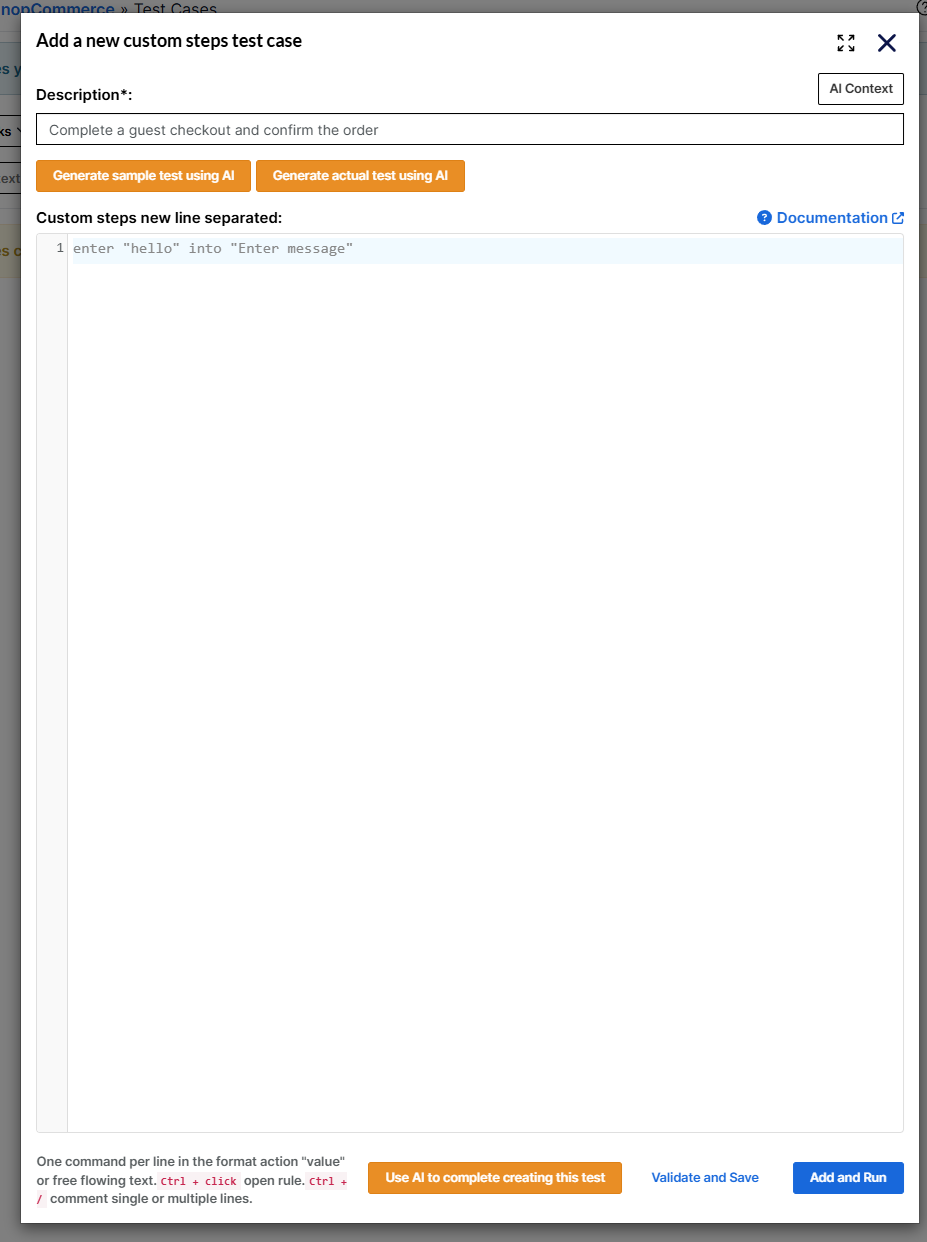
Step 5: Add the test case description and steps, then click Add and Run.
- Storefront: home page, search, product pages, cart, and checkout
- Customer accounts: registration, login, profile updates, password changes, and order history
- Admin area: access control, product management, and order handling
- Marketing: coupon creation and redemption
Setting Up a Safe Environment for nopCommerce Testing
For practical nopCommerce testing, the safest option for store owners is usually a staging copy of the store that is as close to production as possible.
- The same theme used in production
- The plugins that affect important customer journeys
- Representative products and product attributes
- Shipping and tax rules similar to production
- A payment method configured in test or sandbox mode
- Test customer and administrator accounts where needed
Avoid integrations that create real charges, shipments, or customer messages unless you intentionally configure them for testing.
A default nopCommerce installation can also include demo products such as Apple MacBook Pro and Build your own computer, plus categories such as Computers, Electronics, and Apparel. These are useful for learning the test flow, but your production-focused suite should eventually use products and rules representative of your real store.
The examples below use an English storefront with the sample catalog, guest checkout enabled, Ground shipping, and Check / Money Order as the only active payment method. Billing and shipping use the same address. With this configuration, checkout skips separate shipping-address and payment-method selection steps. If your store uses another language or offers several payment methods, adapt the labels and add the relevant selection steps.
Test Data for nopCommerce Testing
Instead of repeating environment details inside every test, you can keep values such as the storefront URL and admin credentials in testRigor Test Data. This makes the same test easier to reuse if you later change the staging URL or credentials.
Define the following stored values for these examples:
| Key | Purpose | Example value |
|---|---|---|
storeUrl |
Storefront URL | http://localhost/ |
adminUrl |
Admin area | http://localhost/admin |
adminEmail |
Administrator created by install | [email protected] |
adminPassword |
That administrator’s password | Stored in Test Data |
These URL examples target a local store. When testing staging, replace every URL with your staging address.
Admin scenarios can also use stored URLs to open the product, order, discount, and warehouse lists. This avoids ambiguous menu labels that appear on every admin page. From those lists, the tests continue through the interface, for example with Add new. The source-controlled examples keep these values in src/Tests/E2E/variables.json.
For customer registration tests, generated data is usually better than fixed data. A unique email address on each run prevents failures caused by reusing an account that already exists. Generate product names, SKUs, and coupon codes for the same reason. Separate records help keep tests independent when they run concurrently. In a persistent staging store, plan cleanup for customers, orders, reviews, and discounts left by the tests.
Test Case: Complete a Guest Checkout and Confirm the Order
The following steps use the sample-store configuration described above. If your theme, language, or plugins change the checkout flow, use the labels and steps that appear in your storefront.
Step 1: Find a Product

save "Apple MacBook Pro" as "productName"
enter stored value "productName" into "Search store"
click button "Search"
check that page contains stored value "productName"
click stored value "productName"
Step 2: Add the Product to the Cart
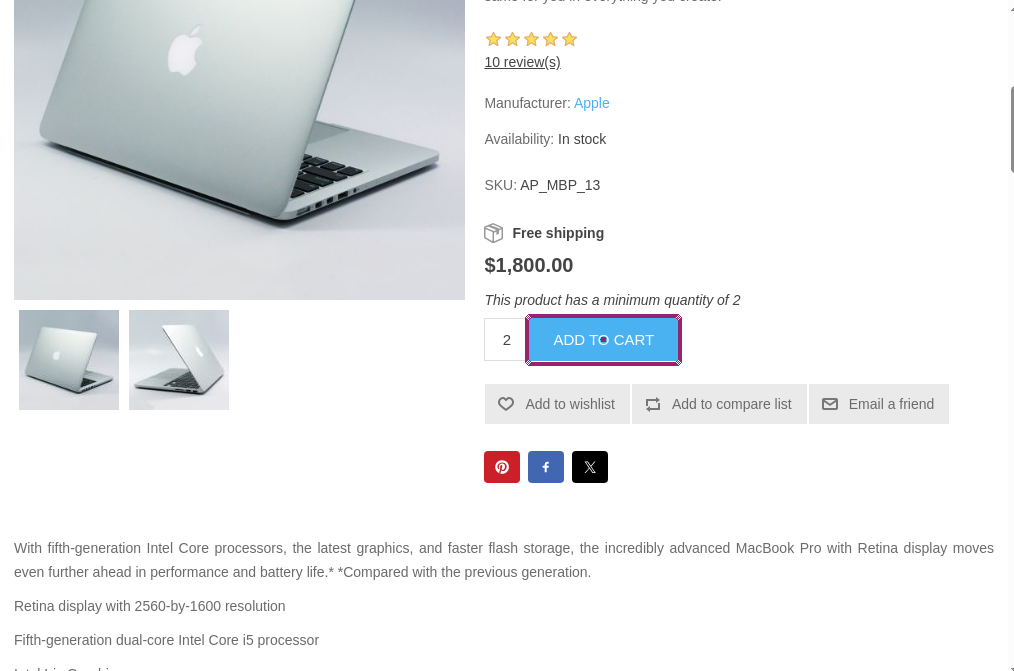
click button "Add to cart"
check that page contains "The product has been added to your shopping cart"
Step 3: Open the Cart and Begin Checkout
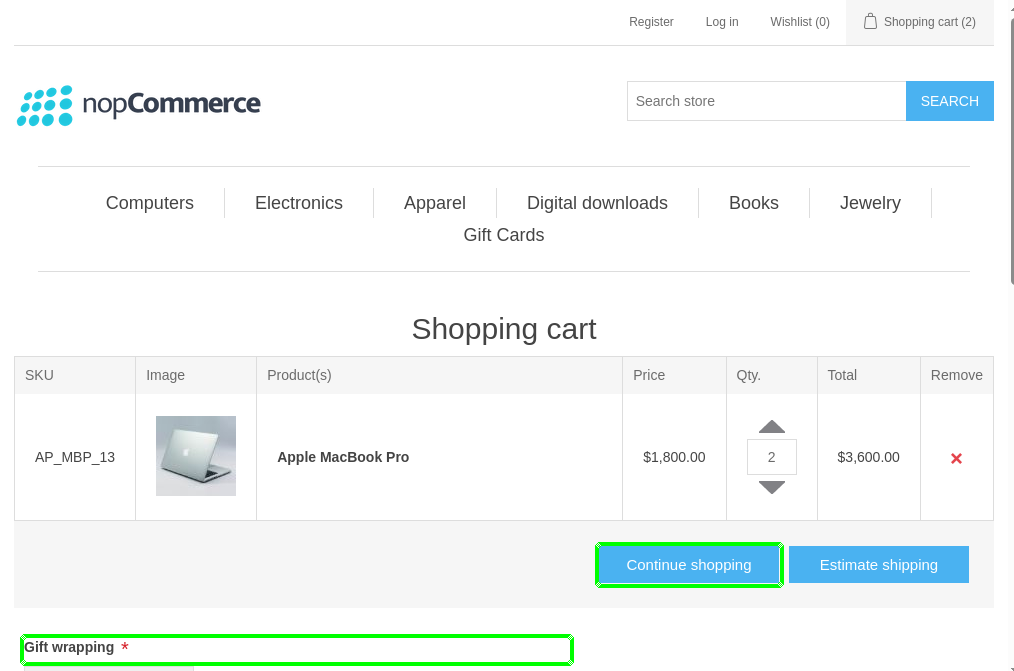
click "Shopping cart"
check that button "Continue shopping" is visible
check that page contains "Gift wrapping"
click "I agree with the terms of service and I adhere to them unconditionally"
click "Checkout"
Step 4: Check Out as a Guest
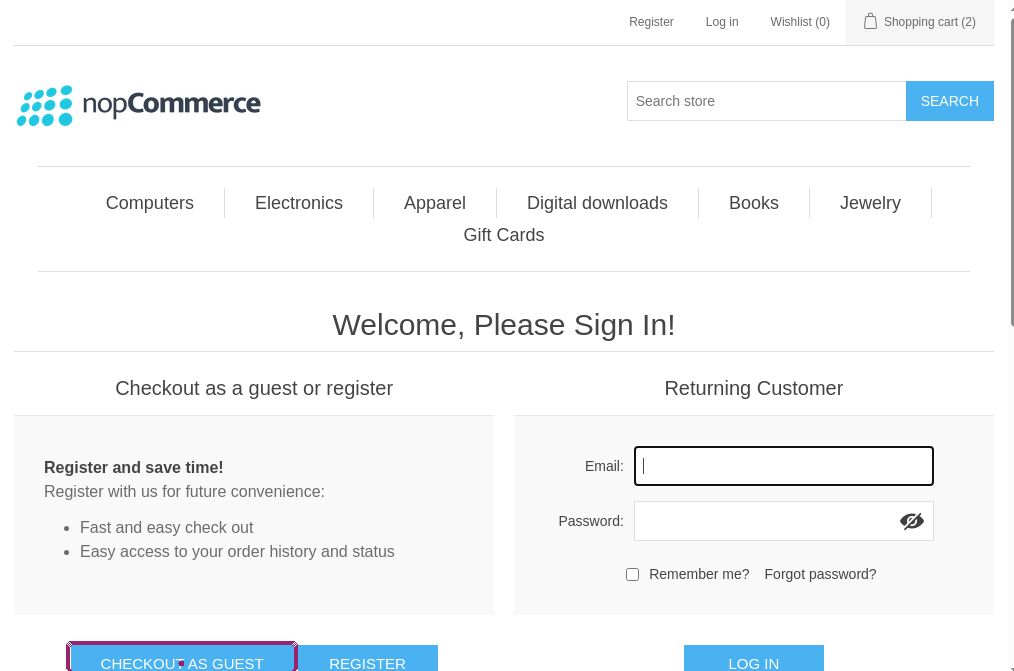
check that page contains "Checkout as Guest"
click button "Checkout as Guest"
check that page contains "Billing address"
enter "Guest" into "First name"
enter "Buyer" into "Last name"
generate unique email, then enter into "Email" and save as "guestEmail"
Step 5: Fill In the Address
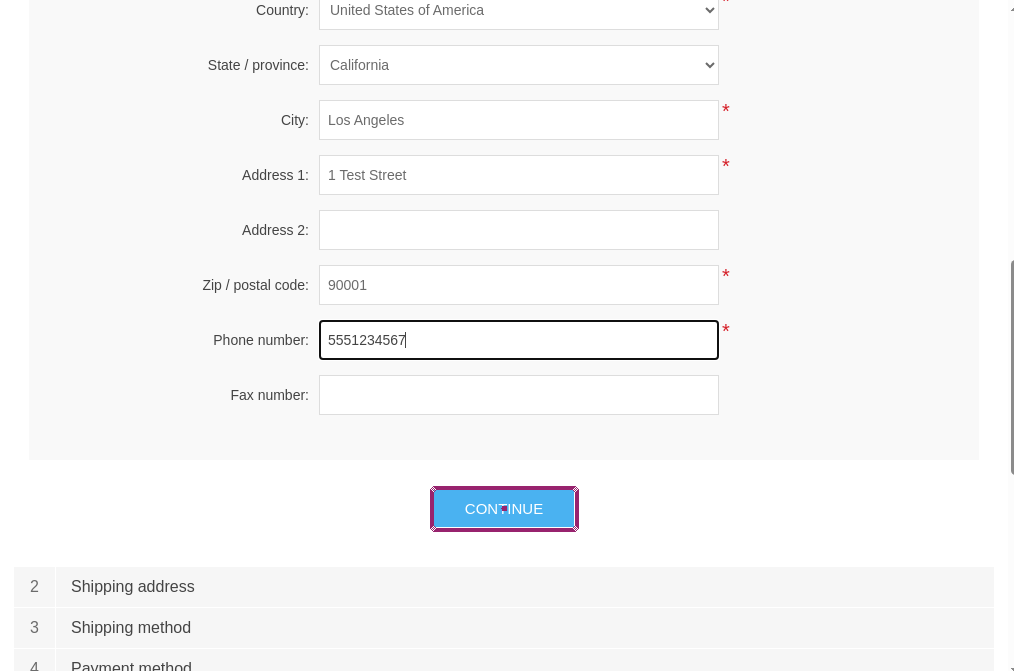
select "United States of America" from "Country"
select "California" from "State / province"
enter "Los Angeles" into "City"
enter "1 Test Street" into "Address 1"
enter "90001" into "Zip / postal code"
enter "5551234567" into "Phone number"
click button "Continue"
With billing and shipping set to the same address, the next section asks for a shipping method.
Step 6: Confirm Shipping and Payment, Then Place the Order
The one-page checkout shows section headings before their contents load. Wait for Ground and then the check-payment instructions, rather than for the headings alone. Because there is only one active payment method, checkout selects it automatically; check its name on the order review.
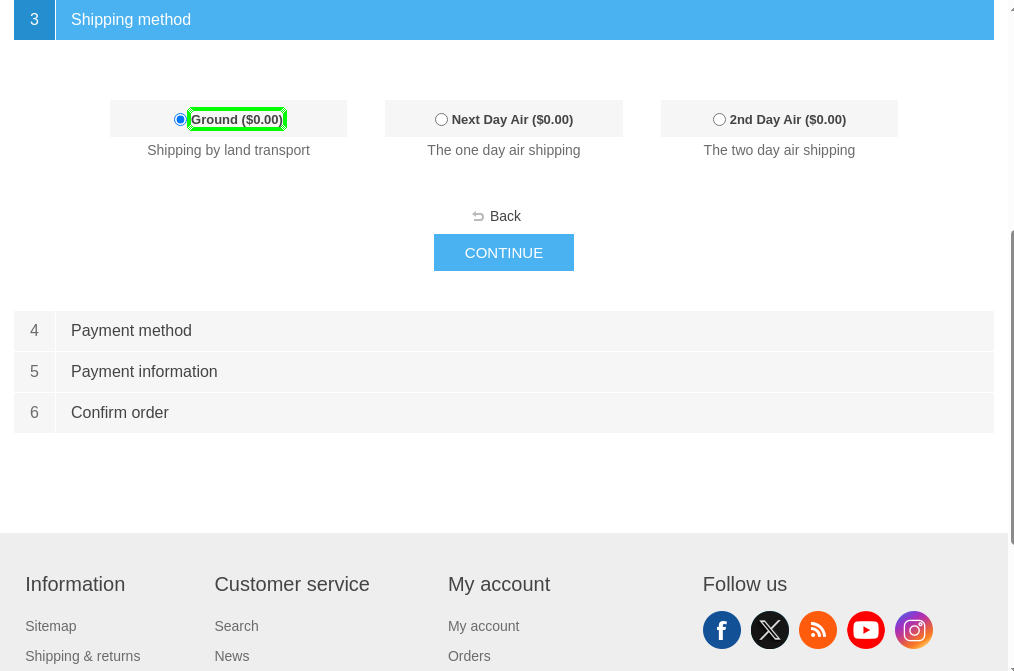
wait up to 60 seconds until page contains "Ground"
click "Ground"
click button "Continue"
wait up to 60 seconds until page contains "Mail Personal or Business Check"
click button "Continue"
wait up to 60 seconds until page contains "Check / Money Order"
check that page contains "Ground"
scroll down until page contains "Total:"
click button "Confirm" roughly below "Total:"
wait up to 180 seconds until page contains "Your order has been successfully processed!"
check that page contains "Order number"
Order creation can take longer than the earlier steps, so the final wait allows more time. The confirmation and order number show that checkout created an order. Check / Money Order is an offline payment method; this scenario does not verify an online charge. Add separate sandbox tests for the payment gateways your store uses.
Complete Test Case
save "Apple MacBook Pro" as "productName"
product-add-to-cart
click "Shopping cart"
check that button "Continue shopping" is visible
check that page contains "Gift wrapping"
cart-proceed-to-checkout
checkout-billing-guest
checkout-place-order
check that page contains "Order number"
The complete case and its reusable rules are available in pull request #8352. You can use them as a starting point and adapt them to your store.
Execution Results
After a run, testRigor shows the execution status, time spent, screenshots for each step, error messages, and logs. If a test fails, start with the failed step and its screenshot. That usually helps determine whether the problem comes from the store, the test data, an external service, or a changed page flow.
You can also download the complete execution, including steps and screenshots, in PDF or Word format through the View Execution option.
You can browse the public example suite and its execution history. The implementation reports passing runs for all 14 cases against a develop source build identified as version 5.00 and the published 4.90.8 image. The 4.90.8 execution provides a concrete result to inspect; your own store still needs tests for its configuration.
testRigor’s Capabilities
- Reusable Rules (Subroutines): Reuse common flows such as adding a product to the cart, filling an address, or logging in. See the Reusable Rules documentation.
- Global Variables and Data Sets: Keep environment values and reusable test data outside individual test cases.
- Additional Authentication Flows: Add tests for two-factor authentication, QR codes, or CAPTCHA when your store uses them and your test configuration supports them. See QR Code and Captcha resolution.
- Email, Phone Call, and SMS Testing: Validate order-confirmation emails, password-reset messages, OTPs, and authentication codes using email, phone, and SMS commands.
- File Upload/Download Testing: Test flows such as invoice downloads or product imports. See files.
- Database Testing: For teams that need deeper validation, database queries can confirm that expected records were created.
Additional Resources
High-Value nopCommerce Testing Scenarios
A useful nopCommerce regression suite should reflect the actions that customers and store staff perform most often. The following examples build on the same sample store and reusable rules as the checkout walkthrough. Adapt them to your theme, catalog, and plugins.
1. Verify the Storefront Loads Correctly
check that page contains "Welcome to our store"
check that page contains "Register"
check that page contains "Log in"
check that page contains "Shopping cart"
check that page contains "Computers"
check that page contains "Apple MacBook Pro"
scroll down to the bottom of the page
check that page contains "Contact us"
generate unique email, then enter into "Enter your email here..." and save as "newsletterEmail"
click "Subscribe"
check that page contains "Thank you for signing up"
“Books” is a poor assertion on this page: it is also a substring of “Notebooks”, so the check can pass for the wrong reason.
2. Verify Product Search
enter "MacBook" into "Search store"
click button "Search"
check that page contains "Apple MacBook Pro"
click "Apple MacBook Pro"
check that page contains "Email a friend"
enter "zzqqxxnomatch123" into "Search store"
click button "Search"
check that page contains "No products were found that matched your criteria."
For category browsing, open Computers and then Notebooks. At each step, check content that only that category renders: the Desktops subcategory, then a notebook the home page does not feature, such as Lenovo Thinkpad Carbon Laptop. Then check the Sort by and Display controls. A category name in the shared header does not prove that its page opened.
3. Verify Product Attributes and Price Adjustments
click "Build your own computer"
select "2 GB" from "RAM"
click "400 GB [+$100.00]"
click "Vista Premium [+$60.00]"
click button "Add to cart"
check that page contains "The product has been added to your shopping cart"
click "Shopping cart"
check that page contains "400 GB"
check that page contains "Vista Premium"
check that page contains "$1,425.00"
The cart price shows that the adjustments were applied. In the sample catalog, the $1,200.00 base price plus the pre-selected processor ($15.00), Microsoft Office ($50.00), HDD ($100.00), and operating system ($60.00) comes to $1,425.00. The 2 GB RAM option adds nothing. Add a separate negative case that attempts to purchase without selecting the required attributes.
4. Verify Cart Updates, Removal, and Persistence
A cart test should confirm that customers can change quantities, retain their items across a new login, and remove products. In this sample storefront, editing the quantity updates the cart. Apple MacBook Pro requires at least two units; setting its quantity to zero removes the line.
customer-register-new
save "Apple MacBook Pro" as "productName"
product-add-to-cart
click "Shopping cart"
check that button "Continue shopping" is visible
enter "3" into "Qty."
check that page contains "$5,400.00"
customer-logout
customer-login
click "Shopping cart"
check that page contains "Apple MacBook Pro"
enter "0" into "Qty."
check that page contains "Your Shopping Cart is empty!"
This case creates its own customer before adding the product, so it checks a registered customer’s cart persistence across logout and login. Guest-cart transfer at first login is a separate scenario worth adding if it matters to your store.
5. Verify Guest and Registered Checkout
The guest checkout walkthrough earlier in this article covers an important purchase journey. Run it against the shipping and payment options that matter to your business.
If your store offers several payment or shipping methods, create separate tests for the combinations that carry the most orders.
Also cover registered-customer checkout and carts that need no shipping. For the latter, create a temporary product with Shipping enabled cleared and confirm that checkout skips shipping selection. This setting is separate from Downloadable product; a no-shipping test alone does not validate file delivery.
6. Verify Customer Registration and Login
click "Register"
check that page contains "Your Personal Details"
enter "Test" into "First name"
generate by regex "[A-Z][a-z]{5,9}", then enter into "Last name" and save as "customerLastName"
generate unique email, then enter into "Email" and save as "customerEmail"
generate by regex "[A-Z][a-z]{6}[0-9]{2}[!@#]", then enter into "Password" and save as "customerPassword"
enter stored value "customerPassword" into "Confirm password"
click button "Register"
check that page contains "Your registration completed"
The account case then changes the first name and checks that the field still holds “Updated” on a later visit. It changes the password and logs out. Signing in again with the new password is what proves the change. The success banner alone does not.
The same customer can add an address-book entry with the same address steps used at checkout, and the saved street is what proves the entry was stored.
Check account-page URLs when menu labels appear on every page. For password recovery, add a separate test that receives the reset email in a controlled mailbox, follows its link, sets a new password, and signs in. Changing a password while already logged in does not cover that recovery journey.
7. Verify Order History and Cancellation
A registered customer can place an order, open it from My account → Orders, and see the product, the billing street, and Check / Money Order on the details page.
An administrator can then cancel that order. The customer logs in again and sees Cancelled on the order list. The status is read from the customer’s own account, not from the admin grid, so the test crosses the boundary between the two.
Find the order by this run’s customer email and target the View link on that row. This avoids selecting another customer’s order when tests share an environment.
8. Verify Admin Access
/admin sends an anonymous visitor to the storefront login page, and a successful login returns to the dashboard.go to url stored value "adminUrl" check that page contains "Welcome, Please Sign In!" enter "[email protected]" into "Email" enter "wrong_password" into "Password" click button "Log in" check that page contains "Login was unsuccessful"
Also test an existing administrator with an incorrect password, then confirm that valid credentials reach the dashboard. Add a separate case with an ordinary customer account to check authorization: rejecting a wrong password does not establish that non-administrators are denied access.
9. Verify Product Changes Reach the Storefront
- Create a temporary product in the admin area
- Confirm that it appears in storefront search
- Change its price and set its stock to zero
- Confirm that the new price appears on the storefront and that Add to cart is refused
- Delete the temporary product
generate from template "E2E Product #####", then enter into "Product name" and save as "productName"
generate from template "E2ESKU#####", then enter into "SKU" and save as "productSku"
enter "50" into "Price"
click button "Save and Continue Edit"
check that page contains "The new product has been added successfully."
enter stored value "productSku" into "Go directly to product SKU"
click button "Go" to the right of "Go directly to product SKU"
enter "199.99" into "Price"
select "Track inventory" from "Inventory method"
enter "0" into "Stock quantity"
click button "Save and Continue Edit"
Return to the storefront to check the new price, then attempt to add the product and expect Out of stock. The saved admin form alone does not prove that the customer sees the change. Finish by deleting the temporary product through the confirmation dialog.
10. Verify Coupons and Promotions
Test promotions before you advertise them to customers. A strong test creates a coupon in the admin area, adds an eligible product to the cart, and confirms that the cart applies the coupon correctly.
click on the checkbox to the right of "Requires coupon code"
generate from template "E2E#####", then enter into "Coupon code" and save as "couponCode"
enter "10" into "Discount amount"
click button "Save"
check that page contains "The new discount has been added successfully."
enter stored value "couponCode" into "Discount Code"
click button "Apply coupon"
check that page contains "The coupon code was applied"
check that page contains "-$10.00"
The banner says the code was accepted. The $10.00 deduction shows that the expected discount was applied. Remove the generated discount afterward or give it an expiry if the staging environment will be reused.
For important campaigns, also add negative cases such as an expired coupon, a minimum order that has not been reached, or an ineligible product.
Reviews, Wishlists, and Admin Validation
- Reviews and wishlists: Submit a review as a customer and check its visibility as a guest, then save a product to the wishlist. The sample store approves reviews immediately; stores using moderation need an approval step.
- Account review links: Follow a product link from My product reviews and check product-page content. The normal header and footer can still appear on a page-not-found screen.
- Warehouse validation: Attempt to save a warehouse without Country or Zip / postal code and check that no record was created. Then supply the required values, verify a successful save, and delete the temporary warehouse.
The implementation documents two of these checks against releases on either side of a bug fix. The linked runs show a failure on the affected version and a pass on the first fixed version:
| Issue | Case | Last affected release | First fixed release |
|---|---|---|---|
| #8094 My product reviews link 404s | TC-14 | 4.90.3 | 4.90.4 |
| #8286 Warehouse saves with Country and Zip empty | TC-13 | 4.90.6 | 4.90.7 |
Reusable Rules for nopCommerce Testing
Reusable Rules help keep the suite readable by replacing repeated groups of steps with a meaningful name.
save "Apple MacBook Pro" as "productName"
product-add-to-cart
product-open
click button "Add to cart"
check that page contains "The product has been added to your shopping cart"
product-open is the header-search lookup from the guest-checkout walkthrough. Callers set productName first and start from any storefront page.
The same approach works for customer registration, login, address entry, checkout, and admin actions. When a shared flow changes, update its rule rather than repeating the edit in every test.
In the source-controlled suite, rules live in src/Tests/E2E/rules/. Case labels include the rule dependencies, allowing teams to run a subset of tests associated with a particular flow.
nopCommerce Testing Tips for Reliable Automation
- Keep tests independent. Generate customer emails, product names, SKUs, and coupon codes. Each case should prepare the data it needs instead of depending on an earlier case.
- Wait for meaningful content. In checkout, wait for a shipping option or payment instructions. A section heading can appear before its controls are ready.
- Confirm the destination. When navigation labels also appear in shared menus, check content that only the destination page renders.
- Check the business result. Sign in after a password change, read the storefront after a price update, and verify the discount amount after applying a coupon.
- Prepare a consistent admin interface. Cards and filter panels remember their expanded state per user. Ensure the controls are available rather than blindly toggling a panel on every run.
- Match your store’s configuration. Adapt labels, quantities, shipping choices, and payment steps to your theme, language, catalog, and plugins.
- Plan cleanup for persistent staging. Generated data prevents name collisions, but customers, orders, reviews, and discounts can still accumulate over repeated runs.
When to Run Your nopCommerce Testing Suite
- Before and after updating nopCommerce
- After installing or updating a plugin
- When the theme changes
- After changing shipping, tax, or payment settings
- Before launching an important promotion
- After major catalog or checkout changes
- On a regular schedule, even when no planned change has been made
Not every test needs to run at the same frequency. A quick storefront and checkout smoke test can run often, while you can reserve longer administration scenarios for maintenance windows or major changes.
nopCommerce Testing for Development Teams and Agencies: Git, Docker, and CI/CD
A staging store and a testRigor suite are enough to automate the journeys described above. Agencies and development teams can also keep the same tests in Git and run them against local or temporary environments.
Pull request #8352 provides the example cases, rules, variables, installation script, and GitHub Actions workflow. To use the commands below, start with a checkout containing those files:
| Path | Purpose |
|---|---|
src/Tests/E2E/test-cases/*.yaml |
One file per test case |
src/Tests/E2E/rules/*.txt |
Reusable step sequences |
src/Tests/E2E/variables.json |
Shared stored values |
src/Tests/E2E/scripts/install-nopcommerce.sh |
Unattended setup of the sample store |
.github/workflows/e2e-tests.yml |
Automated browser-test workflow |
Running nopCommerce Tests Locally
WebDesktopChrome suite ID and CI token through TESTRIGOR_SUITE_ID and TESTRIGOR_CI_TOKEN. The ID is in the suite URL; the token is available under CI/CD Integration in testRigor.docker compose up -d --build BASE_URL=http://localhost \ NOP_RESTART_CMD="docker restart nopcommerce" \ bash src/Tests/E2E/scripts/install-nopcommerce.sh npm install --global @testrigor/testrigor-cli testrigor test-suite run "$TESTRIGOR_SUITE_ID" \ --token "$TESTRIGOR_CI_TOKEN" \ --localhost --url "http://localhost" \ --test-cases-path "src/Tests/E2E/test-cases/*.yaml" \ --rules-path "src/Tests/E2E/rules/*.txt" \ --variables-path "src/Tests/E2E/variables.json" \ --labels nop-e2e \ --junit-report-save-path e2e-results.xml
Starting the containers makes the install page available; the installation script then creates the database and sample data, restarts the application, and waits for the storefront. It prepares English labels and the single offline payment method used in these examples. This setup uses the root SQL Server Compose configuration; other database configurations need a matching installer.
The CLI package above follows the testRigor CLI documentation. Since the supplied workflow uses the unscoped testrigor-cli package name, check package and version choices when adapting it.
With --localhost, the test execution can access the local store. If you target staging instead, update every stored URL in variables.json, including search and admin URLs. Changing --url alone does not change URLs used directly by reusable rules.
For a published-release comparison, use src/Tests/E2E/docker-compose.release.yml and its NOP_VERSION setting. Install each fresh instance before running the tests. In the supplied temporary setup, removing the containers discards the generated application configuration and database.
Keeping Tests in Git
Use --test-cases-path and --rules-path to run the files from your branch, and --variables-path to supply the environment’s stored values. Include every value the cases require when providing a replacement variable file.
For controlled synchronization, --explicit-mutations lets the local files update the stored suite. Treat the complete local suite as authoritative in that workflow: omitted remote cases can be removed. Use a dedicated suite and keep edits in Git when this synchronization is enabled.
Labels let you select a smaller group of cases. You can also use --test-case-uuid with --url to run an individual test. See the CLI options for the full command reference.
Setting Up GitHub CI/CD Integration
The example workflow builds a temporary store and runs the browser suite on pushes and pull requests targeting develop, as well as manual runs. Configure these values under Settings → Secrets and variables → Actions:
| Setting | Type | Purpose |
|---|---|---|
TESTRIGOR_CI_TOKEN |
Secret | Authenticates the test run |
TESTRIGOR_SUITE_ID |
Repository variable | Identifies the dedicated suite |
- name: Install testRigor CLI
  run: npm install --global @testrigor/testrigor-cli
- name: Run nopCommerce browser tests
  env:
    TESTRIGOR_CI_TOKEN: ${{ secrets.TESTRIGOR_CI_TOKEN }}
    TESTRIGOR_SUITE_ID: ${{ vars.TESTRIGOR_SUITE_ID }}
  run: |
    testrigor test-suite run "$TESTRIGOR_SUITE_ID" \
      --token "$TESTRIGOR_CI_TOKEN" \
      --localhost --url "http://localhost" \
      --test-cases-path "src/Tests/E2E/test-cases/*.yaml" \
      --rules-path "src/Tests/E2E/rules/*.txt" \
      --variables-path "src/Tests/E2E/variables.json" \
      --labels nop-e2e \
      --junit-report-save-path e2e-results.xml
This is a run-step excerpt; the full workflow also checks out the code, prepares Node.js and Docker, installs nopCommerce, and saves the results. The GitHub Actions execution and corresponding testRigor execution linked with the implementation provide examples to inspect.
- Skip browser tests when credentials are unavailable. The example checks for both settings before starting the E2E job. This accommodates unconfigured repositories and fork pull requests that do not receive repository secrets.
- Limit stored-suite updates to the trusted branch. The workflow uses
--explicit-mutationson pushes todevelop; pull requests and manual runs execute their checked-out files without replacing the stored suite. Runs are queued so they do not compete to synchronize it. - Keep useful failure evidence. Save the JUnit report and review container logs alongside the failed browser step. The separate .NET workflow continues to run the NUnit tests.
Each temporary environment starts with fresh data. For a persistent staging store, use a reset or cleanup process appropriate to the records your tests create.
Conclusion
A practical nopCommerce testing strategy protects the journeys that keep the business running: finding products, managing the cart, placing orders, using promotions, accessing accounts, and maintaining the catalog.
Unit and integration tests protect calculations and interactions behind those journeys. Browser tests add evidence that customers and store staff can complete them through the interface they actually use.
Start with search, cart, and checkout in a test environment. Adapt the examples to your theme and plugins, then add the account, promotion, and admin scenarios that carry the most risk for your store.
| Achieve More Than 90% Test Automation | |
| Step by Step Walkthroughs and Help | |
| 14 Day Free Trial, Cancel Anytime |