Release Notes: Live mode, Test Case Screenshots, On-premise, XRay Key Validation, Certificate Validation, CI/CD and Faster Android Devices
 |
Test case screenshot improvements
Test case execution screenshots will now display the screenshot number as shown below:
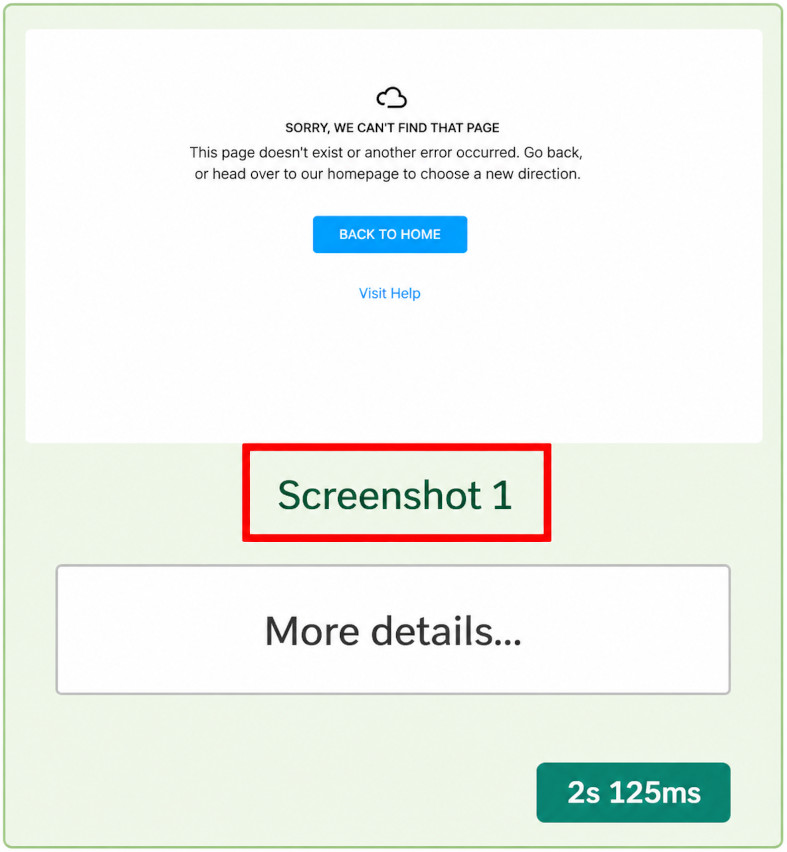
When clicking on a screenshot, you will be able to move to the previous/next one by using the arrow keys (left arrow / right arrow). The background screenshots will scroll automatically when performing this action as well.
On-premise changes
Users that are utilising the on-premise version of testRigor will now have developer access by default, providing them access to additional tools that will allow them debug their environments easier.
Live mode enhacements
Our team has released changes that will reduce the start up time for live mode.
XRay key validation
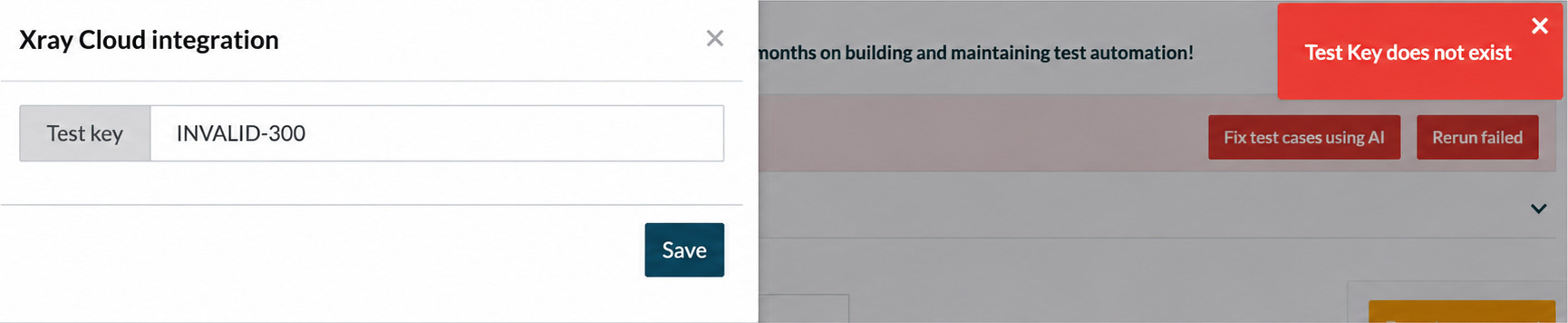
When linking test cases to test keys through xray, testRigor will now check if that key in particular is valid. In the case that such key doesn’t exist, the following error will be displayed:
Setting to validate certificates
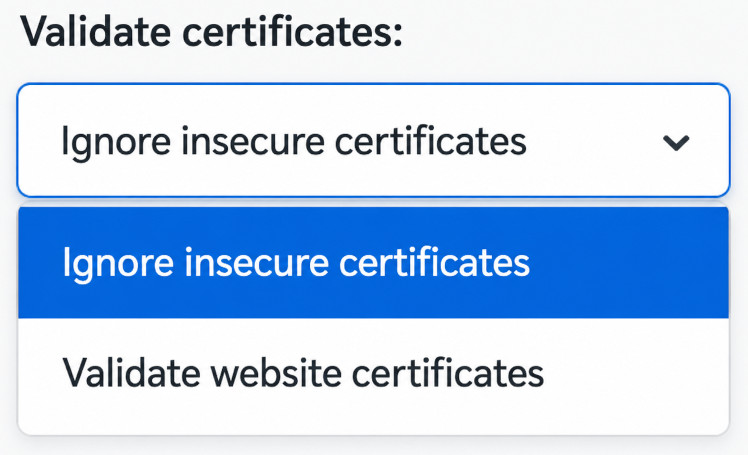
With the latest update, our team has introduced a new setting, which will allow us to validate certificates. You can find this setting on the “Settings” page -> Advanced tab.
CI/CD section additions
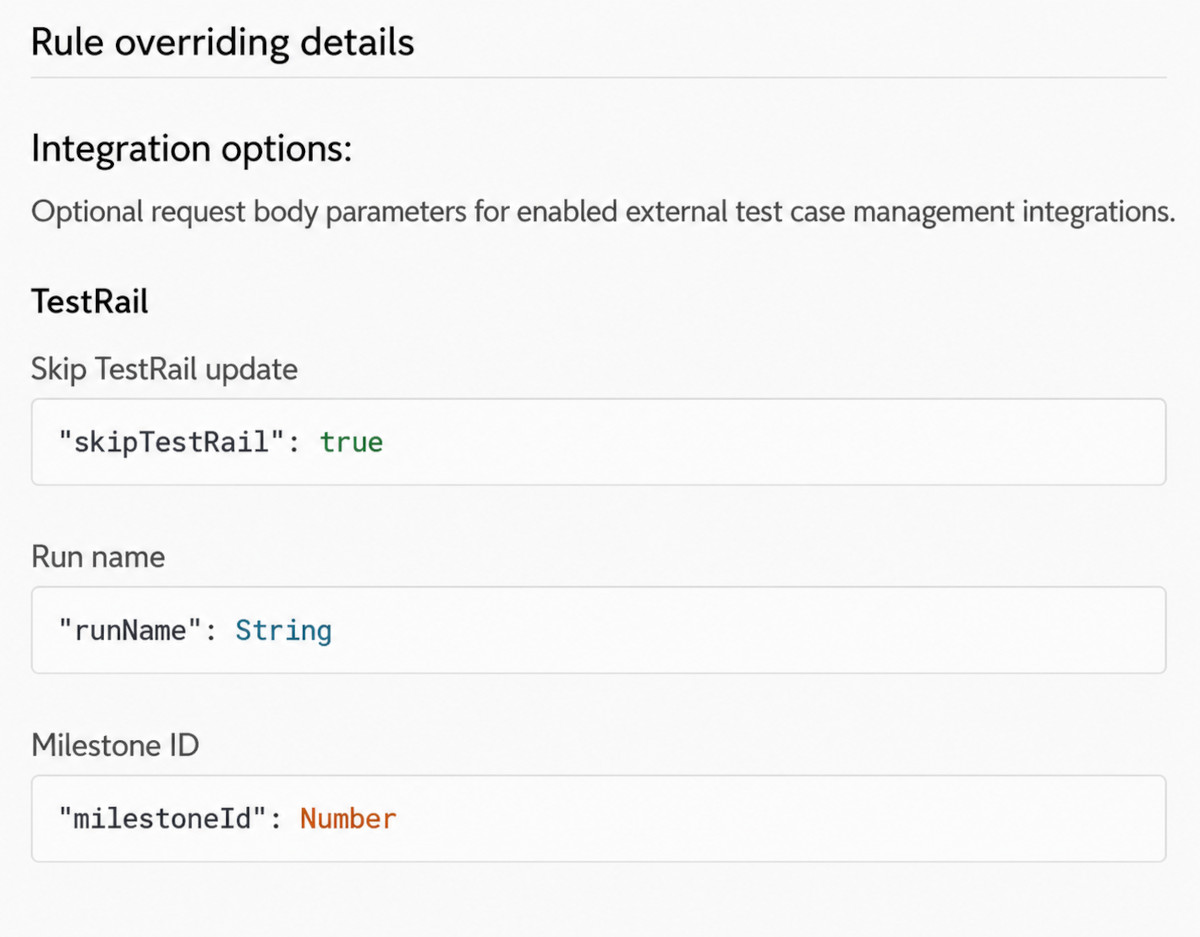
On the CI/CD section of test suites, users will now be able to see all the available options for external integrations.
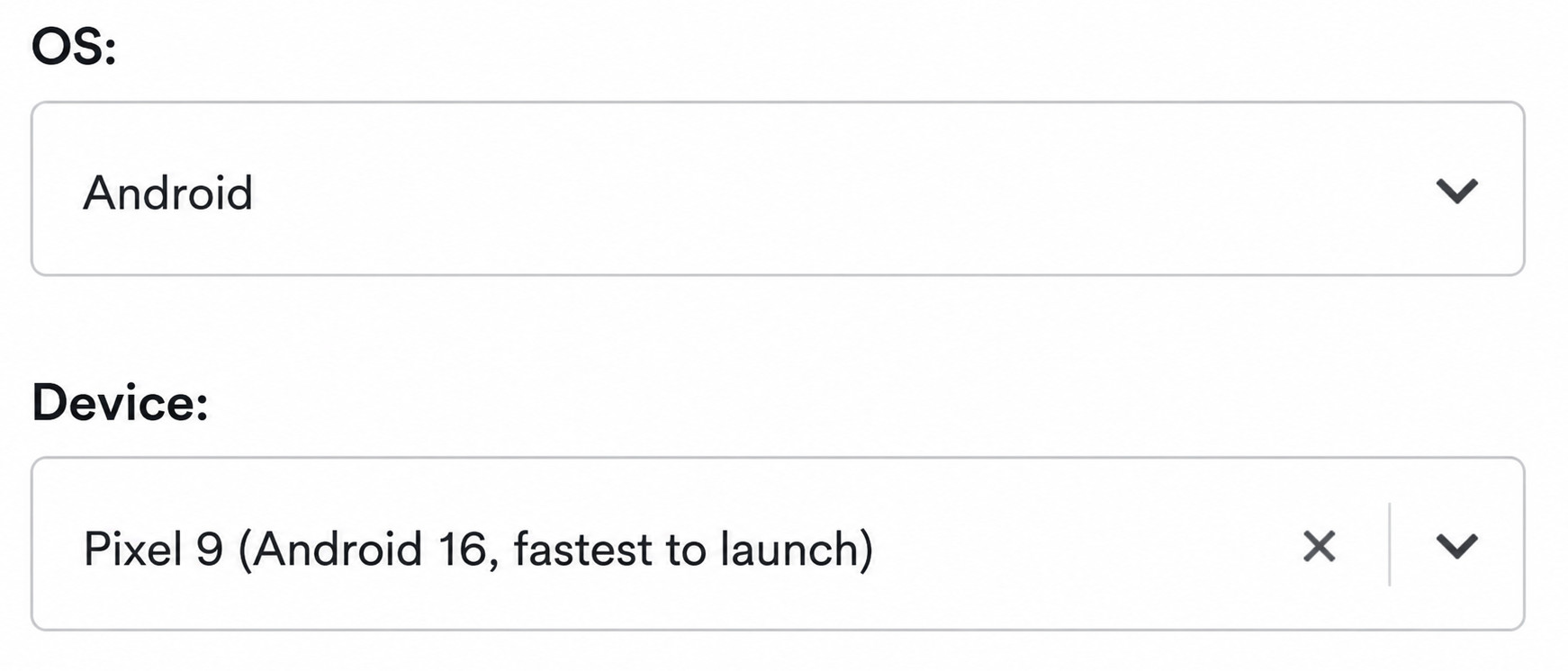
Faster Android devices
Our team has introduced new Android devices that take less time to start up. This will be the default device that will be selected when creating mobile test suites using Android. Test cases that are being run on this device will spend considerably less time on the status “Starting the app”.