Release Notes: Auto-Suggestions, Click to Steps
 |
Introducing Auto-Suggestions
We are excited to announce the addition of an auto-suggestions feature for most built-in testRigor commands. This enhancement significantly improves user experience and efficiency during test creation.
How It Works
As you begin typing a command, our system will display relevant suggestions in real-time. You can easily select a suggestion by either clicking on it or navigating through the options using the arrow keys (up and down) or scrolling over suggestions using the mouse. Once you’ve highlighted your desired command, simply press Enter to autocomplete it.
Benefits of Auto-Suggestions
- Increased Efficiency: Quickly find and insert commands without needing to remember their exact syntax.
- Reduced Errors: Minimize typing mistakes by selecting from suggested commands.
- User-Friendly Experience: Optimized interaction for both new and experienced users.
This new feature is designed to enhance your workflow within testRigor, making it easier than ever to create and execute automated tests.
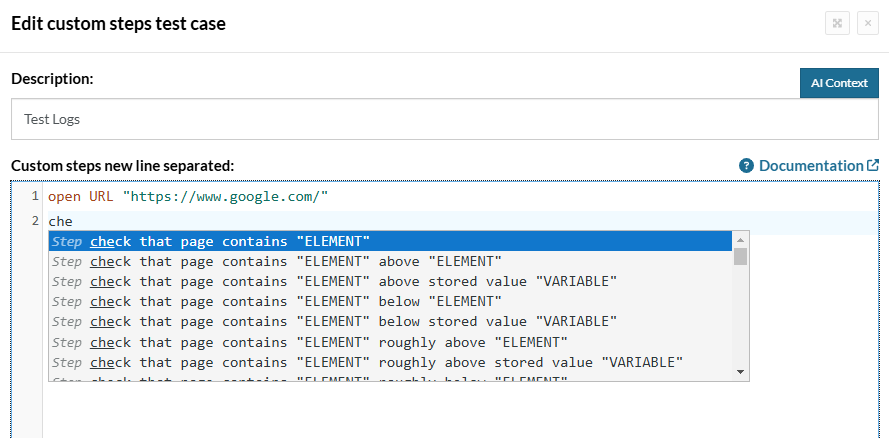
Caption: Auto-sugestion feature.
Click to Steps: Navigate Effortlessly in Your Script
We are thrilled to announce a new feature that enhances navigation within your test scripts: Click to Step. This functionality allows you to click on any step of the run and instantly jump to the corresponding line in the script.
Here’s how it works: Simply hover over the info icon next to the command you wish to access during the run. Then, use the following commands based on your operating system:
Windows/Linux: Ctrl + Click
Mac: Cmd + Click
Once you execute this command, you will be directed to the specific line in the script where that command is defined. It’s that easy! Check out the image below for a visual representation of this feature.
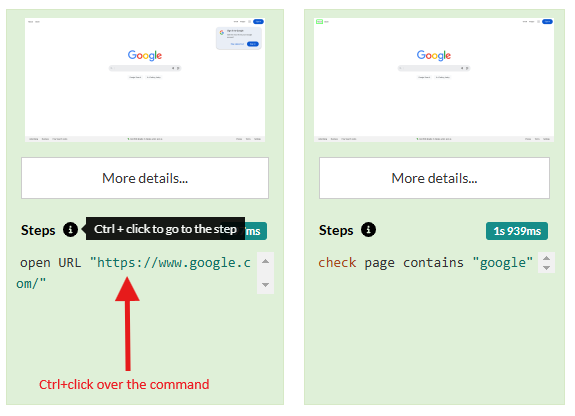
Caption: Info about how to use the click to step feature.