
testRigor Integration from TestRail’s End
 |
At testRigor, we make it easy for teams to bring Gen AI-powered test automation into the tools they already use. This guide walks you through enabling testRigor capabilities from directly inside TestRail using a few clicks. Once set up, you can work with testRigor features right from your TestRail interface—no context switching required.
This seamless integration allows you to benefit from Gen AI-driven test execution while continuing to manage your test assets in TestRail, helping you save time, reduce manual effort, and accelerate release cycles.
With the testRigor-TestRail integration, you can trigger the testRigor automation run from TestRail itself. Apart from that:
- Link TestRail test suites to new or existing testRigor automated suites
- Link TestRail test cases to new or existing testRigor automated test cases
- Link and convert your manual TestRail tests directly to testRigor’s automated tests
The result is faster automation adoption, centralized test management, and powerful Gen AI-driven execution—all from within your existing TestRail workflow.
Let’s get started!
Integration Steps (TestRail to testRigor)
Step 1: Log in to your TestRail account and access the Admin section.

Step 2: Navigate to Site Settings → API. Then select the check box to Enable API.
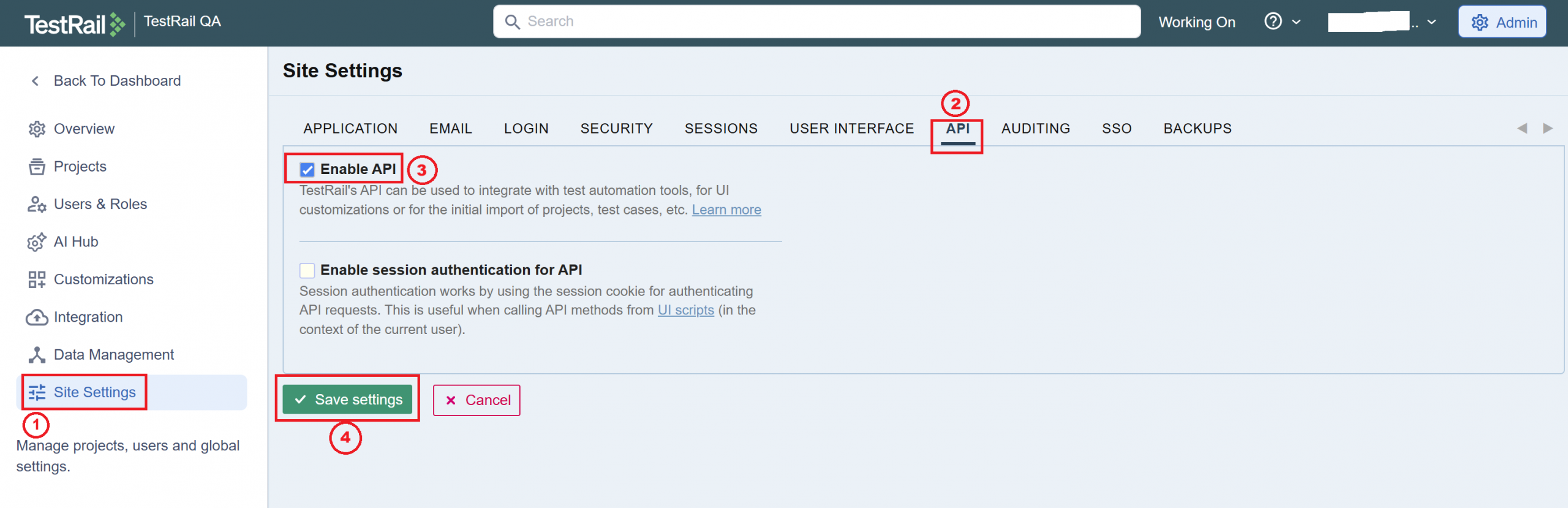
Step 3: Click Save settings.
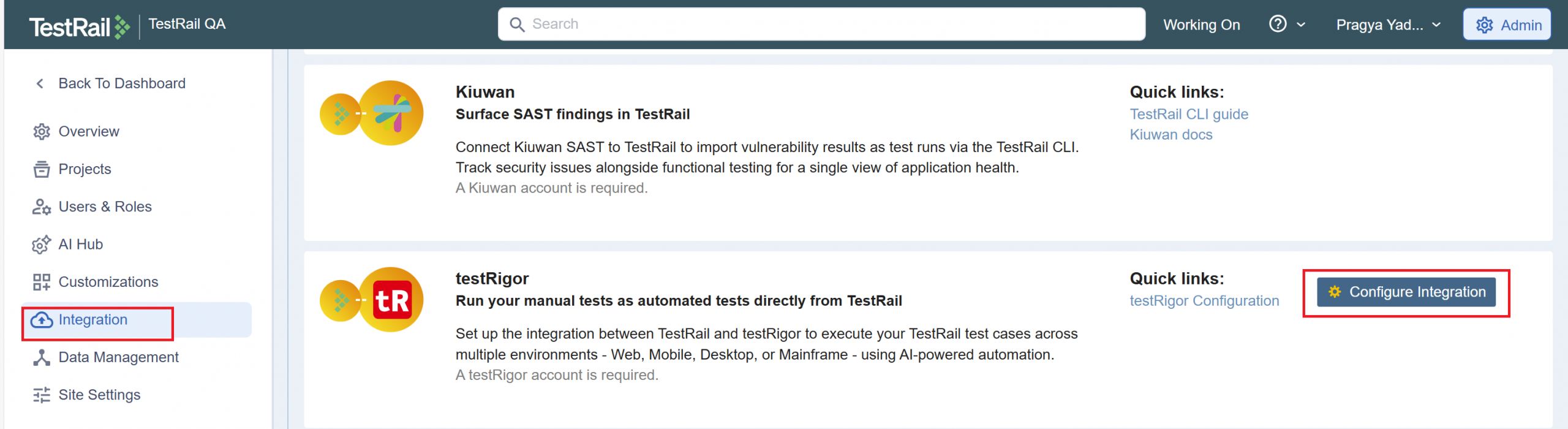
Step 4: Navigate to Integration on the side pane and click Configure Integration for testRigor.
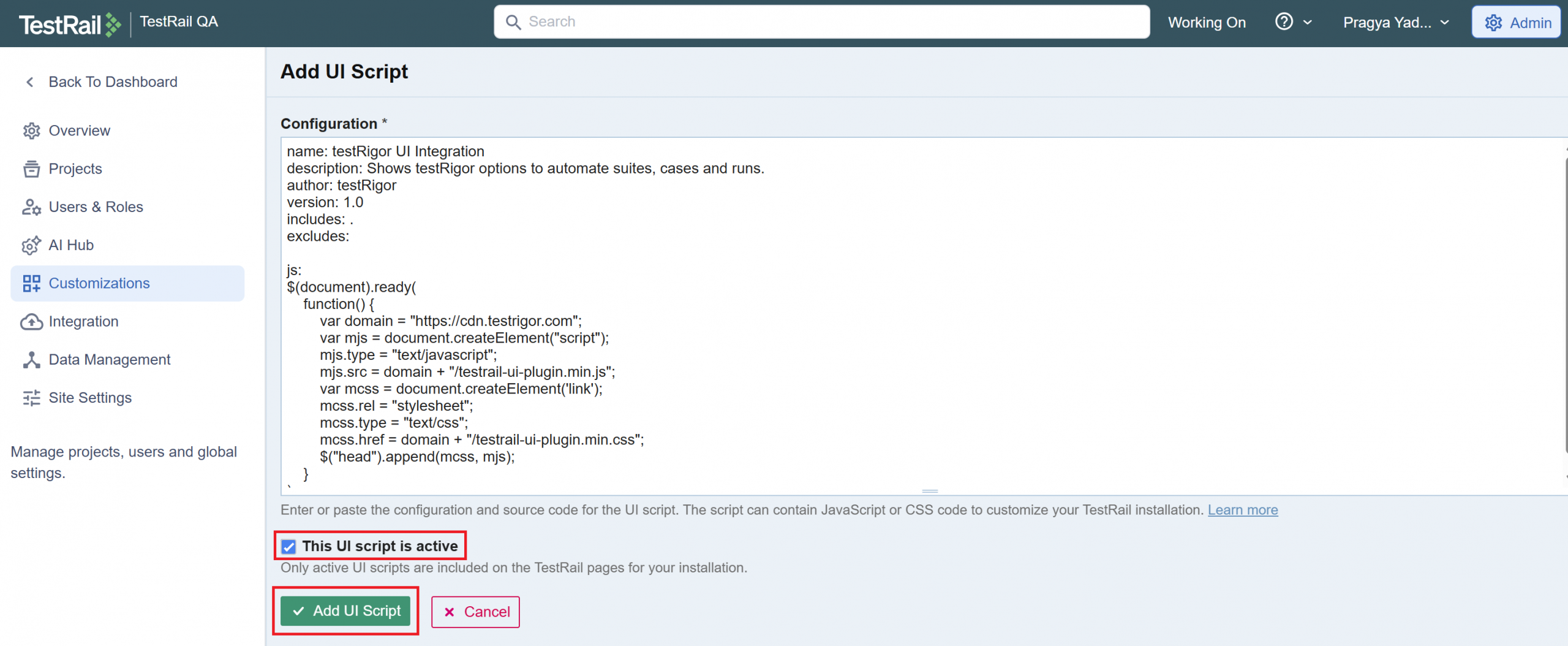
Step 5: You will be navigated to the Customizations screen. Select This UI script is active and click Add UI Script.
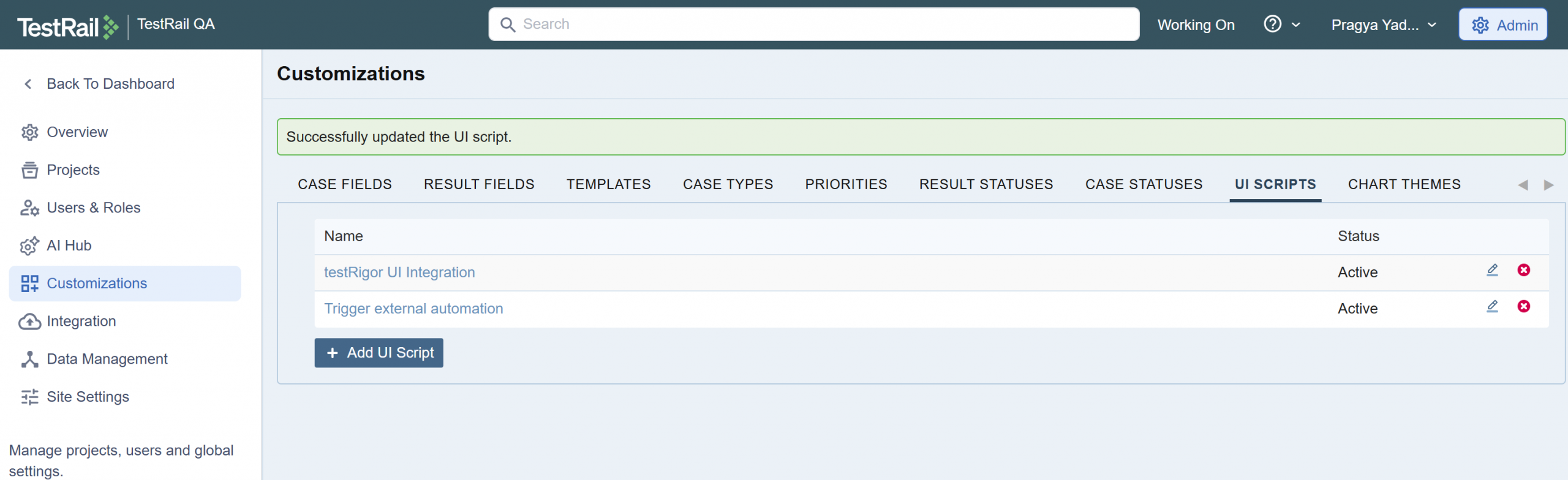
Step 6: You will see a success message. The script is added under the UI SCRIPTS tab.
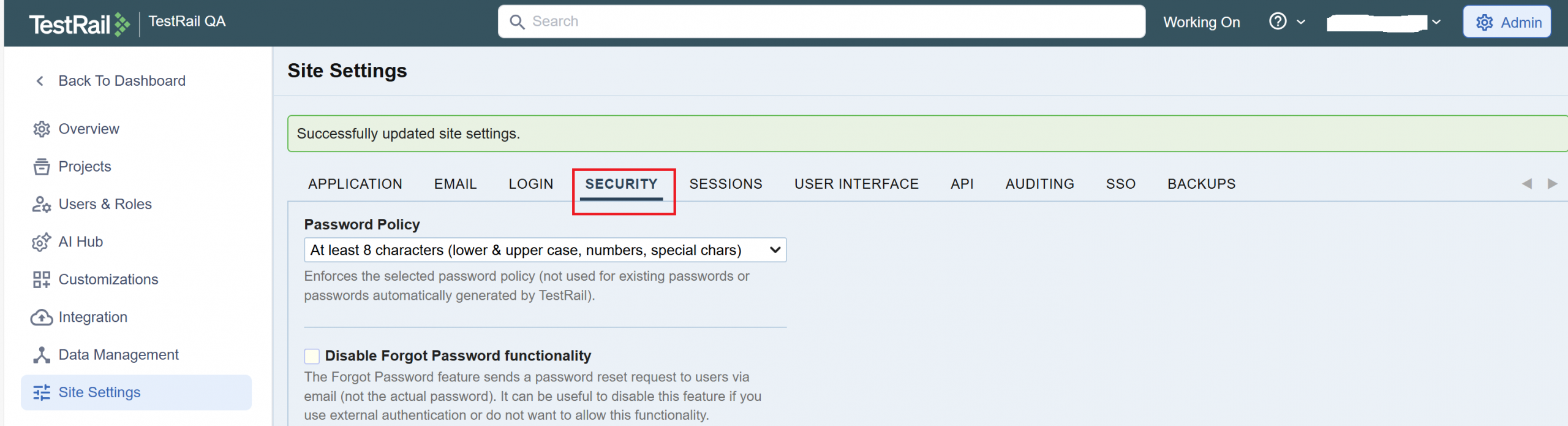
Step 7: On the Site Settings screen, navigate to SECURITY.
Step 8: Scroll down to CSP – Allow access TestRail to remote addresses. Enable the checkbox.
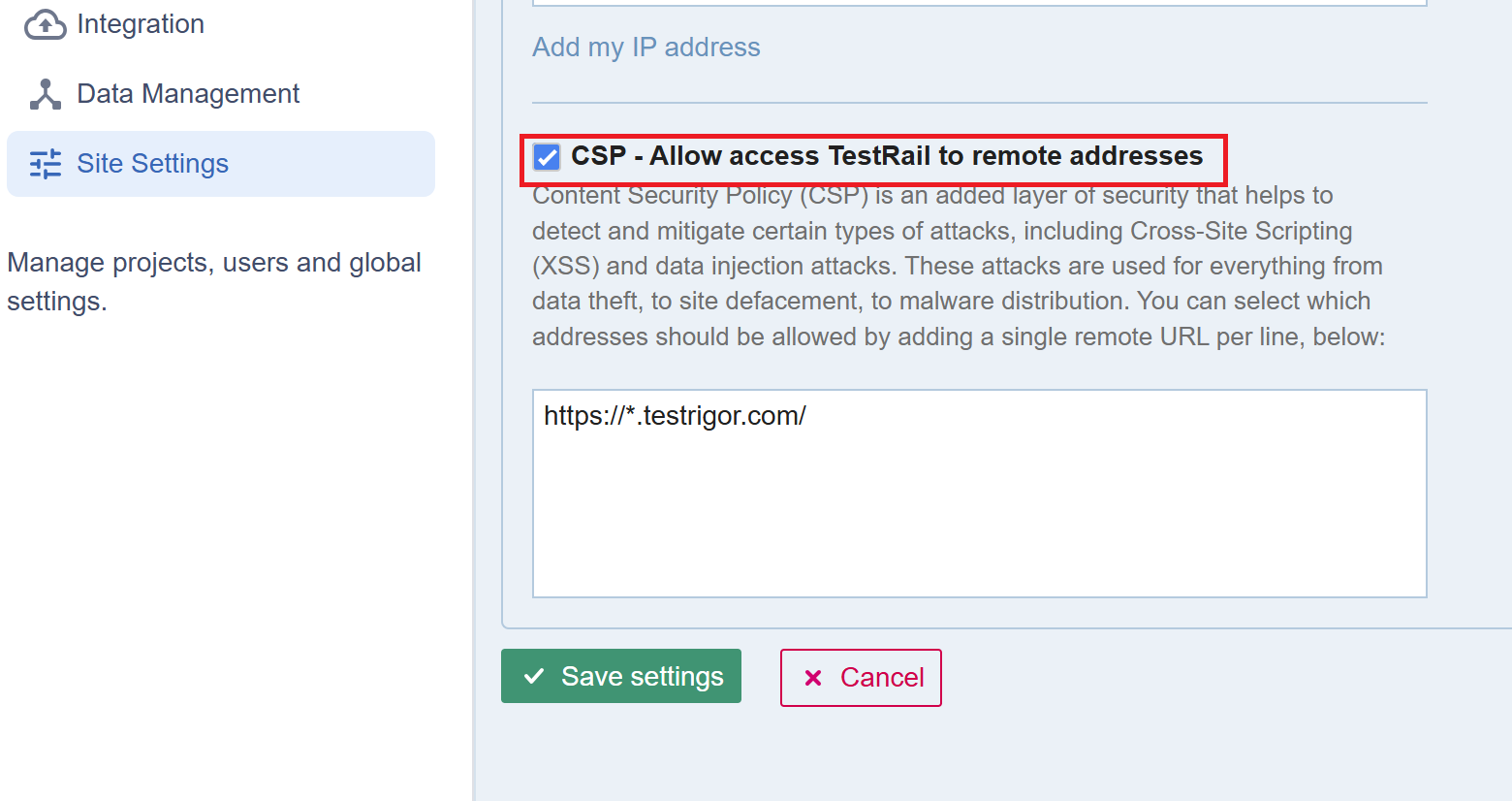
Step 9: Enter “https://app.testrigor.com” and “https://cdn.testrigor.com”
Or just “https://*.testrigor.com” in the text field. Click Save settings.
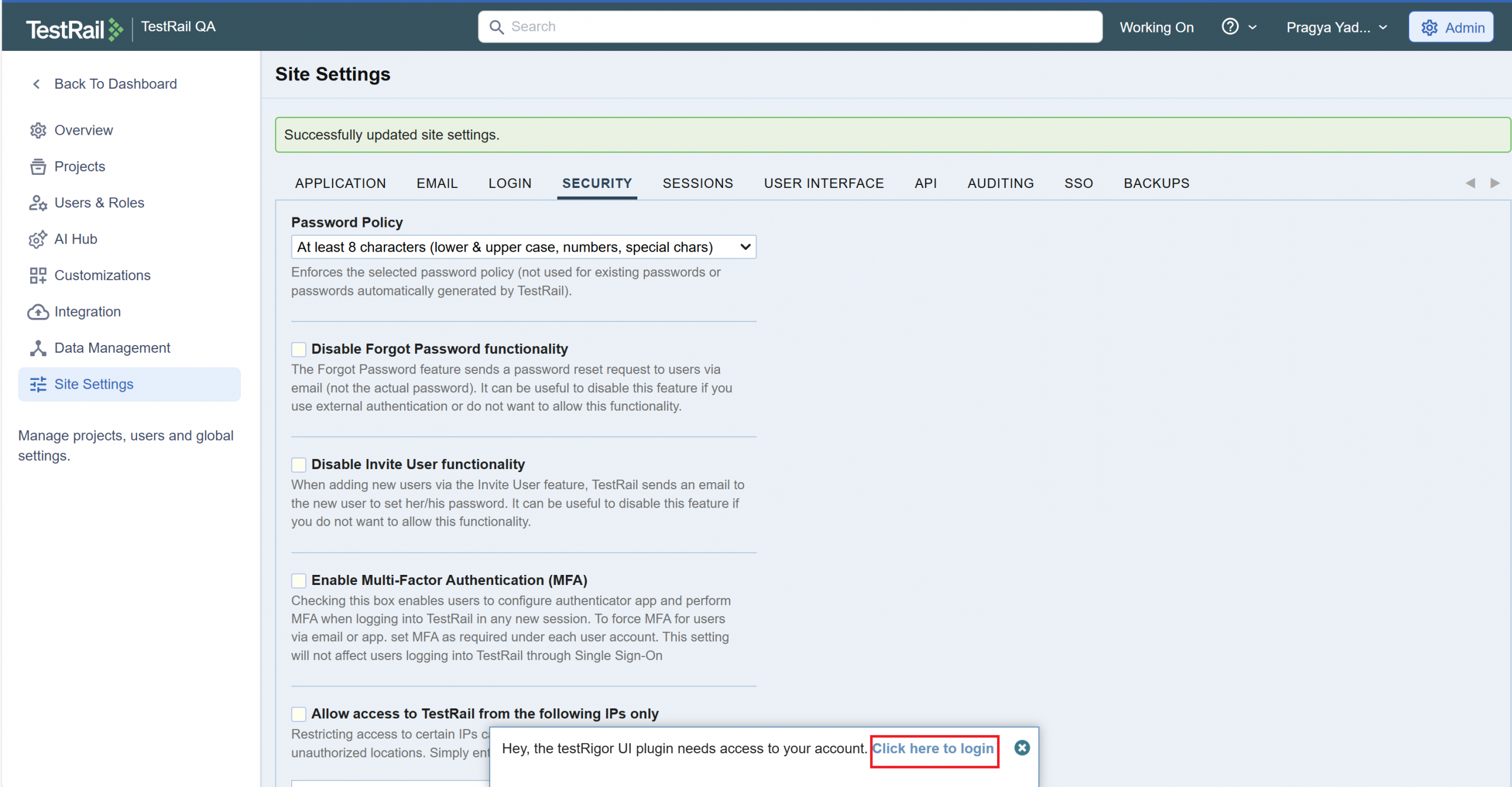
Step 10: You will receive the following message on the screen. Click to log in to the testRigor account.
Step 11: testRigor will ask for permission, click on Continue to “TestRail Plugin”.
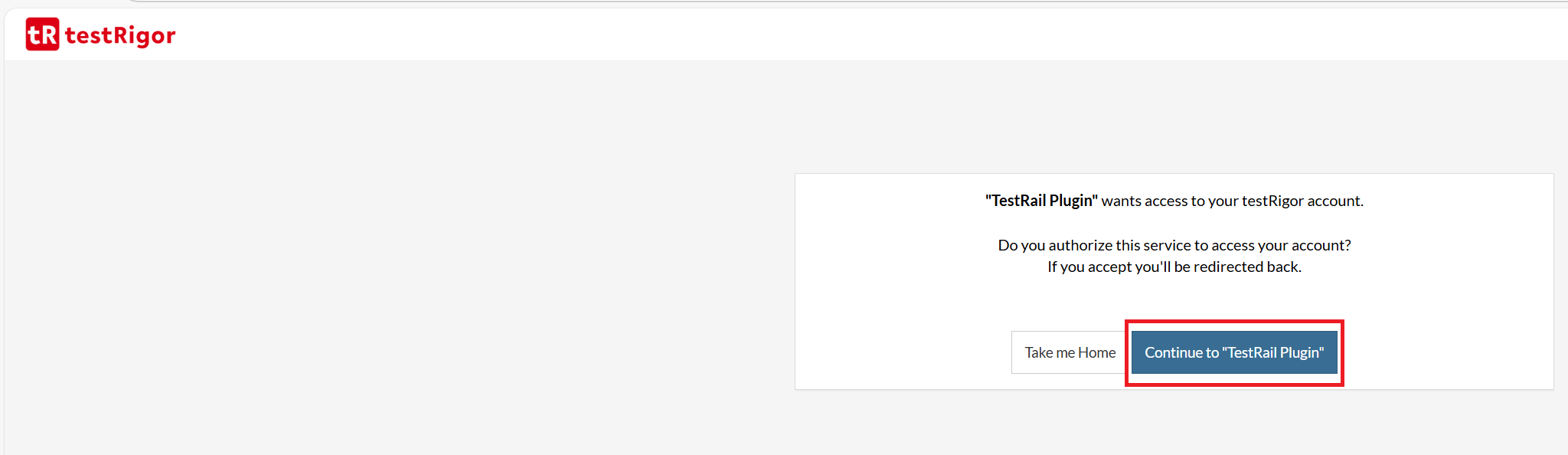
Integration from TestRail to testRigor is complete!
Create Automated Tests from TestRail on testRigor
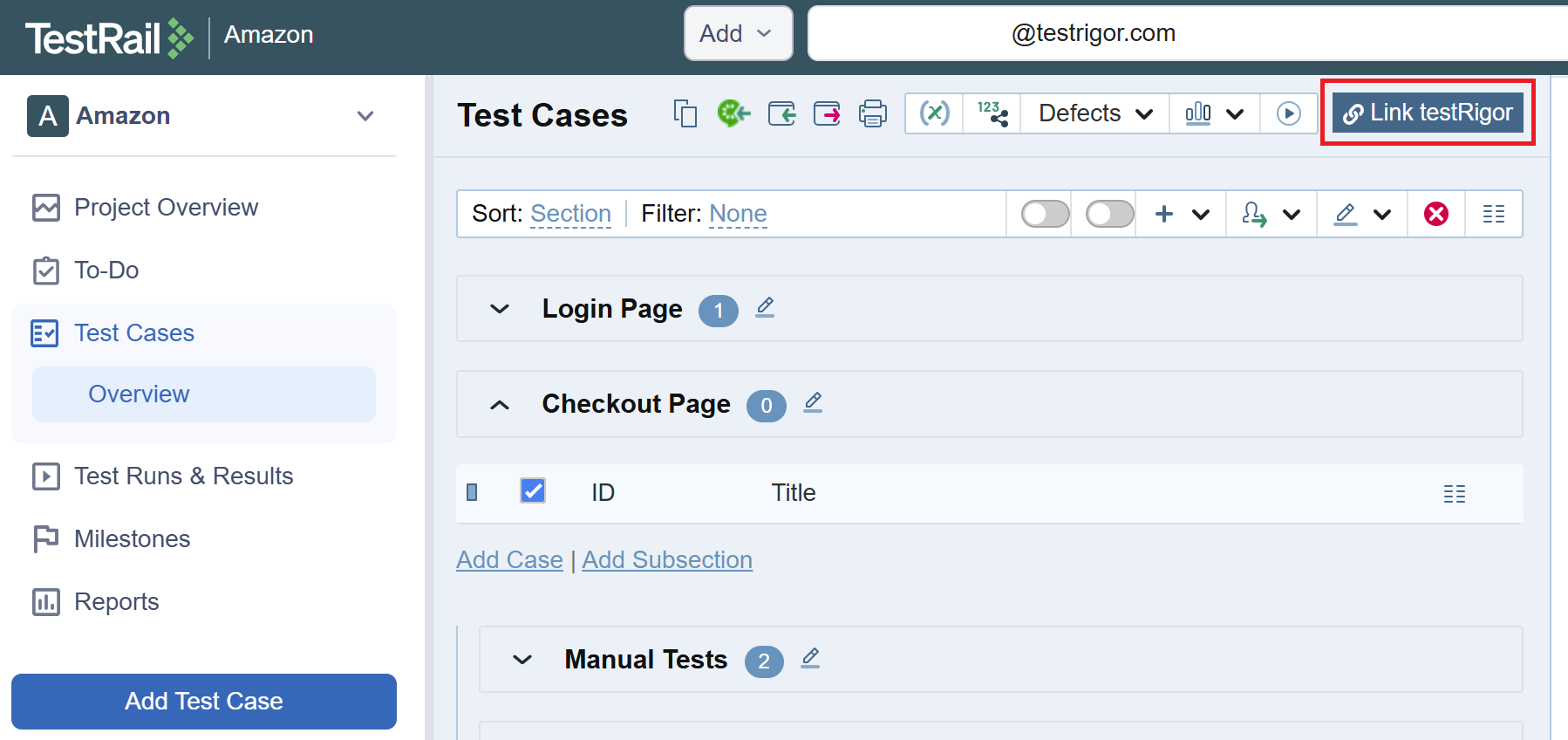
Step 1: On the Test Cases tab, you can see a new button, Link testRigor. Click it.
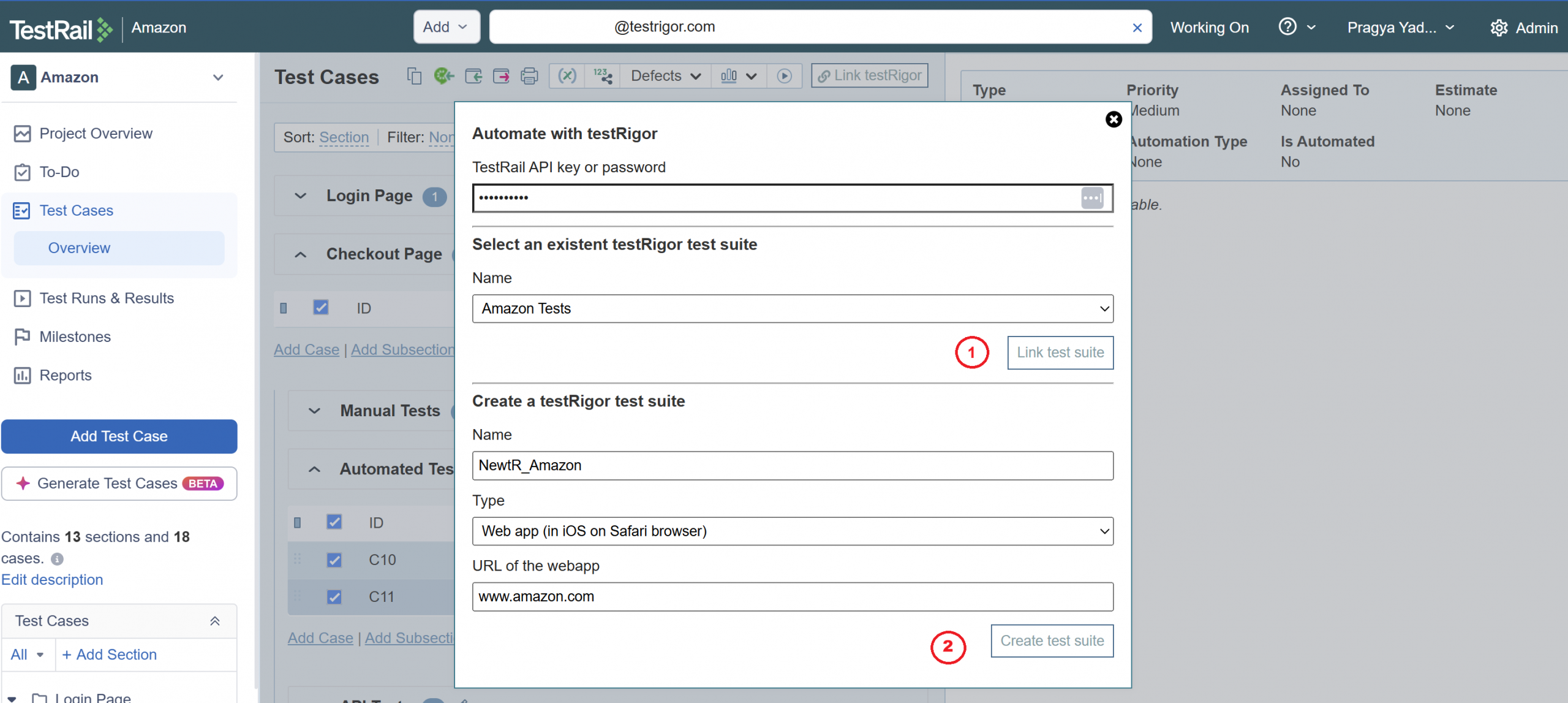
Step 2: Here you have two options:
- Select an existing testRigor test suite, link it to the current suite for running from TestRail.
- Create a new testRigor test suite from TestRail.
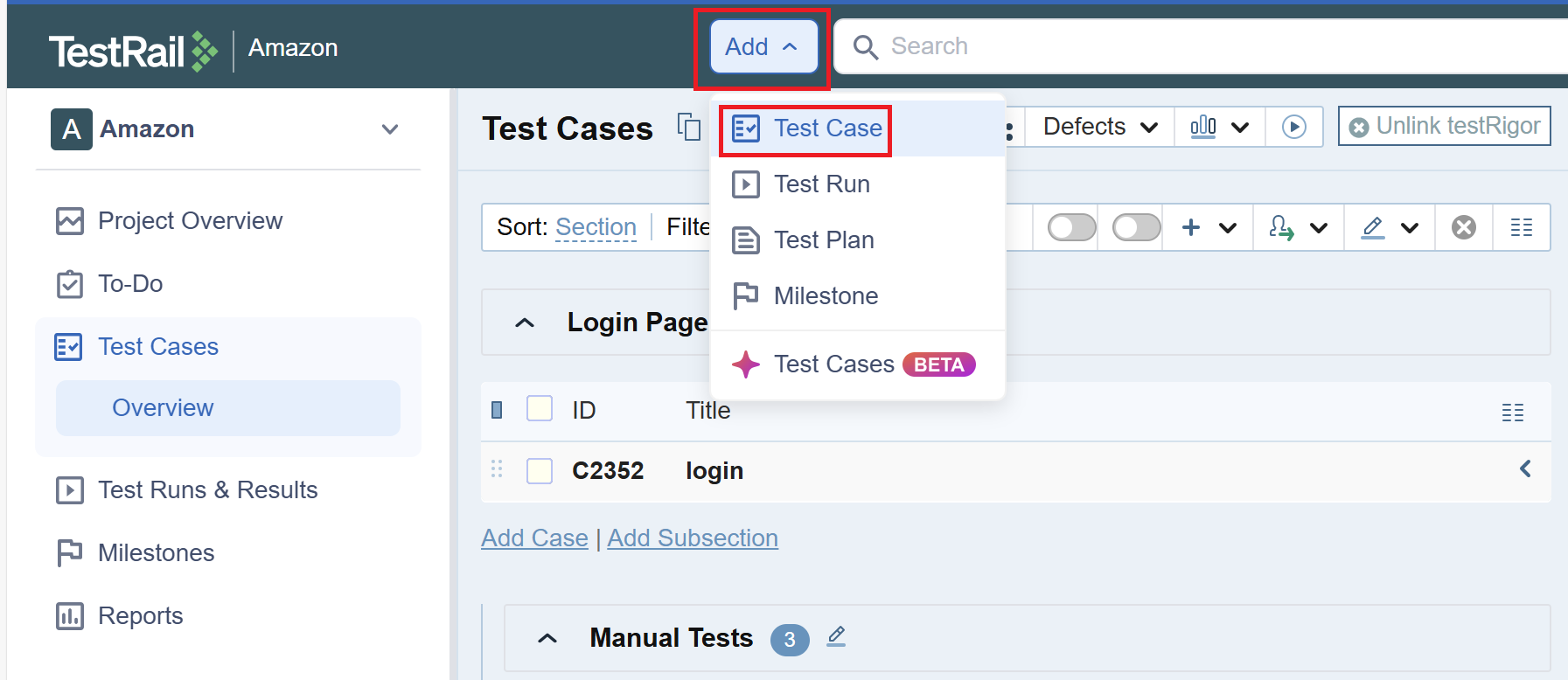
Step 3: To add a new test case, click Add, then select Test Case.
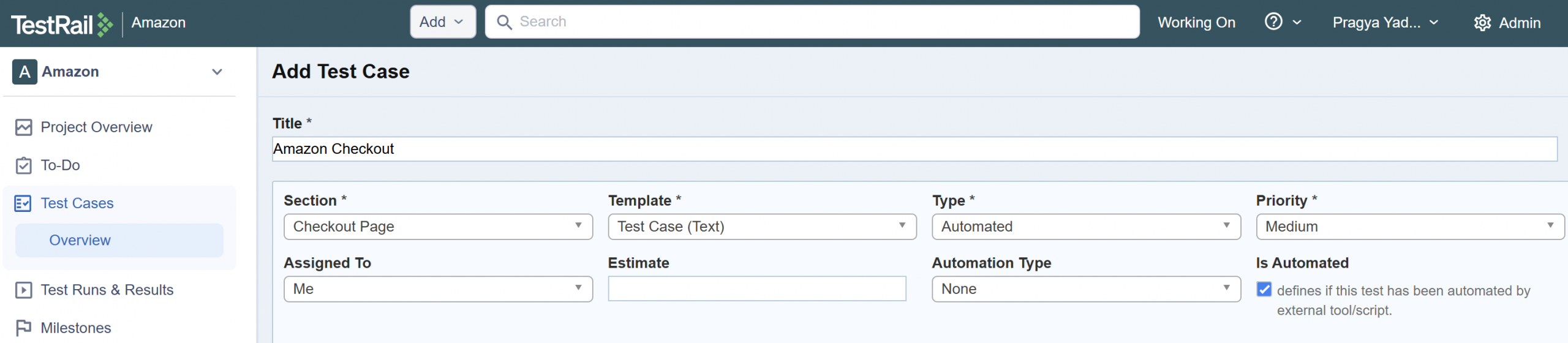
Step 4: On the Add Test Case screen, provide all details of the new test case.
Note: testRigor supports all TestRail template types, so you can choose as per your requirements.
Step 5: At the end of the details, you have an option to add and run this test case on testRigor.
Select Automate on testRigor and click Add Test Case.
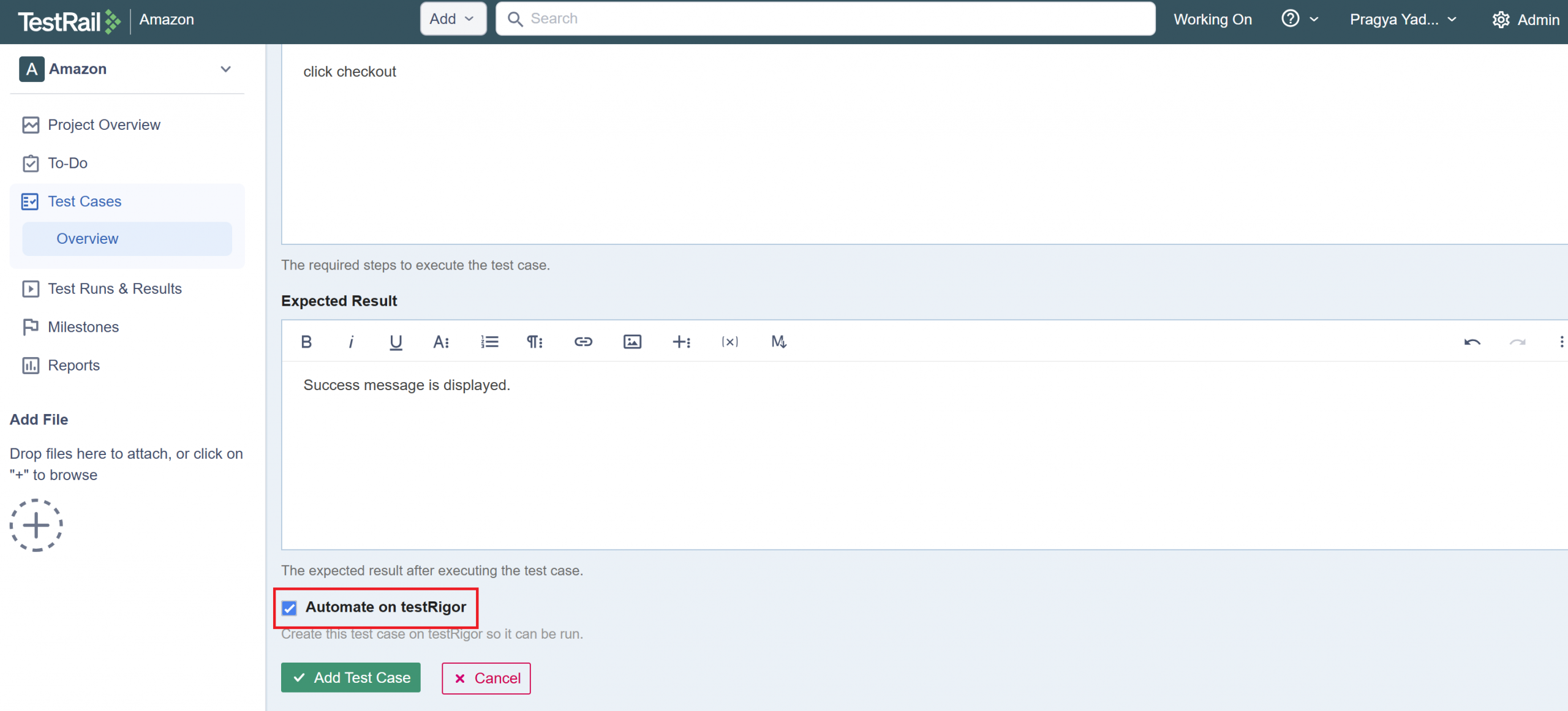
The test case will be imported to testRigor, will get converted to an automated test, and will start execution on testRigor.
Execute Test Runs from TestRail on testRigor
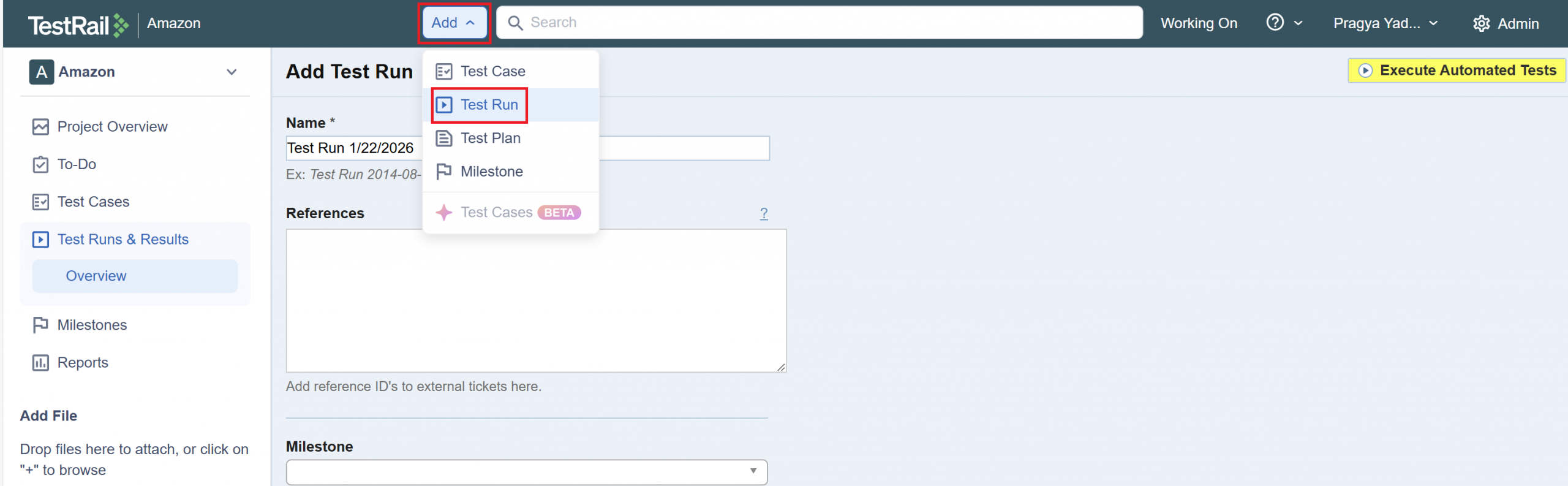
Step 1: While creating a test run, you can choose to run it on the testRigor app from TestRail UI. Click Add and select Test Run.
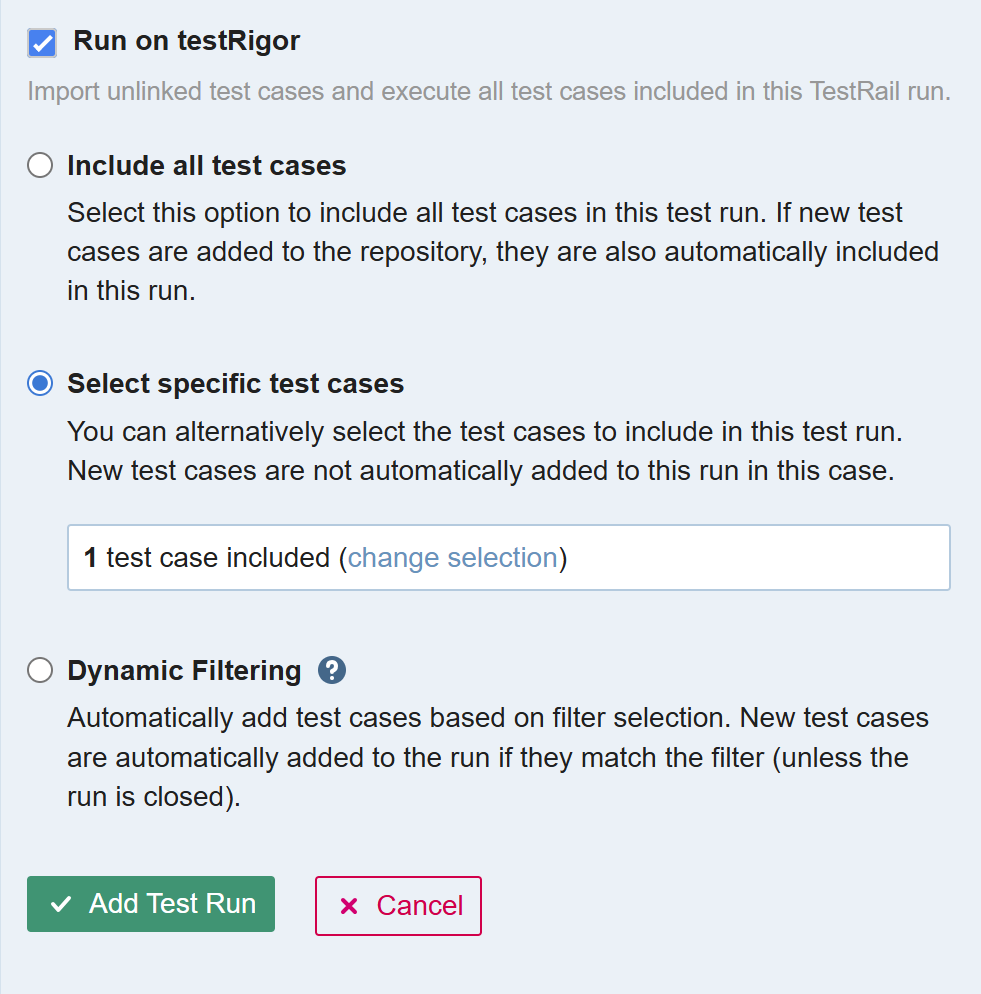
Step 2: Provide all relevant details for the test run. At the end of the section, you will see an option to run it on testRigor. Select Run on testRigor.
There are three options for including test cases in this test run.
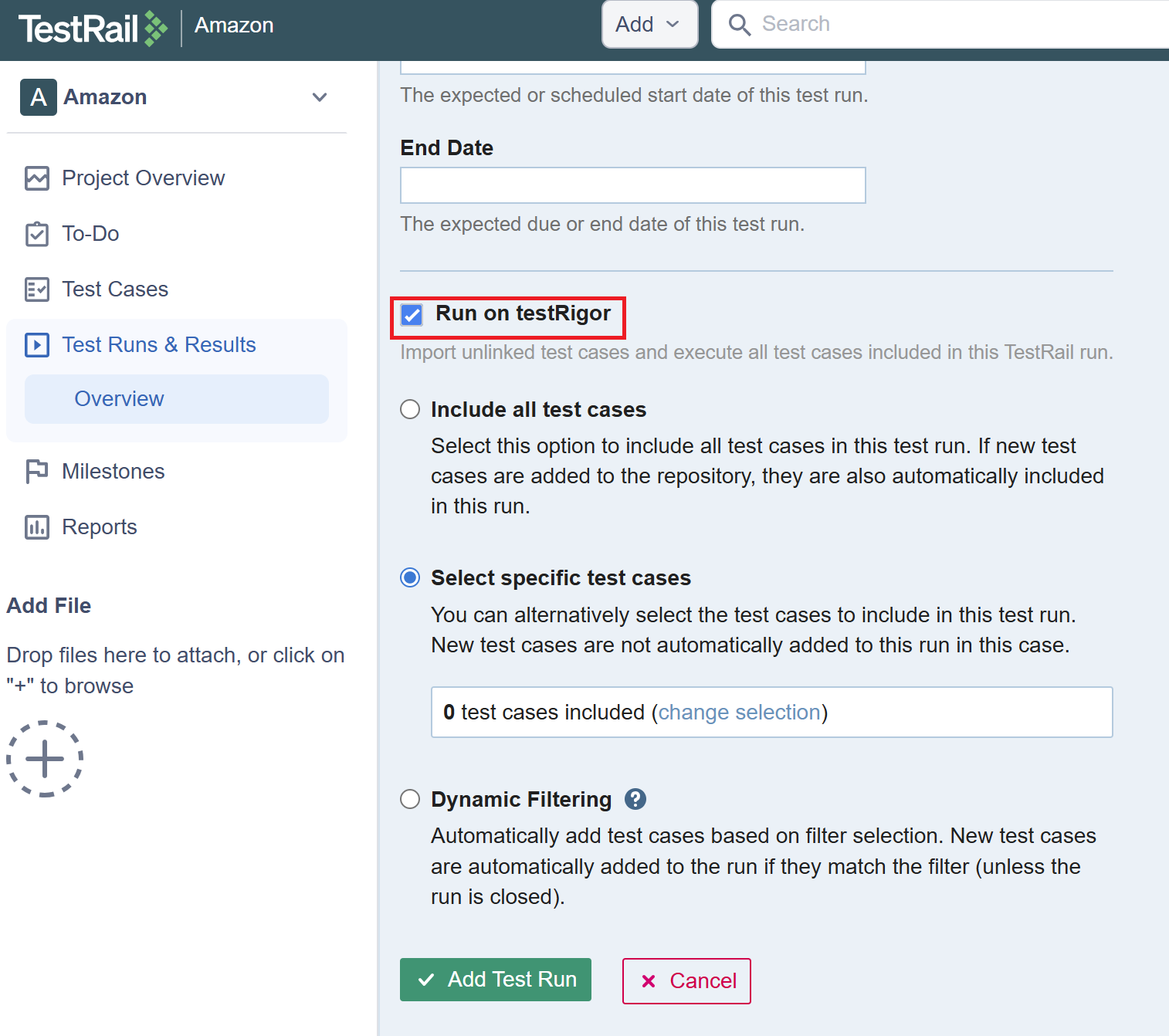
Step 3: For this example, we are choosing Select specific test cases and using the test case we created in step 5 of the previous section.
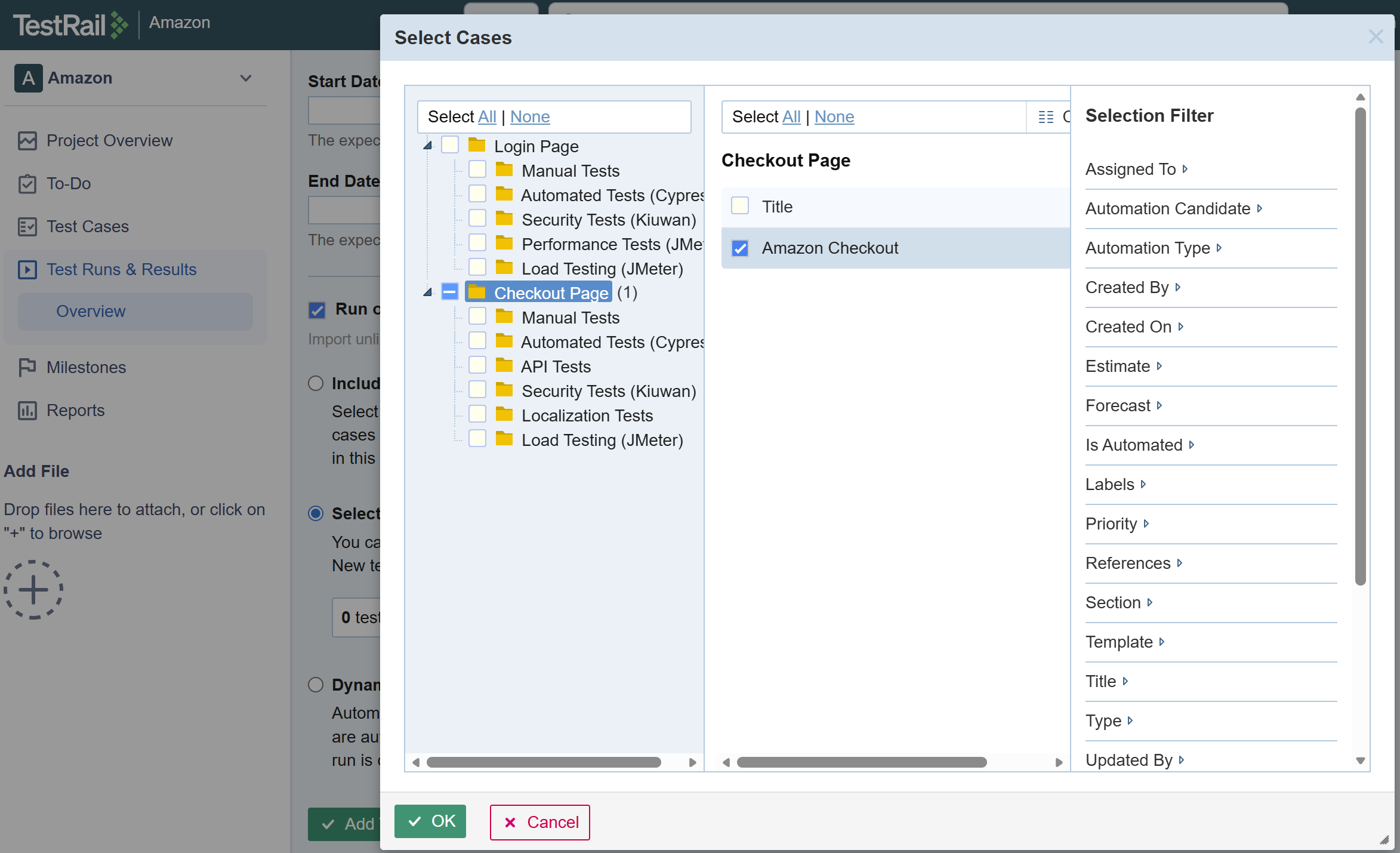
Select the test case and click OK.
Step 4: The test case selection is complete. Now click Add Test Run.
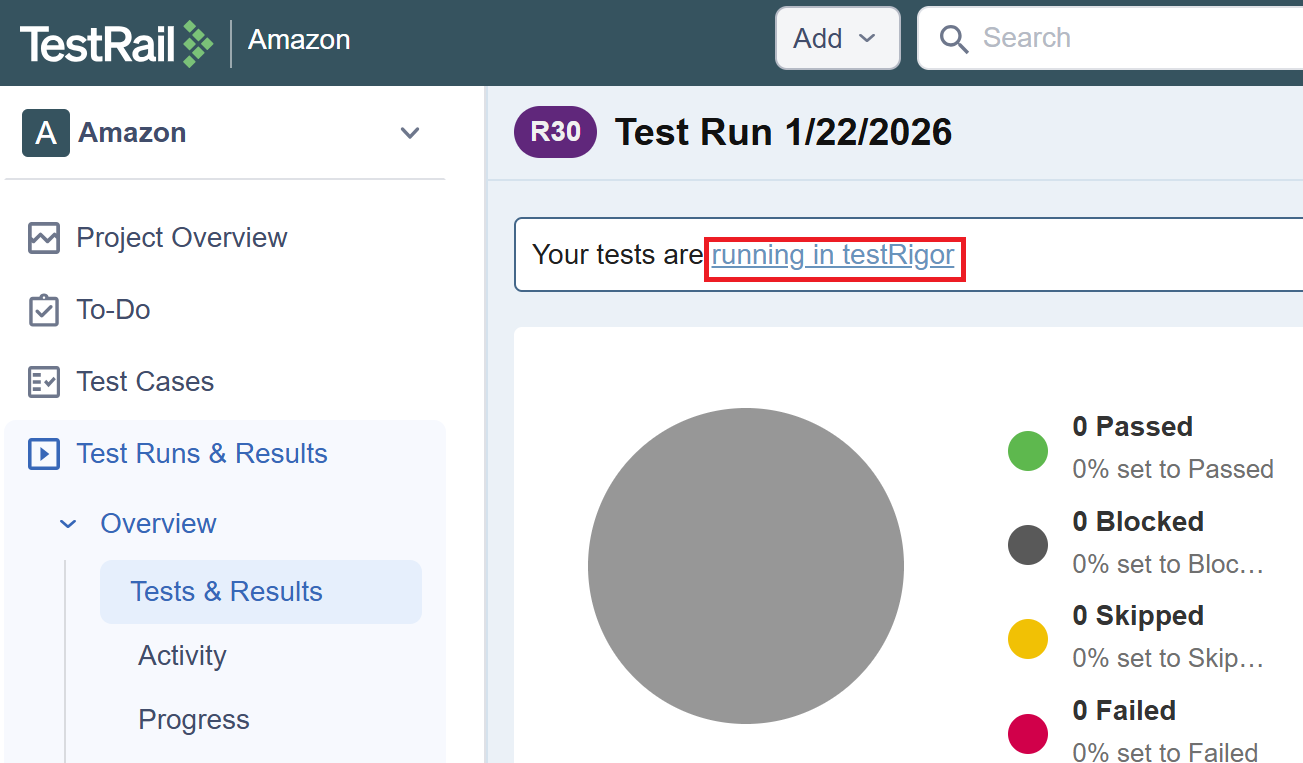
Step 5: The Test will start running in testRigor, and you can view the progress in TestRail itself.
However, if you wish to view the whole execution in testRigor, you can click the hyperlink.
Step 6: You will be navigated to the testRigor app, and here you can view the test steps generated for the TestRail’s manual test, screenshots, logs, error messages, and more details.
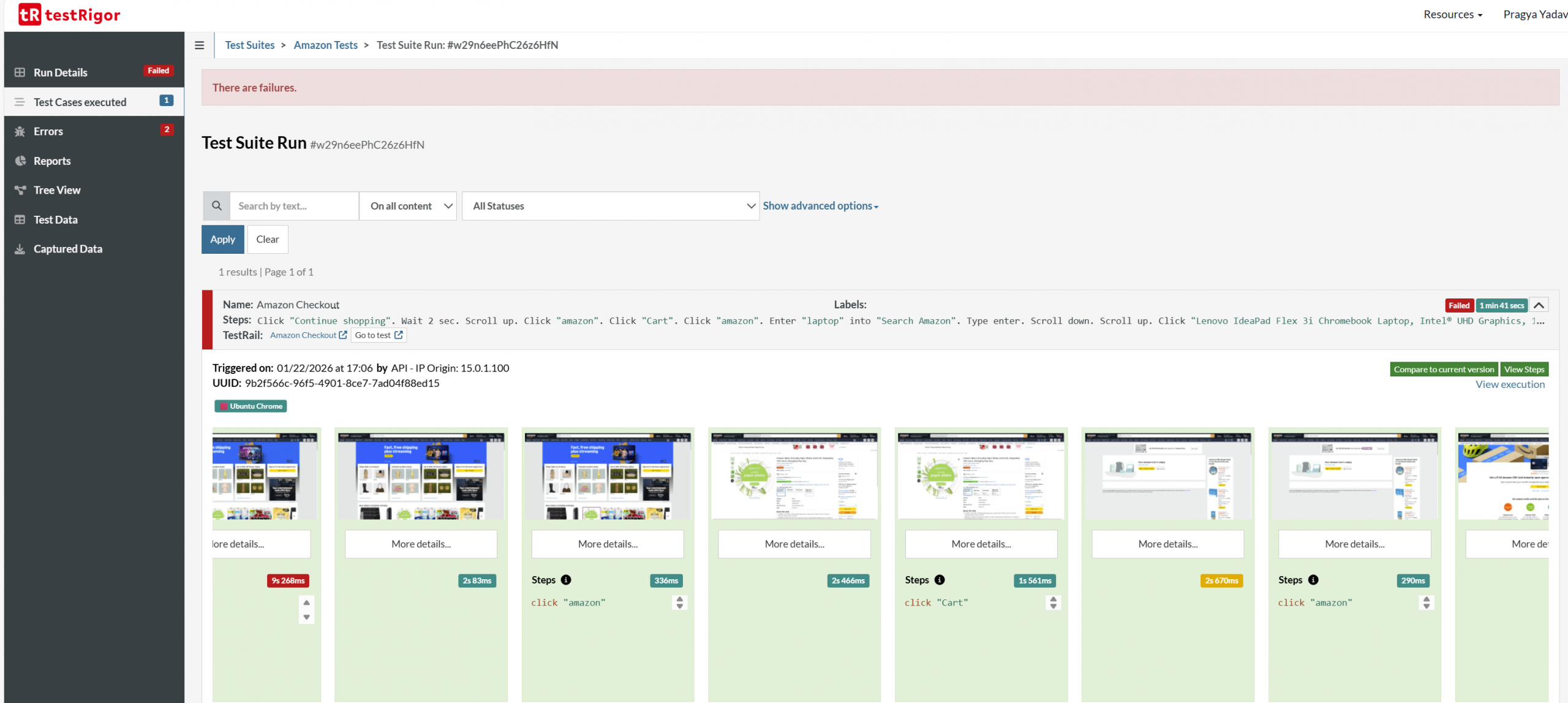
As we can see, the test case has failed in testRigor, and the same test result has been reflected back in TestRail. After changes in the test or application, if you want to rerun it on testRigor, then click Run on testRigor.
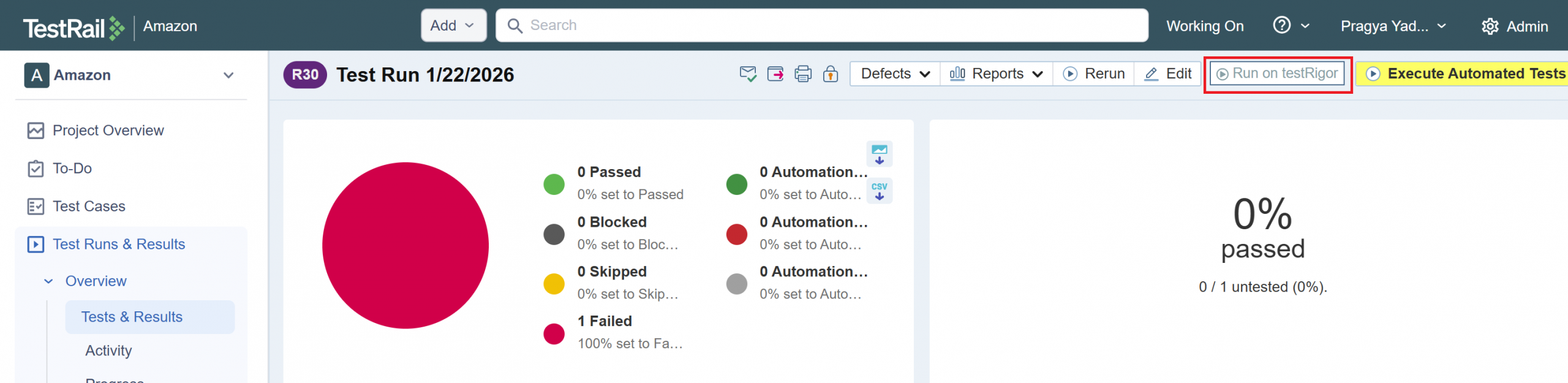
This integration from TestRail to testRigor allows you to create, generate, and execute automated tests, and view results from a single application. testRigor’s Gen AI-powered test automation, supported by TestRail’s test management, will help you achieve your quality goals easily with minimal effort and test maintenance.
Note: If you are using testRigor and want to perform the TestRail integration from testRigor’s side, then refer to this how-to guide.
| Achieve More Than 90% Test Automation | |
| Step by Step Walkthroughs and Help | |
| 14 Day Free Trial, Cancel Anytime |