Legacy Applications Test Automation
 |
Automate Citrix, Windows desktop, mainframe and classic enterprise workflows with testRigor.
Your most important business processes may still depend on an older desktop application, a terminal screen or a client delivered through Citrix. Every release, integration change and infrastructure upgrade creates another reason to check that those processes still work.
testRigor helps you turn those checks into readable automated tests. Describe the actions and expected results in plain English. Use recognizable controls, keyboard actions and optical character recognition (OCR), then add using AI to individual steps that need visual interpretation.
Build regression coverage around the applications your business uses today, while preparing for the systems it will use next.
Request a legacy application testing demo
What Is Legacy Application Test Automation
Legacy application test automation checks whether an established business application still performs its required workflows. That can mean finding a customer in a Windows client, reviewing a sales order in SAP GUI, querying an account on a mainframe or validating an invoice in an older Oracle interface.
The test should describe an action and its business result: which record was retrieved, whether an amount is correct, or whether a status changed as expected. This gives your team repeatable checks for maintenance releases, configuration changes and modernization projects.
Choose The Right Interaction For Each Screen
Different screens expose different information. A native field may be directly identifiable, a remote menu may be readable only as text in an image, and a custom icon may require visual interpretation. Use the simplest reliable action for each step.
| What the test can identify | Approach | Example |
|---|---|---|
| A recognizable button or field | Standard commands | click “Save” |
| Readable text rendered on the screen | OCR targeting or validation | click “Save” using OCR only |
| A focused input or known keyboard operation | Typing and keyboard commands | type enter |
| A control described by its visual appearance | Selective AI targeting | click “floppy disk icon in the toolbar” using AI |
| A supported terminal field | Mainframe connection and standard commands | enter “123456789” into “Account Number” |
AI can also help generate and maintain tests. That is separate from asking AI to interpret a screen during execution. A test created with AI can run with ordinary testRigor commands. Follow the guidance on when to use AI in testRigor to keep runtime AI focused on the steps that benefit from it.
The examples below are starting points using documented testRigor command forms. Configure the application connection first and adapt the screen labels, test data and expected results to your environment. Each example states its starting screen.
Citrix Test Automation For Virtual Applications And Desktops
When a Citrix-delivered application is exposed as a streamed image, its internal fields and buttons may not be available as ordinary browser elements. A selector for the outer image or canvas cannot identify each control inside the remote application.
testRigor provides OCR and AI-assisted visual interactions for this kind of interface. Use OCR when visible text identifies the target. Use AI when a field or icon needs a visual description. testRigor also offers AI-assisted command generation in Live Mode for Citrix and other interfaces without conventional accessibility information.
Example Of Finding An Order In A Citrix Session
click "Orders" using OCR only using the mouse
enter "SO-1042" into "Order number field beside the Order label" using AI
click "magnifying glass icon beside the Order number field" using AI
check that page contains "Order details" using OCR only
check that page contains "SO-1042" using OCR only
check that page contains "Ready for shipment" using OCR only
Here, AI identifies the input and search icon. The result checks look for the details screen and its expected values. If your application shows multiple records or retains the search form, scope the checks to the returned record. If ordinary commands or OCR-based targeting can identify the controls reliably, use those approaches for the corresponding actions. Keyboard input can also remain a normal keyboard action inside a Citrix session.
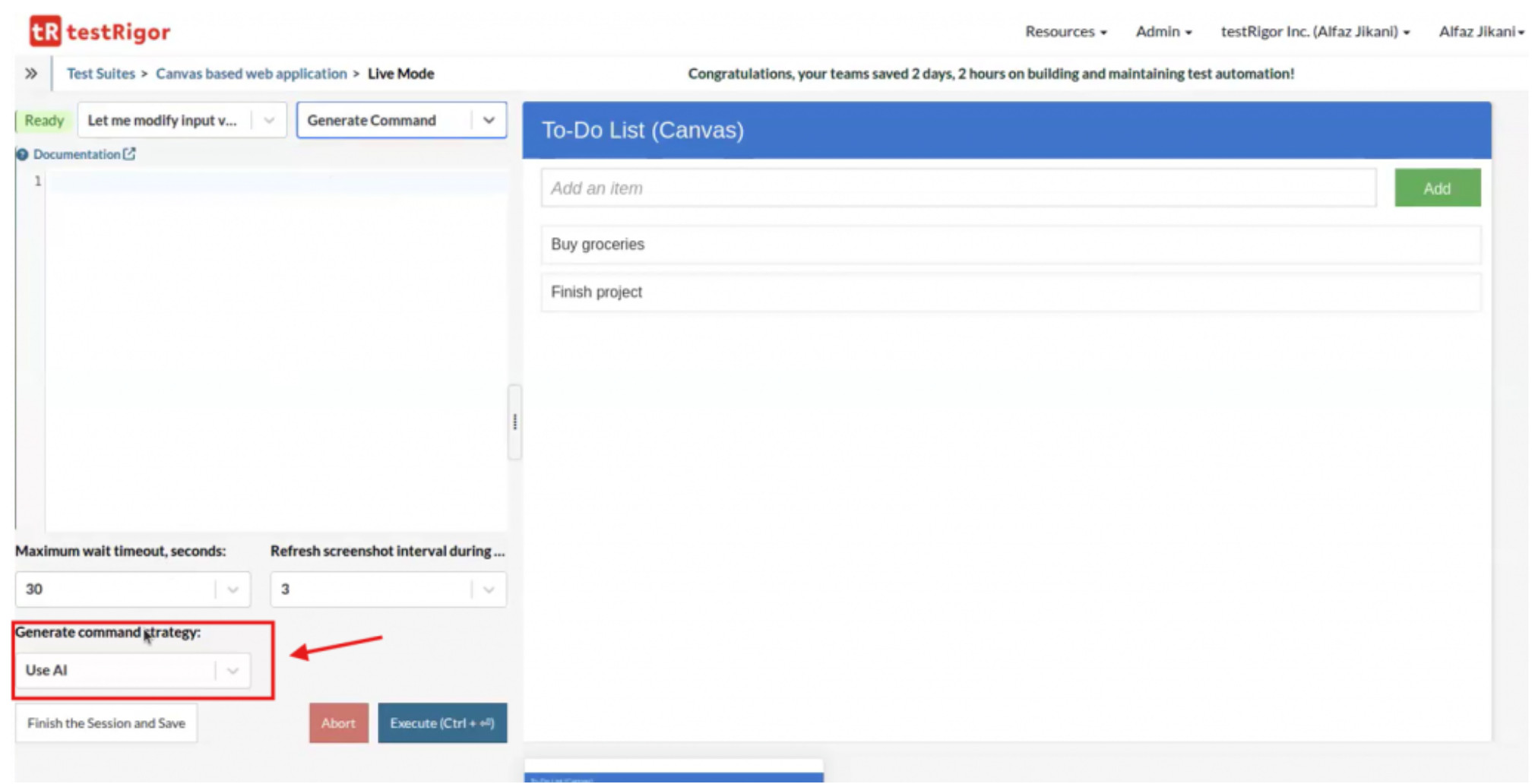
AI-assisted command generation in testRigor Live Mode. This image demonstrates the authoring feature; it is not a screenshot of the illustrative Citrix order application. View the source walkthrough. Open original screenshot
Native Desktop Test Automation For Windows Applications
Older desktop software often contains the workflows that teams know best and automate least. With testRigor, you can test native Windows applications, including WPF and Win32 interfaces, through a configured Windows Remote Desktop environment.
Use ordinary commands for recognized controls, OCR for screen text when needed, and keyboard actions for focused fields or navigation. The native desktop testing walkthrough demonstrates this approach with a Windows CRM application.
Example Of Creating A User In A Desktop CRM
click "Users"
click "Create" using OCR only
type "QA Legacy User"
click "OK"
check that page contains "QA Legacy User"
The test combines standard actions with one OCR action. Configure test data and cleanup so the next run starts from the same known state.
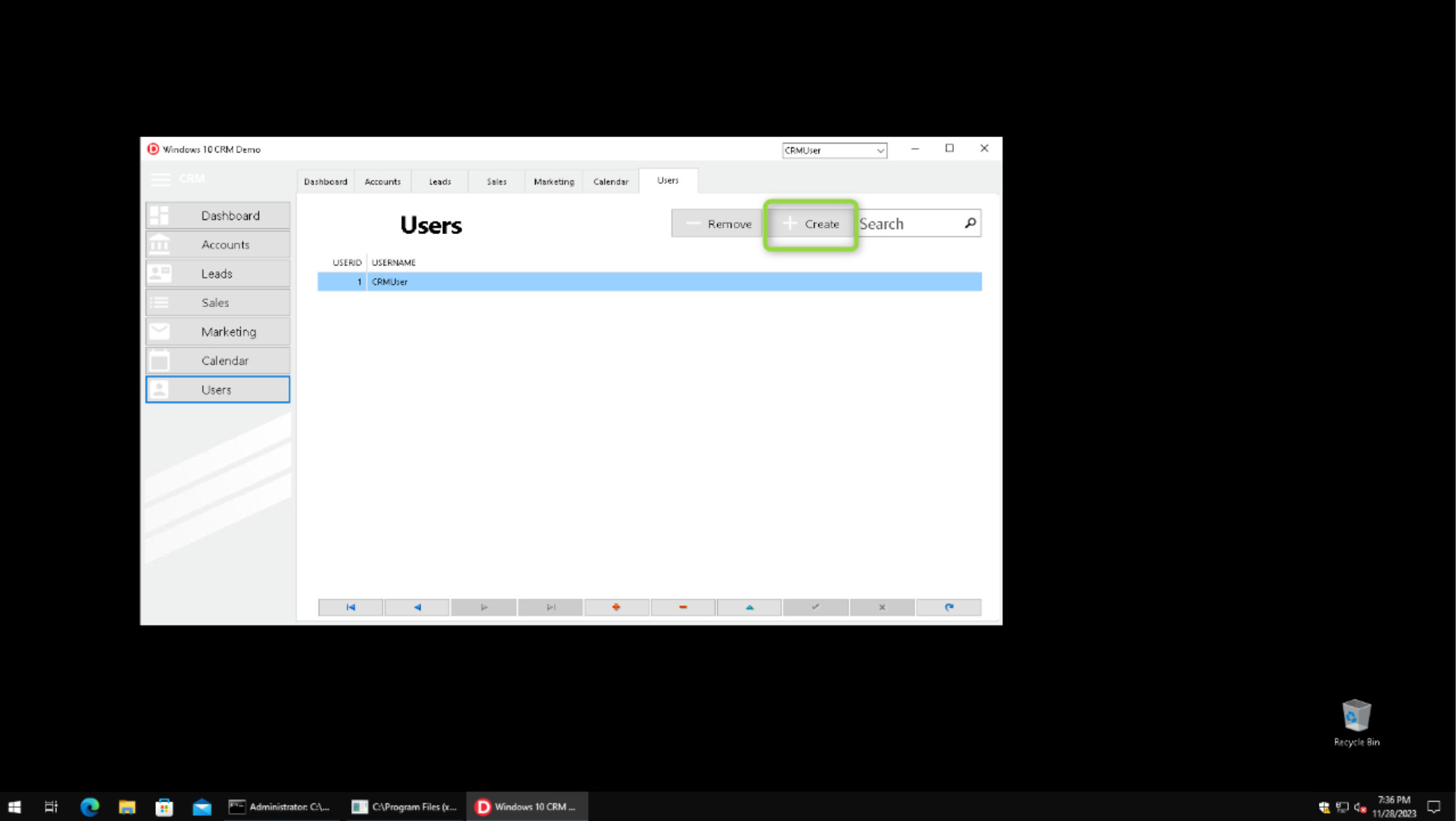
A native Windows CRM screen from testRigor’s desktop testing walkthrough. See the complete desktop example. Open original screenshot
Mainframe And IBM I Test Automation
Bring repeatable functional checks to terminal-based business workflows. testRigor documents TN3270 connections for IBM z/OS and TN5250 connections for IBM i, also known as AS/400. Choose the appropriate terminal connection for your environment.
When the terminal integration exposes the necessary fields, use standard commands to enter values, press keys and check results. There is no need to add a visual AI action simply because the application runs on an older platform.
Example Of Verifying A Mainframe Account Balance
enter "123456789" into "Account Number"
type "Enter"
check that "Balance" has value "56.72"
check that page contains "Account found"
This pattern checks the value returned by the application as well as its success message. Extend your suite with cases for missing accounts, restricted users and other business rules relevant to your application.
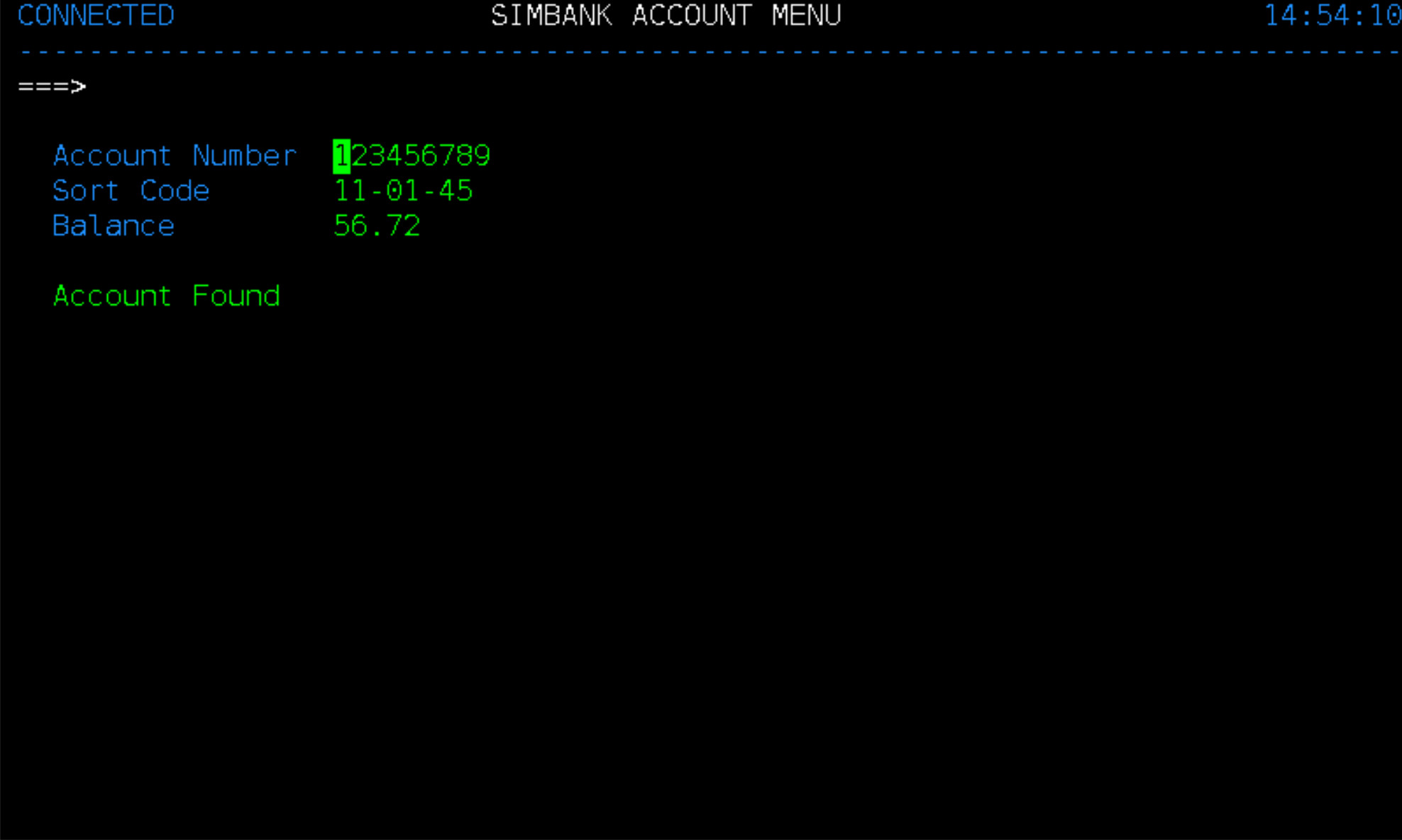
Account lookup in the published mainframe example. View the full mainframe test and screenshots. Open original screenshot
SAP GUI Test Automation For Classic Desktop SAP
Classic SAP GUI has its own desktop windows, menus and transaction screens. testRigor’s SAP ERP testing walkthrough demonstrates launching SAP Logon, navigating SAP Easy Access and opening a sales order’s shipping details.
These steps use standard actions, OCR and keyboard navigation. This gives SAP teams a practical starting point for regression coverage of familiar desktop workflows, including order lookup and transaction review.
Example Of Checking Shipping Details For A Sales Order
type "1042"
type enter
check that page contains "1042" using OCR
click "Shipping" roughly below "PO date"
check that page contains "Austin" using OCR
The example adapts the navigation pattern from the SAP walkthrough and adds a fixture-specific check. For a production regression test, scope the destination check to the relevant field or screen region if the same text appears elsewhere. Use AI only for a control that standard commands, relative targeting or OCR cannot identify reliably.
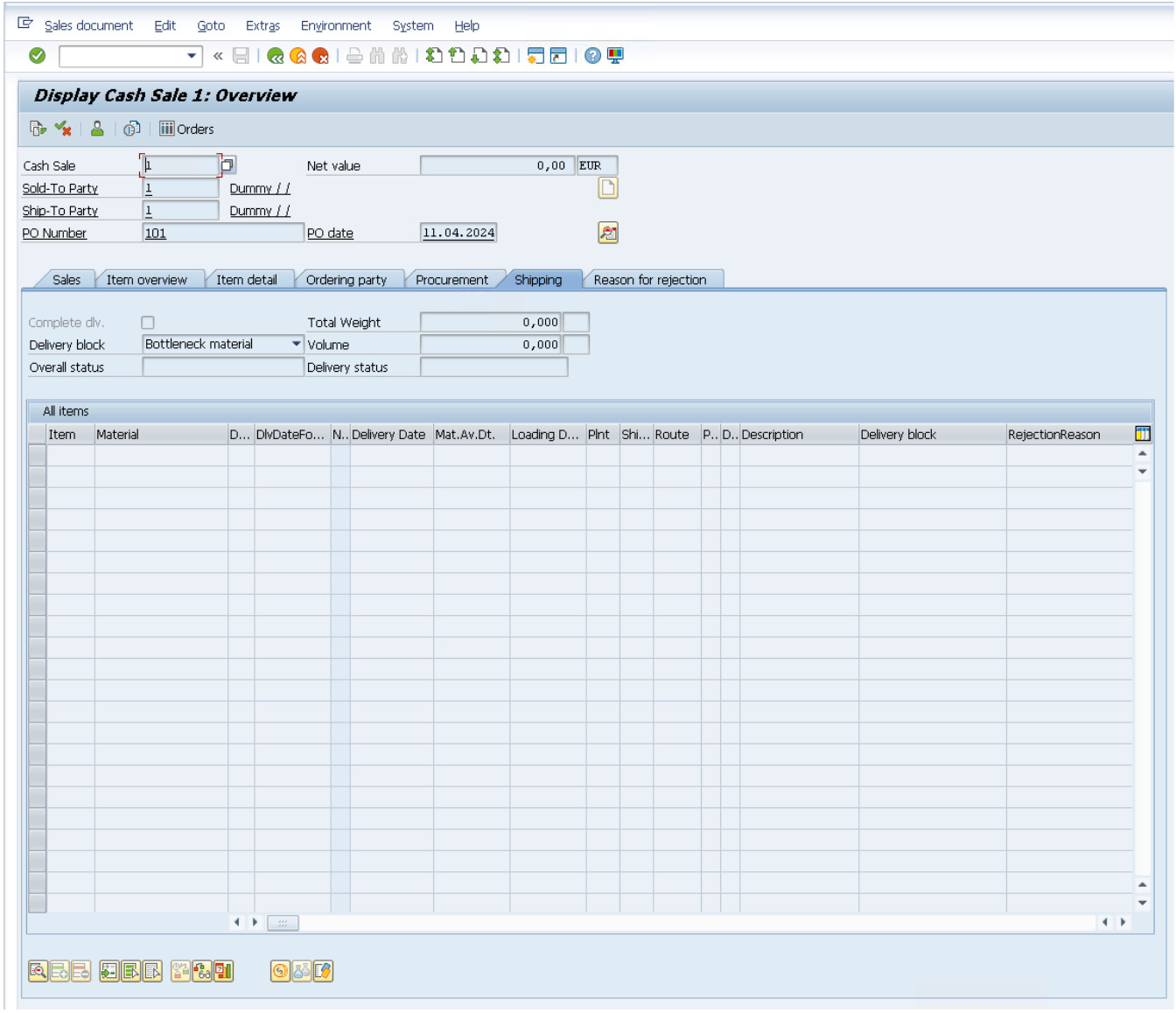
Classic SAP GUI shipping details from the published SAP walkthrough. Its demonstration data differs from the illustrative fixture above. See the SAP GUI example. Open original screenshot
Legacy Oracle Application Testing For Java And Forms Interfaces
Older Oracle deployments can combine browser pages with Java-based clients and Forms screens. Start by identifying the interface your users actually operate and the environment needed to run it.
For a compatible client running in the configured Windows test environment, apply the same desktop testing approach: identify usable controls, use keyboard navigation where appropriate, and add OCR or selective AI targeting when a screen requires it. testRigor’s Oracle E-Business Suite testing overview provides the broader Oracle context.
Illustrative Example Of Querying An Invoice
enter "INV-1042" into "Invoice Number"
click "Find"
check that page contains "INV-1042"
check that "Invoice Amount" has value "1250.00"
check that "Status" has value "Validated"
enter "INV-1042" into "Invoice Number field in the Find Invoices window" using AI
Confirm the exact Oracle client, Java runtime and launch method during setup. The test environment must already be able to run the application.
Testing Java Applets And Embedded Legacy Interfaces
An embedded Java applet or custom-rendered panel can look like a single element to the surrounding browser. Its internal controls need their own interaction strategy.
First establish a compatible environment that runs the applet. Then check whether testRigor can recognize the controls directly, read their text with OCR or interact through a predictable keyboard sequence. Use a visual AI description for the remaining controls that need it.
Illustrative Example Of Checking Inventory In A Java Interface
enter "SKU-105" into "Item Code"
click "Find"
check that page contains "SKU-105"
check that "Available" has value "25"
Adapt this pattern to the running client. If the interface exposes only an image, apply the OCR and selective AI approach shown in the Citrix example. Automation operates the working application; the required Java runtime or applet host remains part of the test environment.
Cover The Business Process Across Legacy And Modern Systems
A useful regression suite follows the business record through the systems that handle it. For example, a web portal may create an order, a desktop application may approve it, and another system may display its fulfillment status.
Use a shared test record and clear expected values to connect those checks. testRigor supports web, desktop, mainframe and API testing, and its desktop testing documentation describes browser-to-desktop workflows on the configured Windows machine. Plan the connections and transitions for your specific process.
For a modernization project, use the same business scenarios to define acceptance criteria for the old and replacement systems. Update the interaction steps as the interface changes while retaining the business outcomes that must remain correct.
How To Start Automating Legacy Application Testing
1. Choose One Important Workflow
Start with a process whose failure matters: creating an order, validating an invoice, retrieving a balance or updating a customer. Define the starting state, test data and expected outcome before writing steps.
2. Configure The Application Environment
For Windows desktop testing, prepare a machine or VM with the application installed and configure a Windows Remote Desktop suite. testRigor recommends Windows Application Driver for native control access where applicable. Arrange the required network connection or tunnel. For terminal testing, select the appropriate supported protocol and host.
3. Write Or Generate The First Test
Describe the workflow in plain English or use AI to help create the initial steps. Review the result against the actual requirement. Check that every important action and assertion is present, especially when a workflow has several ways to reach a similar screen.
4. Check Outcomes And Restore The Starting State
wait up to 20 seconds until page contains "Search results"
Keep application state predictable between runs. Desktop testing does not provide automatic teardown, so include the cleanup or reset your workflow needs. A test that creates a record should account for that record on its next run.
5. Expand Into A Regression Suite
Add negative cases, permissions and relevant data variations. Move repeated login or navigation sequences into Reusable Rules once those steps are stable. Review failures against their execution details and screenshots, then extend coverage as your team learns which changes create the most risk.
Why Use testRigor For Legacy Software Testing
- Readable tests for business workflows. Plain-English steps help testers, analysts and application specialists discuss what a scenario verifies.
- Several interaction methods in one platform. Use normal commands, keyboard actions, OCR and visual AI according to the screen being tested.
- Coverage beyond browser pages. Include supported native Windows and terminal environments alongside web and API testing.
- AI assistance with test creation. Generate a starting point, then review and refine the steps and assertions.
- A practical foundation for change. Turn recurring manual checks into a regression suite that helps your team assess application updates and migrations.
Legacy Application Test Automation FAQs
Can I Automate A Legacy Application Without Rewriting It
UI and terminal tests can exercise an application through its existing interface. You need a working test environment, suitable access and a supported connection. The initial automation effort can focus on user workflows while the application continues to serve its business role.
Can testRigor Test A Citrix Application Without Access To Its DOM
For a visible, interactive remote session, OCR and AI-assisted visual actions can identify targets on the screen. The session must first be connected and the application available. A readable text target may need only OCR; a visually distinctive control may benefit from using AI.
Does Every Legacy Test Step Need Using AI
No. Use ordinary actions for recognizable controls and keyboard operations. Use OCR for rendered text where appropriate. Add explicit runtime AI only when the action or validation requires interpretation that the simpler approaches cannot provide reliably.
Can testRigor Automate Classic SAP GUI
Yes. testRigor publishes a native SAP GUI walkthrough covering SAP Logon, SAP Easy Access and sales order shipping details. The example uses standard actions, keyboard navigation and OCR.
Which Mainframe And IBM I Terminal Connections Are Documented
testRigor documents TN3270 for IBM z/OS and TN5250 for IBM i / AS/400. Select and configure the connection appropriate to your application.
Can I Test Older Oracle Forms Clients Or Java Applets
Begin with a compatible environment that runs your specific client. Assess its native controls, keyboard behavior and visual surface, then validate a representative workflow with testRigor. Confirm the client and runtime configuration as part of that evaluation.
What Should I Bring To A Legacy Application Testing Demo
Bring the application and client versions, launch steps, connection requirements and one representative workflow. Include the expected result, such as an invoice status or account balance, so the evaluation demonstrates a meaningful check.
Start With The Legacy Workflow Your Team Tests Most Often
Bring your Citrix application, Windows client, classic SAP workflow, terminal transaction or legacy Java interface. We can help evaluate the connection and interaction approach, then turn a representative business process into a readable test.
See testRigor on your legacy application
SEO And Publishing Details
| SEO field | Recommended value |
|---|---|
| Page title | Legacy Applications Test Automation with AI | testRigor |
| Title length | 55 characters |
| Proposed URL | https://testrigor.com/legacy-applications-test-automation/ |
| H1 | Legacy Applications Test Automation |
| Meta description | Automate legacy application testing with testRigor. Cover Citrix, desktop, mainframe, SAP GUI and Java interfaces with plain English and AI where needed. |
| Description length | 153 characters |
| Primary search topic | Legacy application test automation |
| Related search topics | Citrix test automation; native desktop test automation; SAP GUI test automation; mainframe test automation; Oracle Forms testing; Java applet testing |
| Primary conversion | Request a demo using one representative legacy workflow |
Use the proposed URL consistently in the canonical tag, social metadata and WebPage structured data when the page is published. The HTML includes all three. Keep the existing testRigor site header, footer and design system when placing the article in the CMS.
Screenshot Placement And Alt Text
The HTML displays four images from their original testRigor URLs and needs internet access to load them. This document embeds the same screenshots and retains their source links. The AI Live Mode image illustrates authoring; it does not depict the sample Citrix application.
1. testrigor-ai-live-mode.png
Alt text: testRigor Live Mode with the option for AI-assisted command generation
Original screenshot | Source article
2. native-windows-crm-test-automation.png
Alt text: Native Windows CRM application showing the Create user action in a testRigor walkthrough
Original screenshot | Source article
3. mainframe-account-lookup-test.png
Alt text: Mainframe banking application displaying account details in testRigor’s account lookup walkthrough
Original screenshot | Source article
4. sap-gui-shipping-test-automation.png
Alt text: Classic SAP GUI shipping details screen from testRigor’s native SAP ERP testing walkthrough
Original screenshot | Source article
Supporting Documentation And Internal Links
- When to use AI in testRigor
- AI Live Mode and terminal protocol support
- Native desktop walkthrough
- Native desktop setup and teardown behavior
- Mainframe account lookup walkthrough
- Classic SAP GUI walkthrough
- Oracle E-Business Suite overview
- Click and AI targeting syntax
- Data entry and AI targeting syntax
- Language documentation and assertions
- OCR testing overview
| Achieve More Than 90% Test Automation | |
| Step by Step Walkthroughs and Help | |
| 14 Day Free Trial, Cancel Anytime |