The 9 Leading Android Emulators for PCs in 2026
 |
You can find over 2 million apps on the Google Play Store as of 2026, with a selection of Android apps offering different services like games, social media, news and magazines, productivity, health and fitness, finance, sports, and more. This clearly shows us the unbeatable popularity of Android and, by extension, of mobile devices. In many cases, however, operating Android apps on a mobile device may not suffice, or the device itself may not be accessible. This is mostly seen among gamers or app developers and testers who want the Android experience but with the flexibility and comfort of PCs. This has given rise to the need for emulators in the market to mimic the Android environment on a PC.
Before we carry on with emulators, let’s take a small detour and see how Android rose to popularity and Google’s role in propelling it to its current stardom.
Origins of the Android OS
In August 2005, Google acquired Android Inc., which was founded by Andy Rubin, Rich Miner, Nick Sears, and Chris White. Then, in November 2007, Google, along with several other companies in the tech industry, including HTC, Samsung, and Motorola, formed the Open Handset Alliance (OHA) that aimed to develop open standards for mobile devices and promote Android as an open-source OS. Android was released as an open-source operating system under the Android Open Source Project (AOSP) in October 2008. This allowed anyone to use, modify, and distribute Android’s source code freely.
Google introduced the Android Market, now known as Google Play, in October 2008, providing a centralized platform for users to download and install Android apps. Over the years, Google has continued to develop and improve Android, releasing numerous versions with new features and enhancements.
While Android is open source and freely available, Google requires device manufacturers to comply with specific licensing agreements and compatibility requirements to use Google Play services and the Google Play Store. This ensures a consistent Android experience on most devices.
What is an Android Emulator?
Simply put, an emulator lets you mimic one system on another. Android emulators create a virtual Android environment on your computer, complete with an Android OS and access to the Google Play Store, so you can install and use Android apps just as you would on an actual Android device.
How to Select an Android Emulator?
Your specific needs, ranging from gaming to app testing, determine which emulator you should select. Based on your needs, you might also want to consider the emulator features that suit you. Here are some of these features you should consider while choosing an Android emulator:
1. Performance optimization
Performance is the key feature one has to consider while selecting an emulator as it smoothens the user experience, especially for games or resource-intensive apps. You should seek emulators with high frame rates and efficient resource management to ensure that the apps and games do not experience lag.
Some emulators, such as LDPlayer and BlueStacks, offer settings that allow you to allocate CPU and RAM, thereby boosting performance as needed.
2. Customization
Emulators that offer customization options allow you to tailor the emulator to your preferences. For instance, developers may use multi-instance features or script tools to automate actions.
NoxPlayer offers comprehensive customization, making it suitable for a variety of tasks.
3. Compatibility
This is an essential feature for selecting emulators, particularly if you need to test apps across multiple Android versions. Emulators like Genymotion support various Android versions, enabling you to tailor the environment to meet specific requirements. Cross-platform emulators broaden their usability across Windows and Mac systems.
4. Pricing
The majority of the emulators are free, but some offer premium versions for added features, such as faster performance and ad removal. Free emulators are great for general use; however, a paid version may be worth it for advanced requirements.
5. User interface
Consider how user-friendly the emulator’s interface is. An intuitive user interface enhances the overall experience, making it easier to navigate features and settings. Choose a simple emulator for beginners, while a customizable one is for advanced users.
Top Android Emulators to Choose From
Most of the Android emulators these days come packed with customization capabilities, built-in screen recording capabilities, support for multiple instances simultaneously, pre-installed Google Play Store, and good performance. If you intend to use an emulator for developing and testing mobile apps, then opting for tools that are compatible with your tech stack and project requirements is essential. With this in mind, let’s take a look at some of the most popular Android emulators available in the market.
Android Studio
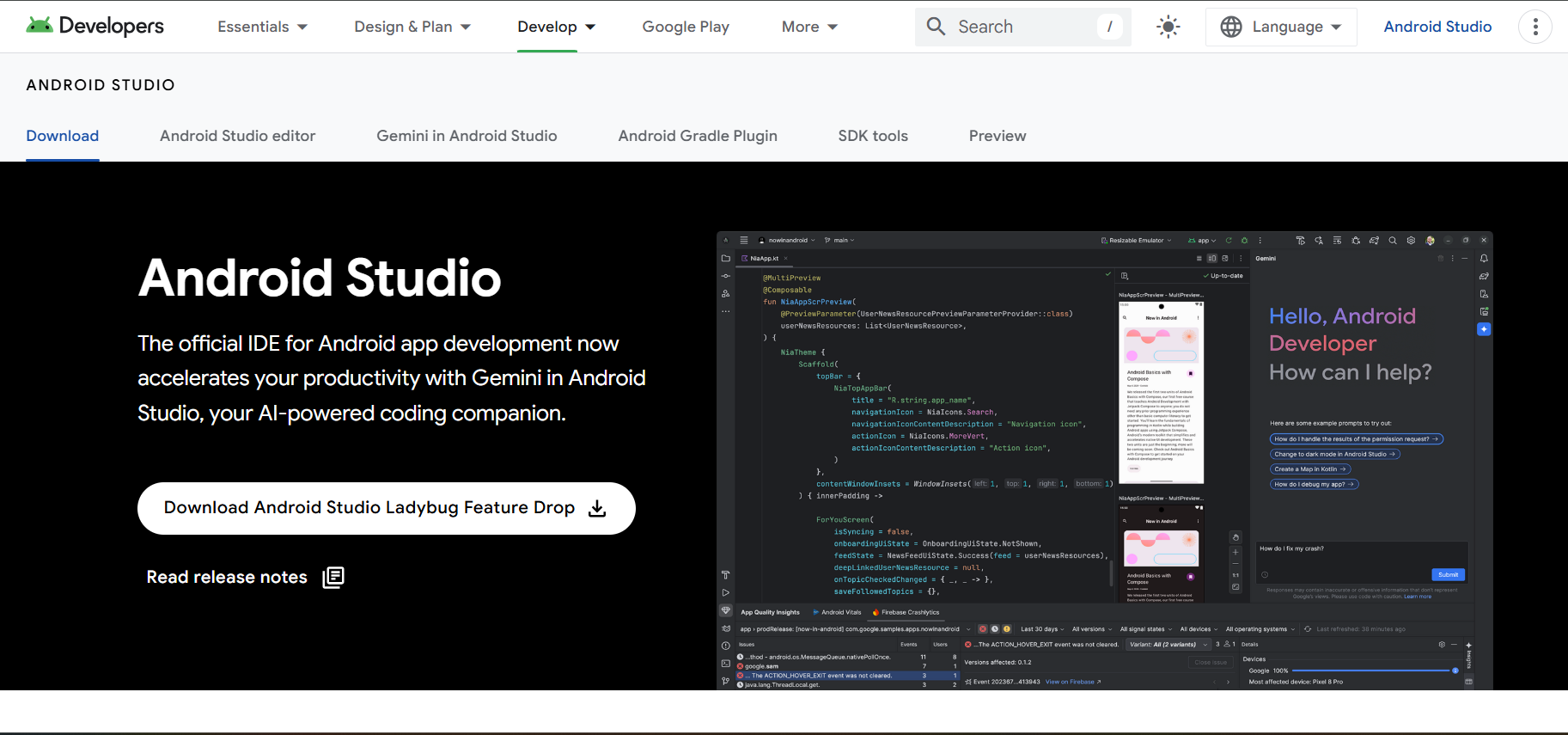
Android Studio is the official integrated development environment (IDE) for Android app development and testing. It is a powerful and feature-rich software tool provided by Google, designed specifically for creating Android applications. Android Studio offers a comprehensive set of development tools, a code editor, debugging capabilities, and various resources to streamline the app development process. It also includes an Android emulator that allows developers to run and test their apps on virtual Android devices with various screen sizes, Android versions, and hardware configurations. This open-source emulator is best suited for Android app development and testing rather than gaming. It is compatible with Windows, Linux, and Mac OS.
Android Studio includes AI features, mainly through Gemini, an AI-powered coding tool. Gemini helps with code generation, debugging, UI design, and development tasks. Android Studio also helps users build AI features into their apps, such as On-device AI (Gemini Nano) and Cloud AI (Gemini Pro/Flash & Imagen).
Pros and cons
Pros:
- Android Studio supports multiple languages
- It supports real-time performance profilers
- Android Studio comes with an integrated code editor
Cons:
- Android Studio has occasional slow performance
- Its system requirements are high.
NOX Player
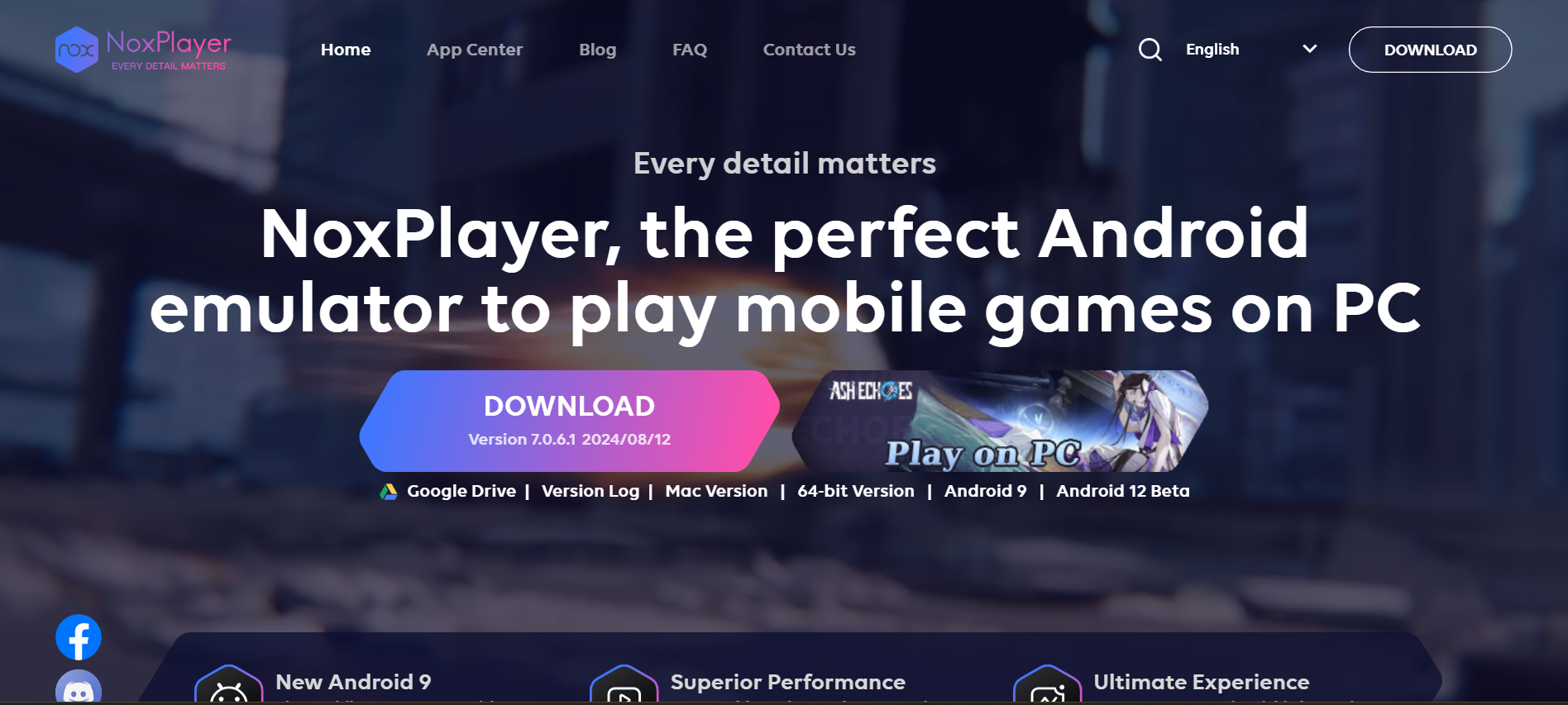
NOX Player is a popular open-source Android emulator for Windows and Mac. NOX Player is primarily used for gaming, and it offers several features and benefits, like keyboard mapping, controller support, and the ability to run multiple instances simultaneously. However, it is known to strain the system and hence cause lag when too many windows are open simultaneously.
NoxPlayer does not offer built-in AI features as part of its core emulator functionality. However, it can be used to download and run various AI-powered Android applications from the Google Play Store on a PC, such as AI chatbots, AI photo and video editors, and AI language learning tools.
Pros and cons
Pros:
- The emulator offers high FPS support
- It provides custom keyboard mapping
- NOX Player provides multi-instance capability
Cons:
- It has compatibility issues with some games
- NOX Player has high CPU usage
BlueStacks
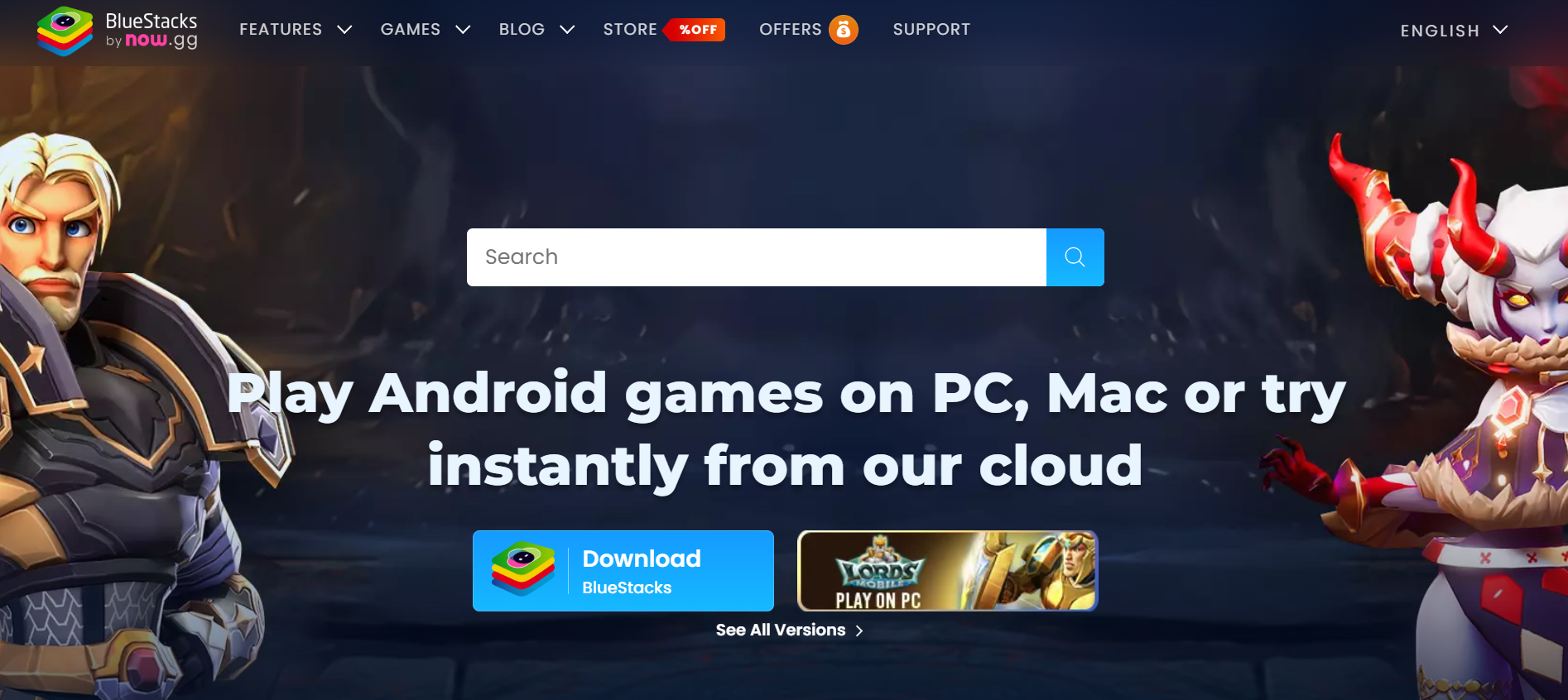
A long-time market contender, BlueStacks is one of the most popular Android emulators for running apps or playing games on Windows and Mac. While BlueStacks can run any Android app, it is particularly popular among gamers. It offers features like keyboard mapping, gamepad support, and the ability to run multiple instances of the emulator for multitasking or playing multiple games simultaneously. It is known for its stability, performance, and lightweight implementation. BlueStacks offers both a free version and a premium version (BlueStacks Premium) with additional features, such as priority technical support and ad removal.
It integrates AI through built-in tools like AI Highlights for generating game clips, various AI Keyboard assistants for writing/translation/grammar, and integrations with AI chatbots such as GPT-4o and Gemini. AI features are primarily used for research, summarization, and code generation, all while running Android apps on a PC for enhanced productivity and gaming.
Pros and cons
Pros:
- BlueStacks offers a real-time translation feature
- It provides a wide game compatibility
- The installation process for the BlueStacks emulator is easy.
Cons:
- The customer support provided is limited.
- There are occasional performance lags reported.
MEmu
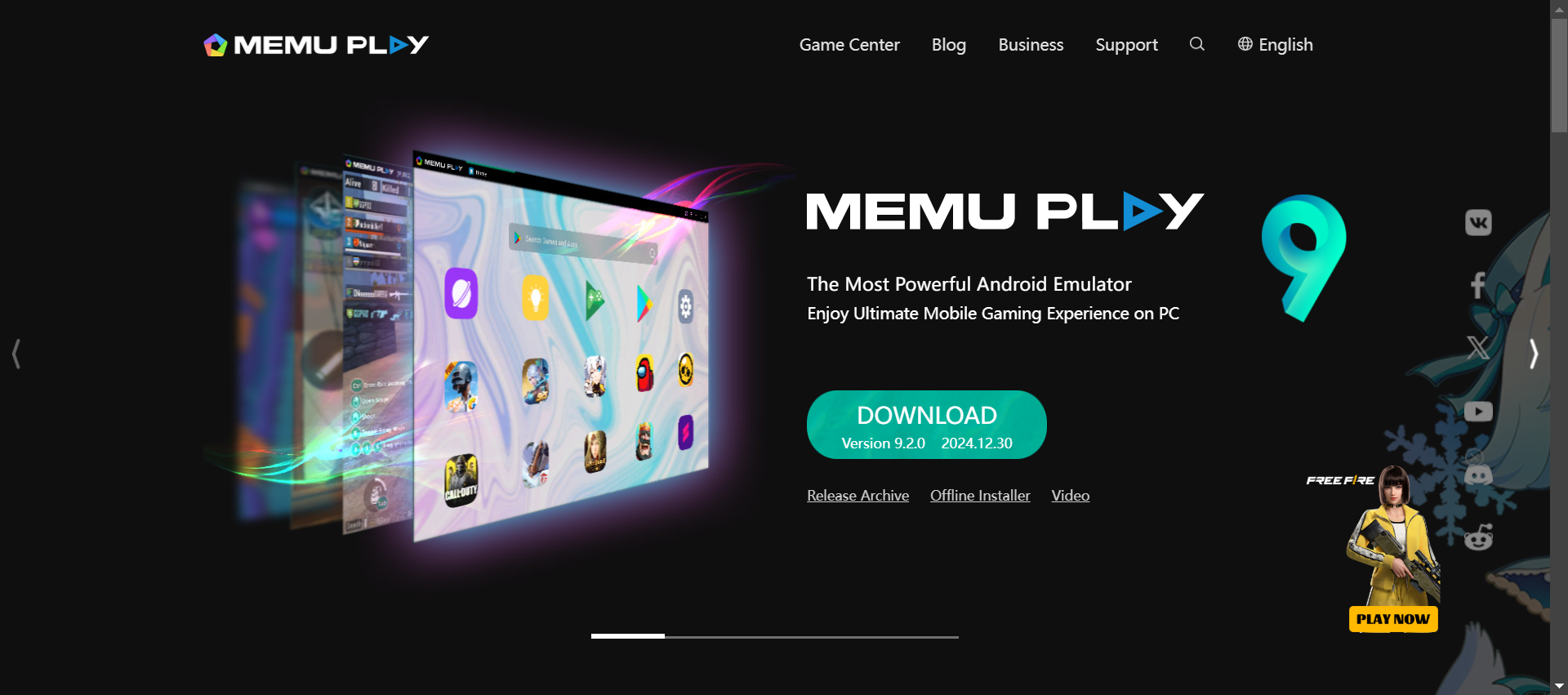
MEmu is another popular Android emulator, similar to BlueStacks and NoxPlayer, that allows users to run Android apps and games on their Windows PC. MEmu is known for its performance, compatibility, and user-friendly interface. One of its popular features is its support for AMD and Nvidia graphics cards and different versions of Android like Jelly Bean, Kit Kat, and Lollipop. MEmu supports cloud synchronization, allowing users to sync app data and game progress across different MEmu instances or devices. It is available in both a free version and a premium version with additional features, including priority customer support.
Pros and cons
Pros:
- MEmu has customizable keyboard controls
- It supports multiple Android versions
- MEmu has a wide app compatibility
Cons:
- The emulator has compatibility issues with some apps
- It requires frequent updates
Genymotion
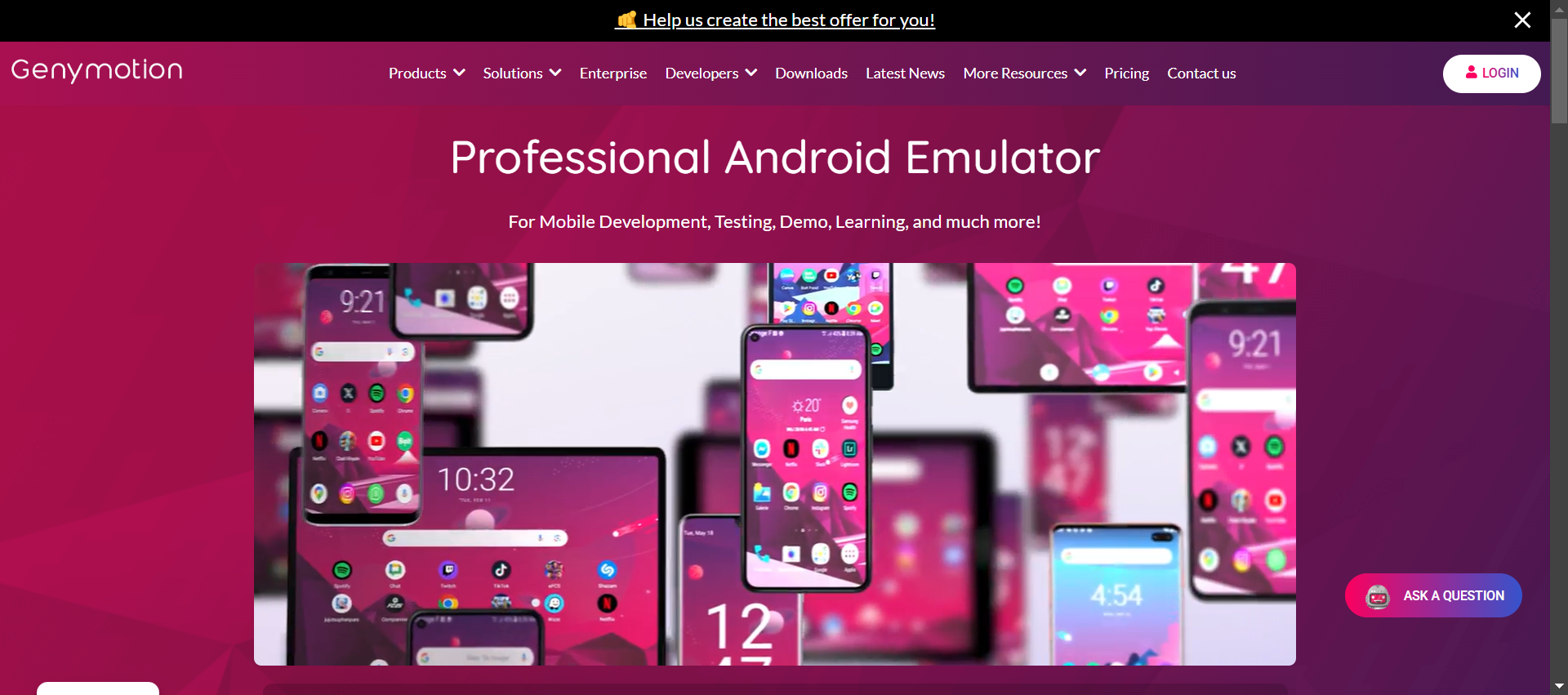
Genymotion is an advanced Android emulator known for its flexibility, powerful features, and performance, making it a popular choice for testing and developing Android applications. It stands out for its focus on providing a virtualized Android environment for various testing scenarios. Genymotion seamlessly integrates with Android Studio and supports a wide range of Android versions, allowing users to create and manage virtual Android devices with different configurations, including various Android versions, screen sizes, and hardware characteristics. It is also compatible with many testing frameworks like Espresso, Appium, and Robotium. They offer various paid plans that include different features.
Genymotion’s AI capabilities are centered on intelligent test automation. It uses AI for faster, scalable Android testing through its Device Image solution{Genymotion Device Image solution} and partnerships (like FlintLab{FlintLab}), enabling AI-driven workflows, predictive analytics, unified device management, and seamless integration with CI/CD pipelines for large-scale, cost-effective testing on cloud and local devices. Key AI-adjacent capabilities like unified control planes, API access for automation, and telemetry for quality insights are also offered that complement its core strengths in fast emulation and sensor simulation.
Pros and cons
Pros:
- Genymption offers customizable device configurations
- It supports multiple Android versions
- This emulator provides a scalable testing environment
Cons:
- The pay-per-minute pricing model for the emulator is discouraging.
- It can be resource-intensive
LDPlayer
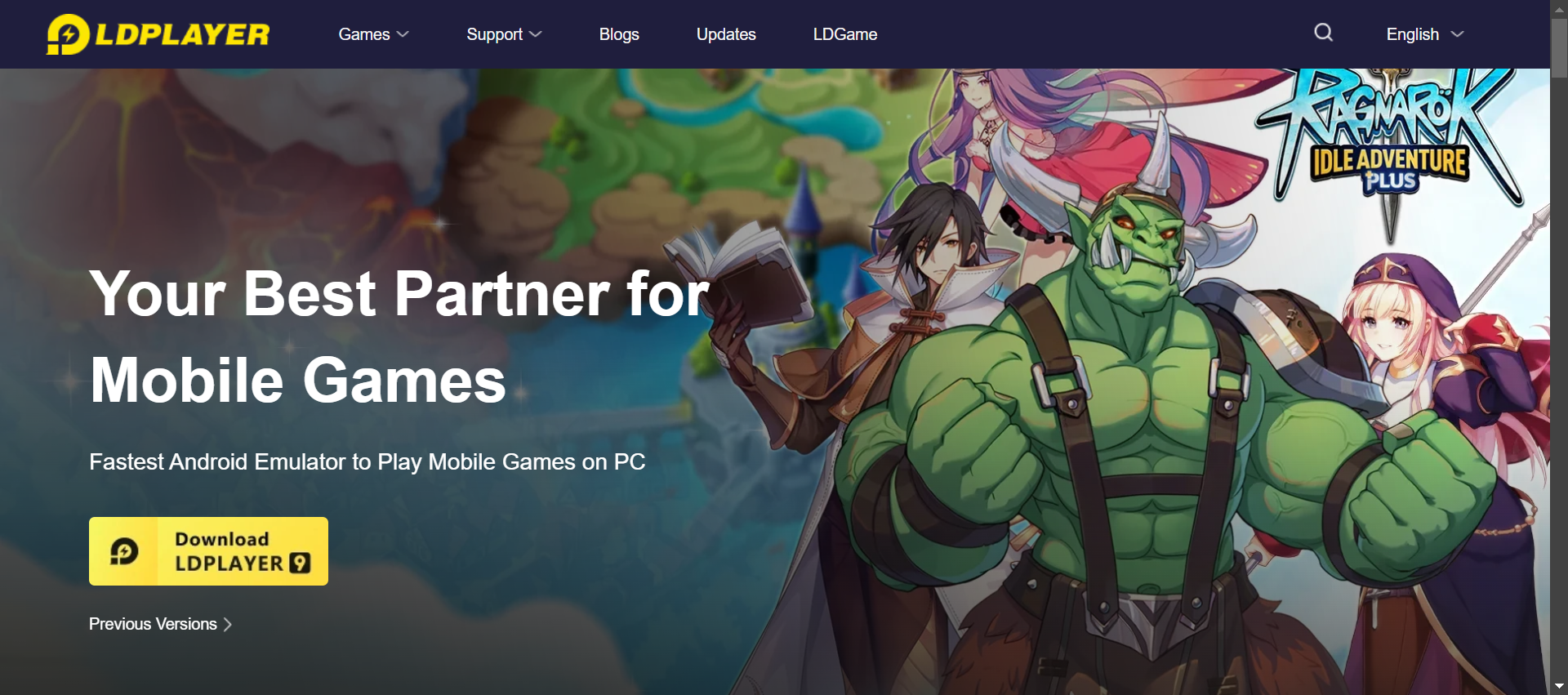
LDPlayer is an open-source Android emulator that allows users to run Android games and apps on Windows computers, offering features and optimizations geared towards gaming performance. Most of the high-performing emulators are better suited for high-end devices. However, LDPlayer is able to offer flexibility even to low-end devices. Like the other emulators, LDPlayer also includes a multi-instance sync feature that enables users to create and manage multiple virtual Android devices. It is compatible with various Windows OS versions and is regularly updated to support the latest Android versions.
This tool does not have built-in, proprietary AI features that enhance its core emulator functionality. However, it can download and run various third-party Android AI applications on a Windows computer.
Pros and cons
Pros:
- LDPlayer has broad game compatibility
- It provides regular performance updates
- The emulator offers a multi-instance feature
Cons:
- LDPlayer lacks advanced settings
- It offers limited customer support
Bliss OS
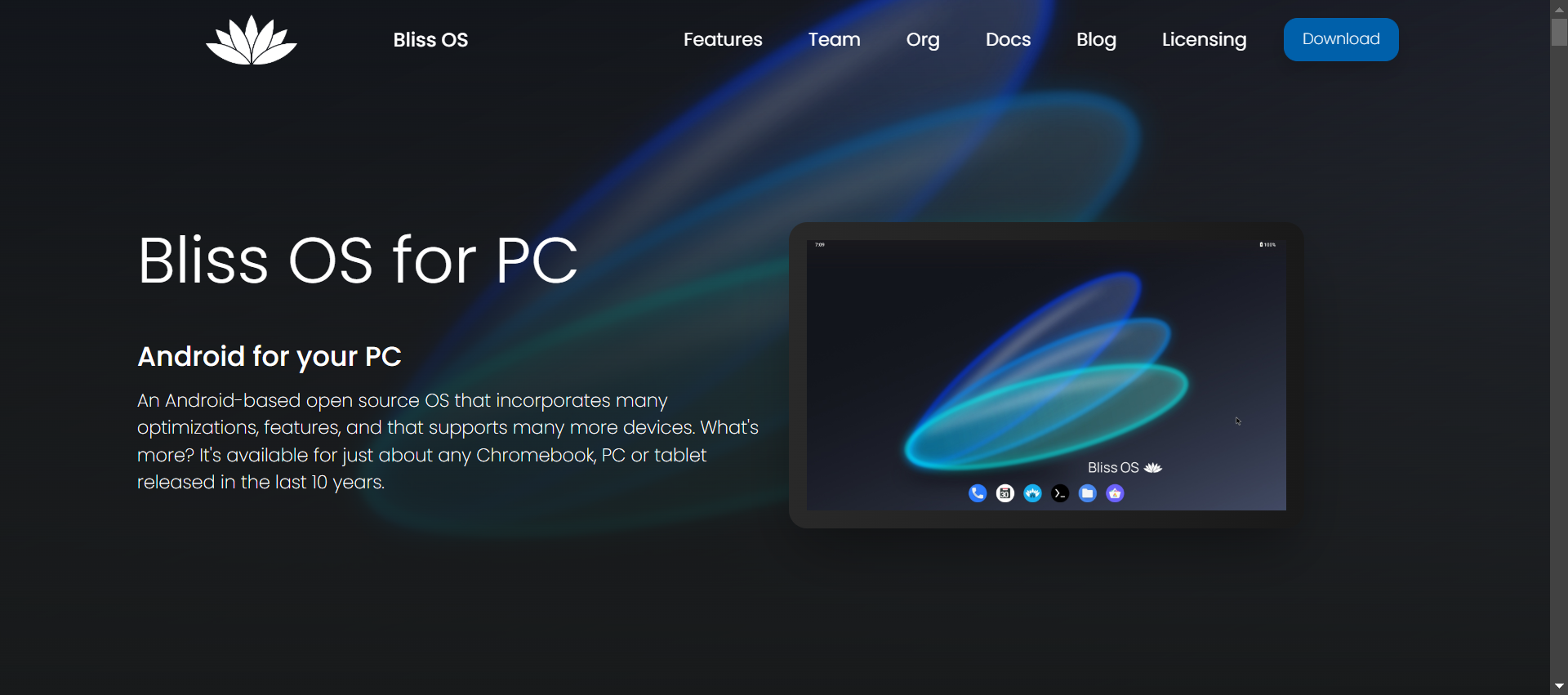
This is not your traditional emulator. Bliss OS is an open-source OS based on the Android Open Source Project (AOSP) that is designed to run on personal computers. In essence, Bliss OS allows users to transform their computers into Android-based systems. Bliss OS supports multi-boot setups, meaning you can install it alongside other operating systems like Windows or Linux on the same computer. This allows users to choose which OS to run at startup. Bliss OS offers a high degree of customization, allowing users to tailor the Android experience to their preferences. Users can install and remove apps, customize the user interface, and adjust settings just like on a regular Android device.
Pros and cons
Pros:
- Bliss OS focuses on speed and stability
- It emphasizes customization and theming options
- This emulator offers a complete Android-based operating system
Cons:
- There are compatibility issues with certain hardware
- Bliss OS may require technical knowledge for installation
GameLoop
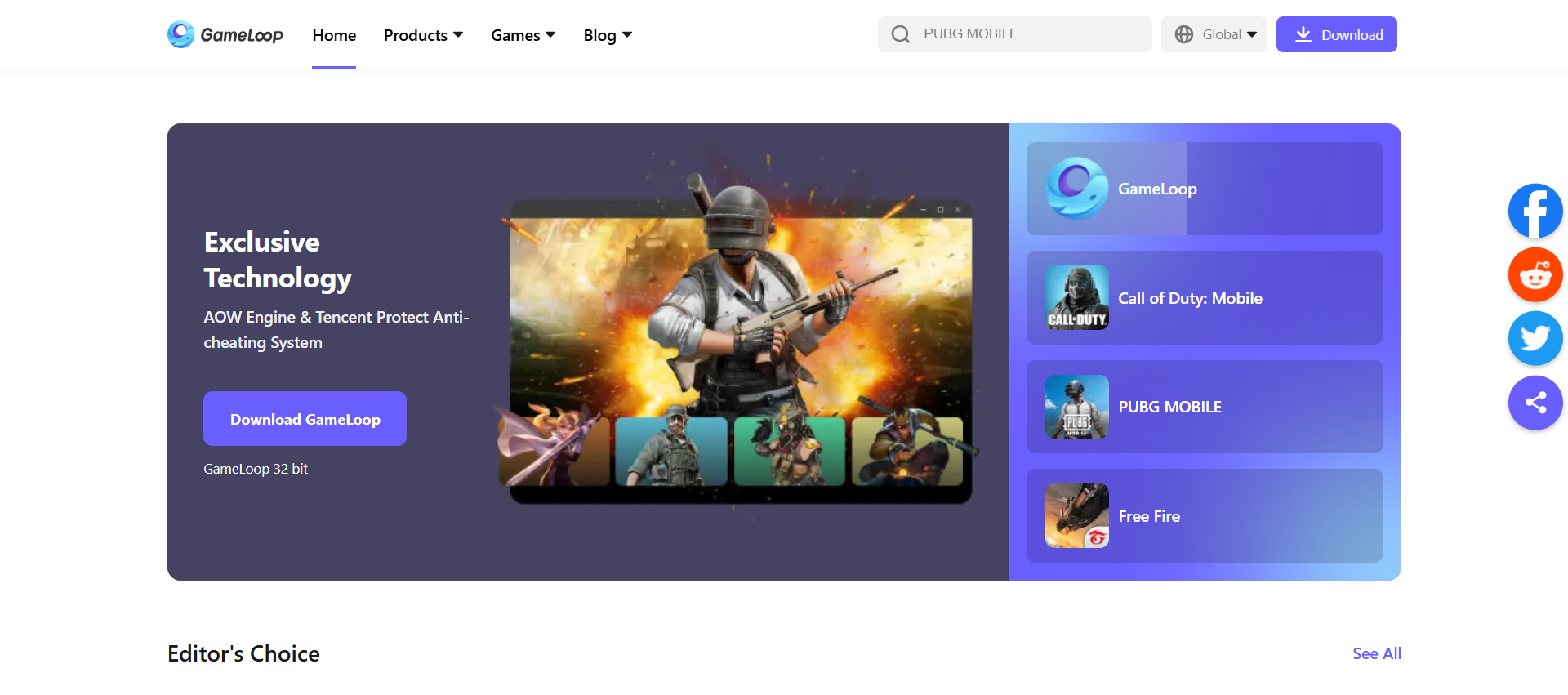
GameLoop is a free, Windows-based Android emulator developed by Tencent, one of the largest gaming companies in the world. It was initially known as Tencent Gaming Buddy and was specifically developed for playing Tencent’s popular battle royale game, PUBG Mobile, on PCs. It is primarily designed for gaming and allows users to play Android games on their Windows computers. Over time, it evolved into a more general-purpose Android emulator for gaming. It offers high performance, customizable keyboard and mouse controls, multi-instance support, multi-language support, and regular updates.
GameLoop does not have built-in, universal AI features but it serves as a platform to run a variety of AI-powered Android apps, which offer features such as AI chatbots, photo editing, image generation, and content creation.
Pros and cons
Pros:
- GameLoop emulator is built by Tencent for their games (like PUBG Mobile, Call of Duty Mobile), offering good performance and stability for those titles.
- It offers a simple interface with automatic keymapping for supported games, making it beginner-friendly.
- GameLoop emulator can run smoothly, even on lower-end PCs, with features like network acceleration.
Cons:
- The GameLoop emulator focuses heavily on specific titles, which can lead to performance degradation for non-supported apps or games.
- Users report bugs, freezes, and FPS drops, especially after updates, even on strong PCs.
- It lacks full access to the Google Play Store and multi-instance support compared to other emulators.
Prime OS
Like Bliss OS, this is another open-source option for those who prefer booting the Android OS on their PCs. It aims to provide users with a desktop-like Android experience, making it possible to use Android apps and games on larger screens with traditional input methods like keyboard and mouse. You can open multiple Android apps in resizable windows, similar to how Windows operates on traditional desktop operating systems. There are various customization options, including the ability to change wallpapers, themes, and system settings. It can be installed on a PC in various ways, including as a standalone operating system, alongside existing operating systems in a multi-boot setup, or even as a live USB system for temporary usage.
PrimeOS, particularly on Primebook laptops, integrates AI through features like a Contextual AI Companion powered by Gemini, offering innovative suggestions and help within the OS. It also features an AI-Powered Global Search for quick information retrieval, as well as unique tools like PrimeCoding for offline learning. This enhances productivity for students and creators with features such as keymapping for Android games and seamless cloud PC access for Windows apps.
Pros and Cons
Pros:
- The Prime OS is designed to resemble Windows, featuring resizable windows, a taskbar, and shortcuts, making it ideal for productivity.
- It includes built-in keymapping for keyboard/mouse, offering an advantage in mobile games like Free Fire.
- Prime OS consumes less RAM and is suitable for older, less powerful computers.
Cons:
- There are frequent app crashes, force closes, and general instability, especially with newer Android versions (Android 11), reported for the Prime OS emulator.
- Many apps, such as banking services, Snapchat, and games like BGMI and CoD, don’t work due to x86 incompatibility or SafetyNet failures.
- It may contain outdated Android security patches, making it vulnerable to sensitive tasks.
Built-in Android Emulator Support for App Testing
The above list gives you many options to choose from if you simply want to run Android apps and games on your PC. However, if you are more inclined to do thorough testing of your Android apps, then relying on manual testing through these emulators will not suffice.
You can optimize your testing endeavors by opting for an intelligent testing tool that supports mobile testing.
testRigor for Mobile Testing
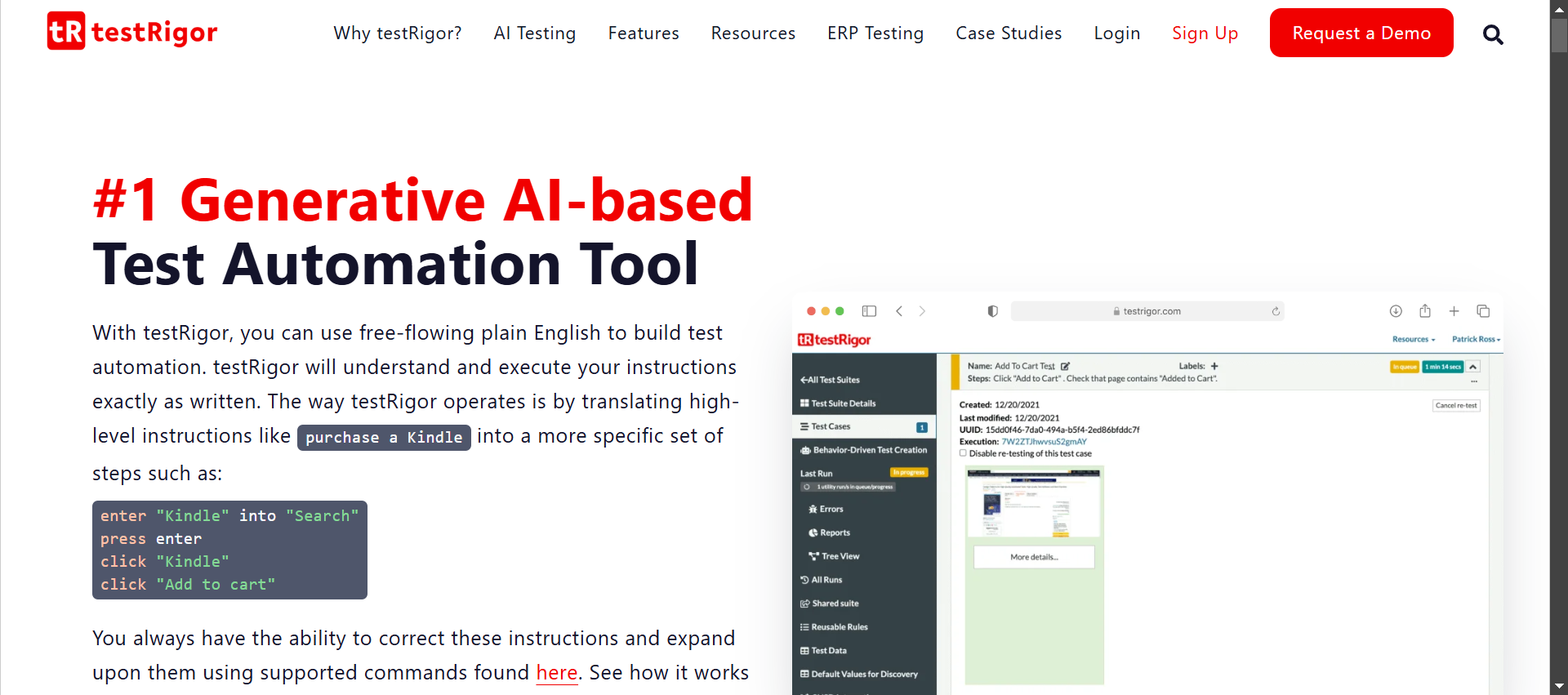
testRigor is a holistic solution to mobile testing (Android and iOS apps). It will not only give you the Android emulator environment to test in, but also let you automate a variety of test scenarios and cases. You can easily automate the testing of web, mobile (hybrid, native), API, and desktop apps , mainframe, Flutter apps, and AI features.
Let’s see how testRigor makes this process easy.
- Does not depend on installations/configurations: testRigor does not bother you with complex setups and configurations to be compatible with the underlying code. It is cloud-based and supports end-to-end, functional, system, and UI-based testing. You can get started directly by registering for your account.
- Easy test creation for everyone: Writing tests and interacting with UI elements through test cases is straightforward, thanks to testRigor’s use of generative AI. Use plain English commands, making it ideal for everyone to understand and collaborate on. Moreover, there is no need to find implementation details of complex UI elements visible on the screen because testRigor does not ask you to mention XPaths or CSS tags. All you need to do is mention how the element appears to you on the screen and leave it to testRigor to use Vision AI, NLP, AI Context to find what you are looking for. Read: All-Inclusive Guide to Test Case Creation in testRigor.
- Fast and stable test execution: testRigor uses AI to improve test stability and scalability further to ensure that you get the most stable and accurate test results.
- Easy to use and clean UI: Most often, you will find testers and even developers struggling to learn the finer points, like scripting language, commands, and system capabilities of an automation framework. With testRigor, this learning is effortless. It has a simplistic UI and elaborate documentation to assist with this.
- All-in-one with testRigor’s supported integrations: You can expand your testing activities by integrating with frameworks and tools that provide device farms, offer CI/CD capabilities, and perform issue and requirement tracking.
- Negligible test maintenance: Due to testRigor’s use of AI to make test creation and execution as painless as possible, test maintenance, which sticks out like a sore thumb for automation testers, is drastically reduced. Read: Decrease Test Maintenance Time by 99.5% with testRigor.
Take a look at this guide on How to automate Android testing with testRigor?
Conclusion
Android emulators are the way ahead for anyone who wants to use Android apps on a larger screen, either for development, testing, gaming, or general day-to-day activities. They offer a great way to get that Android device experience on a PC in a cost-effective manner. In fact, Windows 11 has started supporting installation and running Android apps natively, eliminating the need to install a separate emulator for this task.
Manually testing a mobile app, that too across various devices, may not be feasible, even with an Android emulator. This is when you should employ automation testing by using powerful test automation tools like testRigor to get that testing efficiency and not rely solely on manual testing.
Additional Resources
- How to compile for Android Emulator
- Viewing Desktop Websites on an Android Device: How To
- Using Free Android Emulator to Test Apps and Websites
- A guide to using APK files on iOS devices
- Choosing the Best Mobile Testing Option: Real Devices vs. Emulators
| Achieve More Than 90% Test Automation | |
| Step by Step Walkthroughs and Help | |
| 14 Day Free Trial, Cancel Anytime |